The demo connector is a sample application for partner telephony systems that integrate with Salesforce Voice. It demonstrates an optimal Voice implementation based on a group of telephony API mocks. It also includes a voice call simulation tool to test call actions such as making and answering calls and using phone controls.
Use the demo connector as a reference when developing your custom integration code. Salesforce provides support for features in the demo connector, but we can’t debug or troubleshoot custom connector code.
Important
Start the Demo Connector
The byo-demo-connector is provided as part of the Demo Connector in GitHub.
Clone the git repo, and install the NPM dependencies.
1$ git clone git@github.com:salesforce-misc/byo-demo-connector.git2$ cd byo-demo-connector3$ npm install
By default, the web server runs in SSL on port 8080. The adapterUrl in your contact center points to this web server (for example, https://www.myTelephonyDemo.com:8080).
The previous command also starts the Salesforce Voice REST APIs connector on default port 3030. It’s used for creating voice calls, transcription, and recording.
You can run them on separate terminals using these commands.
1$ npm run client2$ npm run server
Verify That the Connector Is Loaded
Test that the connector is working.
The byo-demo-connector app uses a self-signed certificate, so get your web browser to accept a self-signed certificate.
Open the byo-demo-connector app URL (for example, https://serverURL:8080/remote.html) in a separate tab.
Click through any warnings for untrusted certificates.
Log in to Salesforce as one of the users in the contact center.
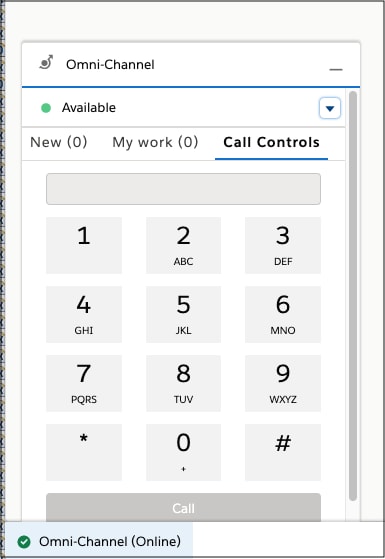
Log in to the Omni-Channel utility and change the rep status to Available.
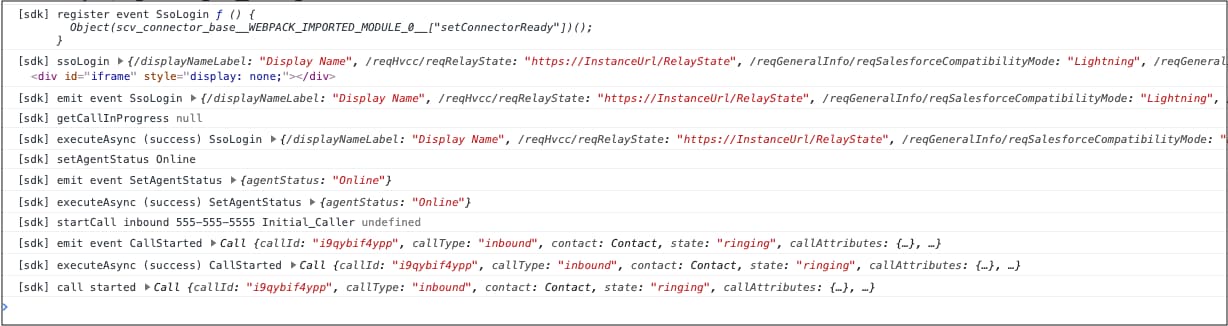
Open the Browser Debugger and make sure that you see messages from the connector. The messages start with [sdk] or [connector].
Demo Connector Storage
In version Summer ’26 and later, the demo connector uses a server-side storage architecture instead of browser localStorage.
Architecture components:
RemoteStorage Class: Abstraction layer for storage operations
REST API endpoints: GET/POST /api/users/{username}/{storageKey}
Context-Based Storage: Data scoped per username
Asynchronous operations: All storage methods return promises
Storage keys:
activeCalls: Active phone calls
agentConfig: Rep phone configuration such as softphone and desk phone selection
capabilities: Rep capabilities such as mute, record, merge
contactTypes: Available contact types for add participant
callInfo: Current call information
The demo connector uses in-memory storage that resets at server restart. For production implementations, use persistent storage.
Important
Use these curl commands to debug and locally test the demo connector. The commands query the in-memory storage for development purposes. Don’t use these API patterns in your production connector implementation.
Query storage with a REST API, where {username} is in the format john.doe@example.com:
1# Get active calls for a user2curl http://localhost:8080/api/users/{username}/activeCalls34# Get rep configuration5curl http://localhost:8080/api/users/{username}/agentConfig67# Get capabilities8curl http://localhost:8080/api/users/{username}/capabilities
Store data with a REST API:
1# Set agent configuration2curl -X POST http://localhost:8080/api/users/{username}/agentConfig \3 -H "Content-Type: application/json" \4 -d '{"phones":["SOFT_PHONE","DESK_PHONE"],"selectedPhone":{"type":"SOFT_PHONE"}}'
To migrate to version Summer ’26 and later, update how you’re handling storage. If you’ve customized the demo connector code for your own custom connector implementation, check your integration and make these updates.
All storage operations are async (use await).
Methods like getActiveCallsObj() and handleSocketMessage() are async.
Replace localStorage calls with remoteStorage.getItem() and remoteStorage.setItem().
Debug the Demo Connector
In version Summer ’26 and later, use a REST API to debug the demo connector.


 j
j