Before you can create a scratch org, authorize your Dev Hub org. Running this command opens a browser to the Salesforce login page. Enter your Dev Hub username and password. Authorize your Dev Hub only the first time you work on a project.
In VS Code, press Command + Shift P, enter sfdx, and select SFDX: Authorize a Dev Hub.
You can also run this command from the command line.
1sf org login web
Create a Default Scratch Org
In VS Code, press Command + Shift P, enter sfdx, and select SFDX: Create a Default Scratch Org. Accept the default values.
You can also run this command from the command line.
1sf org create scratch -s -f config/project-scratch-def.json -a "lwchelloworld"
Create a Lightning Web Component
Create Lightning web components in the force-app/main/default/lwc folder.
In VS Code, press Command + Shift P, enter sfdx, and select SFDX: Create Lightning Web Component. For desired directory, accept the default. For filename, enter helloWorld.
You can also run this command from the command line.
The {} syntax binds the name property in the HTML template to the name property in the JavaScript class. The other markup gives the text some padding and wraps it in the lightning-card base component to make it look better.
Configure the Component for Lightning App Builder
Configure the helloWorld component for Lightning App Builder so that we can add it to a Lightning page in our scratch org.
Open helloWorld.js-meta.xml and add the code in bold. To use the component in Lightning App Builder, set <isExposed> to true. The <target> lets us add the component to an app page. The <targetConfigs> section lets us set the component’s name property in Lightning App Builder.
1<?xml version="1.0" encoding="UTF-8"?>2<LightningComponentBundle xmlns="http://soap.sforce.com/2006/04/metadata" fqn="anotherComponent">3 <apiVersion>45.0</apiVersion>4 <isExposed>true</isExposed>5 <masterLabel>Hello World</masterLabel>6 <description>Add a classic greeting to any page.</description>7 <targets>8 <target>lightning__AppPage</target>9 </targets>10 <targetConfigs>11 <targetConfig targets="lightning__AppPage">12 <property name="name" type="String" label="Name" placeholder="World" description="Enter the name of the person to greet."/>13 </targetConfig>14 </targetConfigs>15</LightningComponentBundle>
You can also add targets for the Lightning Experience home page, record pages, and Experience Builder.
Push Source to the Scratch Org
In VS Code, press Command + Shift P, enter sfdx, and select SFDX: Push Source to Default Scratch Org.
You can also run this command from the command line.
1sf project deploy start
Open the Scratch Org
In VS Code, press Command + Shift P, enter sfdx, and select SFDX: Open Default Scratch Org.
You can also run this command from the command line.
1sf org open
Add the Component to a Lightning Page
In the scratch org, in Setup, enter bui and click Lightning App Builder.
To create a Lightning page, click New.
Select App Page and click Next.
Enter the label Hello World.
Select Three Regions and click Finish.
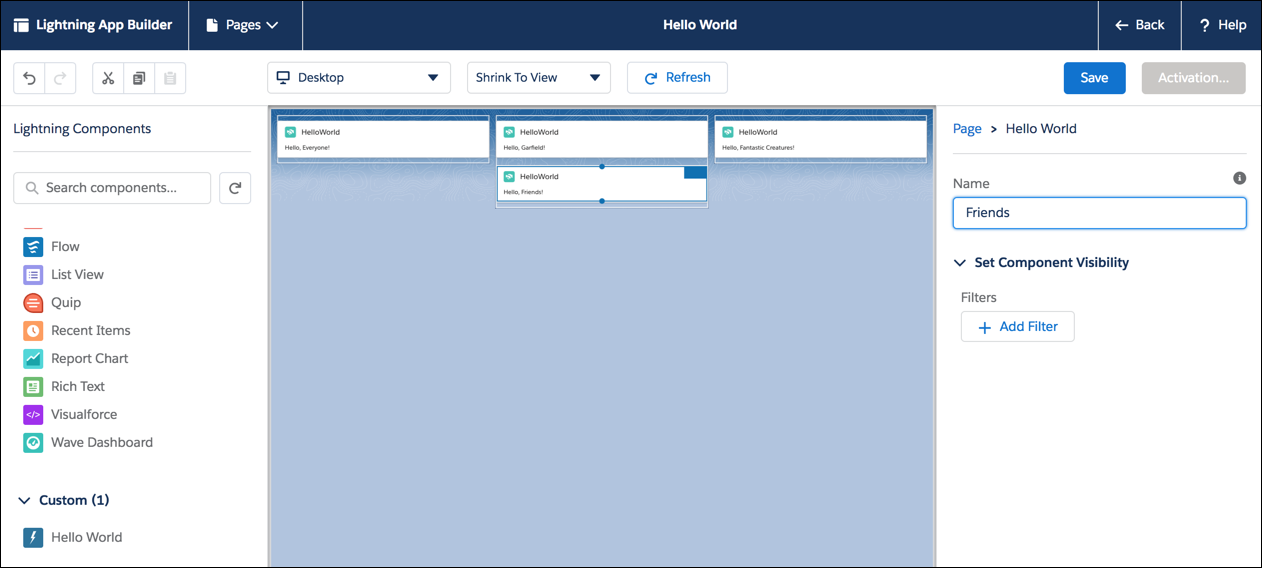
Drag the Hello World component from the Custom list of components to a region on the page.
Select the component and enter a Name.
Drag more Hello World components to the page, and set a different name for each component.
When your page is complete, click Save and Activate.
On the Activation page, select an icon, then click Lightning Experience, and add the page to the Lightning Bolt app. Click Save.
To exit Lightning App Builder, click Back.
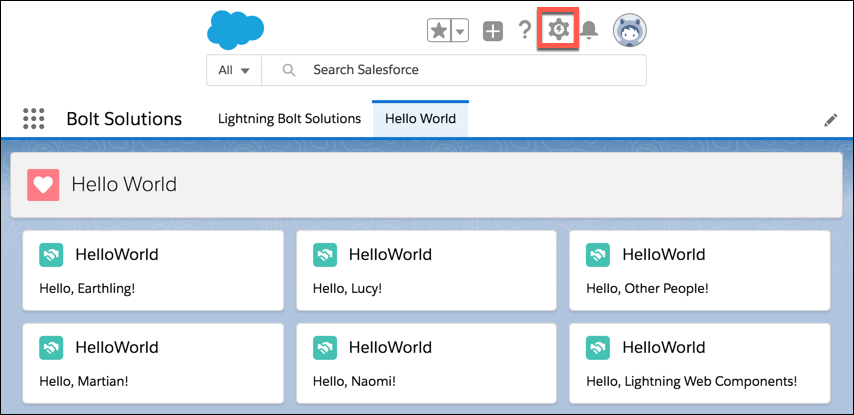
From the App Picker, click Bolt Solutions.
Click the Hello World tab to see your page and all its greetings.
To return to Lightning App Builder to edit the page, click the gear and select Edit Page.
When you edit code, push it to the scratch org and hard refresh the browser.


 j
j