1import React, {Fragment, useCallback, useEffect, useState} from 'react'
2import PropTypes from 'prop-types'
3import {Helmet} from 'react-helmet'
4import {FormattedMessage, useIntl} from 'react-intl'
5// This is line 5. Import your banner.
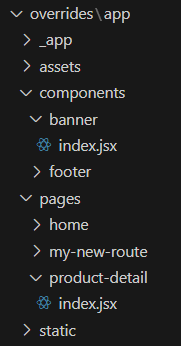
6import BannerWithImage from '../../components/banner'
7
8// Components
9import {Box, Button, Stack} from '@salesforce/retail-react-app/app/components/shared/ui'
10import {
11  useProduct,
12  useCategory,
13  useShopperBasketsMutation,
14  useShopperCustomersMutation,
15  useCustomerId
16} from '@salesforce/commerce-sdk-react'
17
18// Hooks
19import {useCurrentBasket} from '@salesforce/retail-react-app/app/hooks/use-current-basket'
20import {useVariant} from '@salesforce/retail-react-app/app/hooks'
21import useNavigation from '@salesforce/retail-react-app/app/hooks/use-navigation'
22import useEinstein from '@salesforce/retail-react-app/app/hooks/use-einstein'
23import useActiveData from '@salesforce/retail-react-app/app/hooks/use-active-data'
24import {useServerContext} from '@salesforce/pwa-kit-react-sdk/ssr/universal/hooks'
25// Project Components
26import RecommendedProducts from '@salesforce/retail-react-app/app/components/recommended-products'
27import ProductView from '@salesforce/retail-react-app/app/components/product-view'
28import InformationAccordion from '@salesforce/retail-react-app/app/pages/product-detail/partials/information-accordion'
29
30import {HTTPNotFound, HTTPError} from '@salesforce/pwa-kit-react-sdk/ssr/universal/errors'
31
32// constant
33import {
34  API_ERROR_MESSAGE,
35  EINSTEIN_RECOMMENDERS,
36  MAX_CACHE_AGE,
37  TOAST_ACTION_VIEW_WISHLIST,
38  TOAST_MESSAGE_ADDED_TO_WISHLIST,
39  TOAST_MESSAGE_ALREADY_IN_WISHLIST
40} from '@salesforce/retail-react-app/app/constants'
41import {rebuildPathWithParams} from '@salesforce/retail-react-app/app/utils/url'
42import {useHistory, useLocation, useParams} from 'react-router-dom'
43import {useToast} from '@salesforce/retail-react-app/app/hooks/use-toast'
44import {useWishList} from '@salesforce/retail-react-app/app/hooks/use-wish-list'
45
46const ProductDetail = () => {
47  const {formatMessage} = useIntl()
48  const history = useHistory()
49  const location = useLocation()
50  const einstein = useEinstein()
51  const activeData = useActiveData()
52  const toast = useToast()
53  const navigate = useNavigation()
54  const [productSetSelection, setProductSetSelection] = useState({})
55  const childProductRefs = React.useRef({})
56  const customerId = useCustomerId()
57  /****************************** Basket *********************************/
58  const {data: basket} = useCurrentBasket()
59  const addItemToBasketMutation = useShopperBasketsMutation('addItemToBasket')
60  const {res} = useServerContext()
61  if (res) {
62    res.set('Cache-Control', `s-maxage=${MAX_CACHE_AGE}`)
63  }
64  const isBasketLoading = !basket?.basketId
65
66  /*************************** Product Detail and Category ********************/
67  const {productId} = useParams()
68  const urlParams = new URLSearchParams(location.search)
69  const {
70    data: product,
71    isLoading: isProductLoading,
72    isError: isProductError,
73    error: productError
74  } = useProduct(
75    {
76      parameters: {
77        id: urlParams.get('pid') || productId,
78        allImages: true
79      }
80    },
81    {
82      // When shoppers select a different variant (and the app fetches the new data),
83      // the old data is still rendered (and not the skeletons).
84      keepPreviousData: true
85    }
86  )
87
88  // Note: Since category needs id from product detail, it can't be server side rendered atm
89  // until we can do dependent query on server
90  const {data: category, isError: isCategoryError, error: categoryError} = useCategory({
91    parameters: {
92      id: product?.primaryCategoryId,
93      levels: 1
94    }
95  })
96
97  /**************** Error Handling ****************/
98
99  if (isProductError) {
100    const errorStatus = productError?.response?.status
101    switch (errorStatus) {
102      case 404:
103        throw new HTTPNotFound('Product Not Found.')
104      default:
105        throw new HTTPError(`HTTP Error ${errorStatus} occurred.`)
106    }
107  }
108  if (isCategoryError) {
109    const errorStatus = categoryError?.response?.status
110    switch (errorStatus) {
111      case 404:
112        throw new HTTPNotFound('Category Not Found.')
113      default:
114        throw new HTTPError(`HTTP Error ${errorStatus} occurred.`)
115    }
116  }
117
118  const isProductASet = product?.type.set
119
120  const [primaryCategory, setPrimaryCategory] = useState(category)
121  const variant = useVariant(product)
122  // This page uses the `primaryCategoryId` to retrieve the category data. This attribute
123  // is only available on `master` products. Since a variation will be loaded once all the
124  // attributes are selected (to get the correct inventory values), the category information
125  // is overridden. This will allow us to keep the initial category around until a different
126  // master product is loaded.
127  useEffect(() => {
128    if (category) {
129      setPrimaryCategory(category)
130    }
131  }, [category])
132
133  /**************** Product Variant ****************/
134  useEffect(() => {
135    if (!variant) {
136      return
137    }
138    // update the variation attributes parameter on
139    // the url accordingly as the variant changes
140    const updatedUrl = rebuildPathWithParams(`${location.pathname}${location.search}`, {
141      pid: variant?.productId
142    })
143    history.replace(updatedUrl)
144  }, [variant])
145
146  /**************** Wishlist ****************/
147  const {data: wishlist, isLoading: isWishlistLoading} = useWishList()
148  const createCustomerProductListItem = useShopperCustomersMutation('createCustomerProductListItem')
149
150  const handleAddToWishlist = (product, variant, quantity) => {
151    const isItemInWishlist = wishlist?.customerProductListItems?.find(
152      (i) => i.productId === variant?.productId || i.productId === product?.id
153    )
154
155    if (!isItemInWishlist) {
156      createCustomerProductListItem.mutate(
157        {
158          parameters: {
159            listId: wishlist.id,
160            customerId
161          },
162          body: {
163            // NOTE: APi does not respect quantity, it always adds 1
164            quantity,
165            productId: variant?.productId || product?.id,
166            public: false,
167            priority: 1,
168            type: 'product'
169          }
170        },
171        {
172          onSuccess: () => {
173            toast({
174              title: formatMessage(TOAST_MESSAGE_ADDED_TO_WISHLIST, {
175                quantity: 1
176              }),
177              status: 'success',
178              action: (
179                // it would be better if we could use <Button as={Link}>
180                // but unfortunately the Link component is not compatible
181                // with Chakra Toast, since the ToastManager is rendered via portal
182                // and the toast doesn't have access to intl provider, which is a
183                // requirement of the Link component.
184                <Button variant="link" onClick={() => navigate('/account/wishlist')}>
185                  {formatMessage(TOAST_ACTION_VIEW_WISHLIST)}
186                </Button>
187              )
188            })
189          },
190          onError: () => {
191            showError()
192          }
193        }
194      )
195    } else {
196      toast({
197        title: formatMessage(TOAST_MESSAGE_ALREADY_IN_WISHLIST),
198        status: 'info',
199        action: (
200          <Button variant="link" onClick={() => navigate('/account/wishlist')}>
201            {formatMessage(TOAST_ACTION_VIEW_WISHLIST)}
202          </Button>
203        )
204      })
205    }
206  }
207
208  /**************** Add To Cart ****************/
209  const showToast = useToast()
210  const showError = () => {
211    showToast({
212      title: formatMessage(API_ERROR_MESSAGE),
213      status: 'error'
214    })
215  }
216
217  const handleAddToCart = async (productSelectionValues) => {
218    try {
219      const productItems = productSelectionValues.map(({variant, quantity}) => ({
220        productId: variant.productId,
221        price: variant.price,
222        quantity
223      }))
224
225      await addItemToBasketMutation.mutateAsync({
226        parameters: {basketId: basket.basketId},
227        body: productItems
228      })
229
230      einstein.sendAddToCart(productItems)
231
232      // If the items were successfully added, set the return value to be used
233      // by the add to cart modal.
234      return productSelectionValues
235    } catch (error) {
236      showError(error)
237    }
238  }
239
240  /**************** Product Set Handlers ****************/
241  const handleProductSetValidation = useCallback(() => {
242    // Run validation for all child products. This will ensure the error
243    // messages are shown.
244    Object.values(childProductRefs.current).forEach(({validateOrderability}) => {
245      validateOrderability({scrollErrorIntoView: false})
246    })
247
248    // Using ot state for which child products are selected, scroll to the first
249    // one that isn't selected.
250    const selectedProductIds = Object.keys(productSetSelection)
251    const firstUnselectedProduct = product.setProducts.find(
252      ({id}) => !selectedProductIds.includes(id)
253    )
254
255    if (firstUnselectedProduct) {
256      // Get the reference to the product view and scroll to it.
257      const {ref} = childProductRefs.current[firstUnselectedProduct.id]
258
259      if (ref.scrollIntoView) {
260        ref.scrollIntoView({
261          behavior: 'smooth',
262          block: 'end'
263        })
264      }
265
266      return false
267    }
268
269    return true
270  }, [product, productSetSelection])
271
272  const handleProductSetAddToCart = () => {
273    // Get all the selected products, and pass them to the addToCart handler which
274    // accepts an array.
275    const productSelectionValues = Object.values(productSetSelection)
276    return handleAddToCart(productSelectionValues)
277  }
278
279  /**************** Einstein ****************/
280  useEffect(() => {
281    if (product && product.type.set) {
282      einstein.sendViewProduct(product)
283      const childrenProducts = product.setProducts
284      childrenProducts.map((child) => {
285        try {
286          einstein.sendViewProduct(child)
287        } catch (err) {
288          console.error(err)
289        }
290        activeData.sendViewProduct(category, child, 'detail')
291      })
292    } else if (product) {
293      try {
294        einstein.sendViewProduct(product)
295      } catch (err) {
296        console.error(err)
297      }
298      activeData.sendViewProduct(category, product, 'detail')
299    }
300  }, [product])
301
302  return (
303    <Box className="sf-product-detail-page" layerStyle="page" data-testid="product-details-page">
304      <Helmet>
305        <title>{product?.pageTitle}</title>
306        <meta name="description" content={product?.pageDescription} />
307      </Helmet>
308
309      <Stack spacing={16}>
310        // This is line 333. Add the banner component to the page.
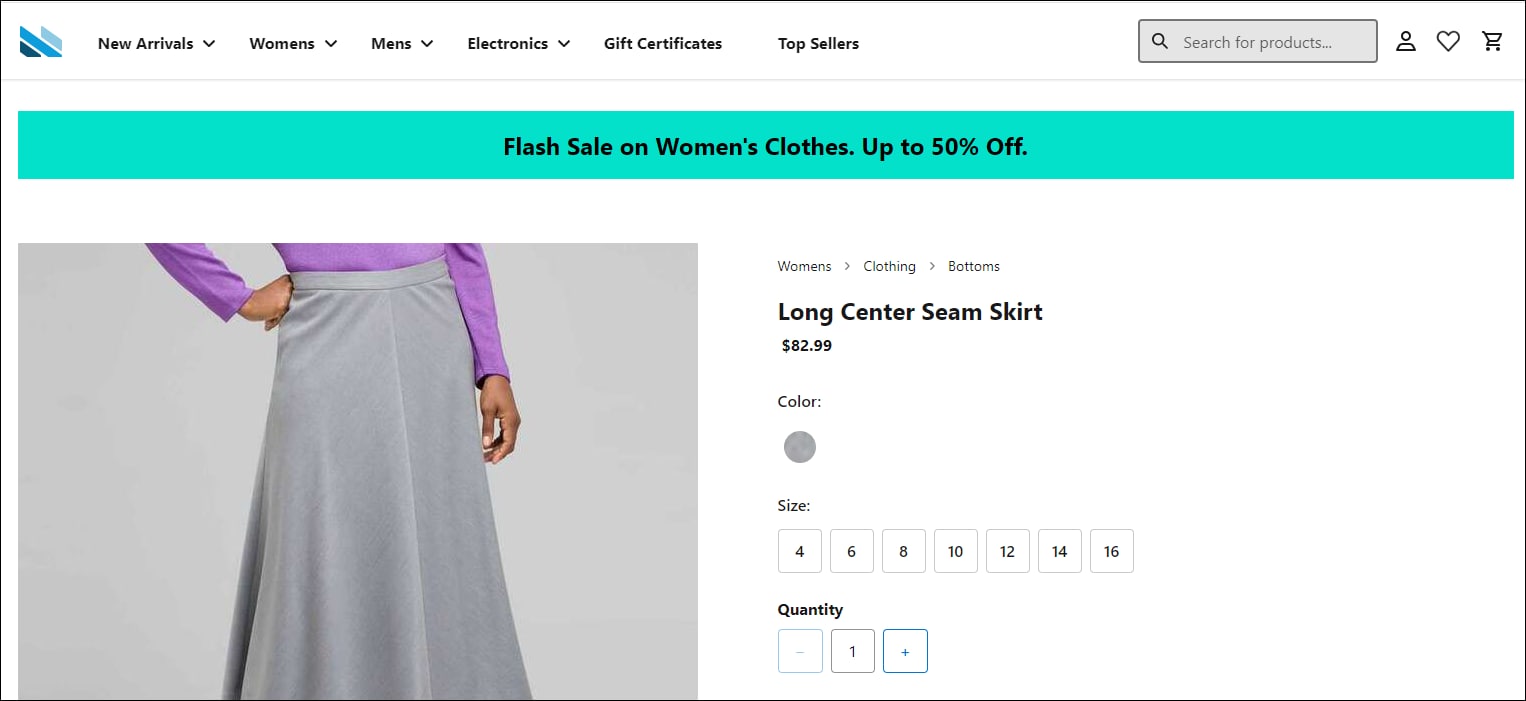
311        <BannerWithImage />
312        {isProductASet ? (
313          <Fragment>
314            {/* Product Set: parent product */}
315            <ProductView
316              product={product}
317              category={primaryCategory?.parentCategoryTree || []}
318              addToCart={handleProductSetAddToCart}
319              addToWishlist={handleAddToWishlist}
320              isProductLoading={isProductLoading}
321              isBasketLoading={isBasketLoading}
322              isWishlistLoading={isWishlistLoading}
323              validateOrderability={handleProductSetValidation}
324            />
325
326            <hr />
327
328            {/* TODO: consider `childProduct.belongsToSet` */}
329            {
330              // Product Set: render the child products
331              product.setProducts.map((childProduct) => (
332                <Box key={childProduct.id} data-testid="child-product">
333                  <ProductView
334                    // Do no use an arrow function as we are manipulating the functions scope.
335                    ref={function (ref) {
336                      // Assign the "set" scope of the ref, this is how we access the internal
337                      // validation.
338                      childProductRefs.current[childProduct.id] = {
339                        ref,
340                        validateOrderability: this.validateOrderability
341                      }
342                    }}
343                    product={childProduct}
344                    isProductPartOfSet={true}
345                    addToCart={(variant, quantity) =>
346                      handleAddToCart([{product: childProduct, variant, quantity}])
347                    }
348                    addToWishlist={handleAddToWishlist}
349                    onVariantSelected={(product, variant, quantity) => {
350                      if (quantity) {
351                        setProductSetSelection((previousState) => ({
352                          ...previousState,
353                          [product.id]: {
354                            product,
355                            variant,
356                            quantity
357                          }
358                        }))
359                      } else {
360                        const selections = {...productSetSelection}
361                        delete selections[product.id]
362                        setProductSetSelection(selections)
363                      }
364                    }}
365                    isProductLoading={isProductLoading}
366                    isBasketLoading={isBasketLoading}
367                    isWishlistLoading={isWishlistLoading}
368                  />
369                  <InformationAccordion product={childProduct} />
370
371                  <Box display={['none', 'none', 'none', 'block']}>
372                    <hr />
373                  </Box>
374                </Box>
375              ))
376            }
377          </Fragment>
378        ) : (
379          <Fragment>
380            <ProductView
381              product={product}
382              category={primaryCategory?.parentCategoryTree || []}
383              addToCart={(variant, quantity) => handleAddToCart([{product, variant, quantity}])}
384              addToWishlist={handleAddToWishlist}
385              isProductLoading={isProductLoading}
386              isBasketLoading={isBasketLoading}
387              isWishlistLoading={isWishlistLoading}
388            />
389            <InformationAccordion product={product} />
390          </Fragment>
391        )}
392        {/* Product Recommendations */}
393        <Stack spacing={16}>
394          {!isProductASet && (
395            <RecommendedProducts
396              title={
397                <FormattedMessage
398                  defaultMessage="Complete the Set"
399                  id="product_detail.recommended_products.title.complete_set"
400                />
401              }
402              recommender={EINSTEIN_RECOMMENDERS.PDP_COMPLETE_SET}
403              products={[product]}
404              mx={{base: -4, md: -8, lg: 0}}
405              shouldFetch={() => product?.id}
406            />
407          )}
408          <RecommendedProducts
409            title={
410              <FormattedMessage
411                defaultMessage="You might also like"
412                id="product_detail.recommended_products.title.might_also_like"
413              />
414            }
415            recommender={EINSTEIN_RECOMMENDERS.PDP_MIGHT_ALSO_LIKE}
416            products={[product]}
417            mx={{base: -4, md: -8, lg: 0}}
418            shouldFetch={() => product?.id}
419          />
420
421          <RecommendedProducts
422            // The Recently Viewed recommender doesn't use `products`, so instead we
423            // provide a key to update the recommendations on navigation.
424            key={location.key}
425            title={
426              <FormattedMessage
427                defaultMessage="Recently Viewed"
428                id="product_detail.recommended_products.title.recently_viewed"
429              />
430            }
431            recommender={EINSTEIN_RECOMMENDERS.PDP_RECENTLY_VIEWED}
432            mx={{base: -4, md: -8, lg: 0}}
433          />
434        </Stack>
435      </Stack>
436    </Box>
437  )
438}
439
440ProductDetail.getTemplateName = () => 'product-detail'
441
442ProductDetail.propTypes = {
443  /**
444   * The current react router match object. (Provided internally)
445   */
446  match: PropTypes.object
447}
448
449export default ProductDetail


 j
j