This example creates a custom property editor for a custom flow screen component that uses a generic sObject input value. The admin uses picklist fields to set the screen component’s input values for the object of the record variable and the record variable. When users run a flow for this example, the screen component displays the first record from a collection of records.

The following HTML, JavaScript, and configuration files define the displayRecord custom flow screen component.
1
2<template>
3 <p>Record Name: {inputValue.Name}</p>
4</template>
The JavaScript class defines an inputValue public property.
1// displayRecord.js
2import { LightningElement, api } from "lwc";
3
4export default class DisplayRecord extends LightningElement {
5  @api
6  inputValue;
7}
To expose the inputValue public property in Flow Builder, define it in the configuration file. To define the property as a generic sObject data type, define the propertyType subtag. The subtag extends the generic sObject data type. The type attribute of inputValue references the name attribute of the propertyType subtag. For example, if propertyType name="T", then property type="{T}". The type attribute of the property subtag must be inside curly braces. To define the property as a generic sObject collection data type, append [], for example property type="{T[]}".
The role attribute determines whether the property can receive input from the flow or not. The default value is inputAndOutput. To make a property available for input or output only, set the role attribute to inputOnly or outputOnly.
In the configuration file, use the configurationEditor attribute to register the custom property editor.
Use the c namespace unless the org has a custom namespace. If the org has a custom namespace, use that namespace.
1
2<?xml version="1.0" encoding="UTF-8"?>
3<LightningComponentBundle xmlns="http://soap.sforce.com/2006/04/metadata">
4 <apiVersion>50.0</apiVersion>
5 <isExposed>true</isExposed>
6 <targets>
7 <target>lightning__FlowScreen</target>
8 </targets>
9 <masterLabel>Display Record</masterLabel>
10 <targetConfigs>
11 <targetConfig targets="lightning__FlowScreen" configurationEditor="c-display-record-editor">
12 <propertyType name="T" extends="SObject" label="Input Type" description="Generic sObject data type used for input sObject properties" />
13 <property name="inputValue" type={T} label="input value" role="inputOnly" />
14 </targetConfig>
15 </targetConfigs>
16</LightningComponentBundle>
The following HTML, JavaScript, and configuration files define the custom property editor for the displayRecord component.
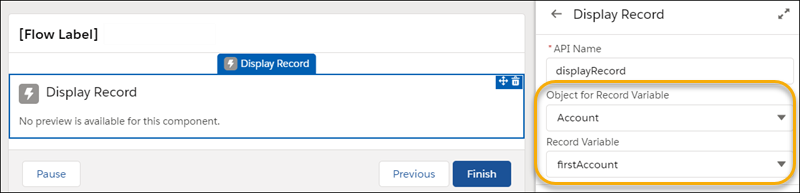
The custom property editor’s HTML template defines the UI, which uses a combo box Lightning base component.
1
2<template>
3 <lightning-combobox
4 name="inputType"
5 label="Object for Record Variable"
6 value={inputType}
7 placeholder="Select object..."
8 options={typeOptions}
9 onchange={handleInputTypeChange}
10 >
11 </lightning-combobox>
12
13 <lightning-combobox
14 name="inputValue"
15 label="Record Variable"
16 value={inputValue}
17 placeholder="Select record variable..."
18 options={valueOptions}
19 onchange={handleValueChange}
20 >
21 </lightning-combobox>
22</template>
When the custom property editor is initialized, its JavaScript class receives a copy of the flow metadata from Flow Builder. When the admin makes an update in the custom property editor, it dispatches an event to propagate the change back to Flow Builder.
Use @api properties to capture data from flows. Use events to report changes to flows at run time.
1// displayRecordEditor.js
2import { LightningElement, api } from 'lwc';
3
4export default class DisplayRecordEditor extends LightningElement {
5  @api
6  inputVariables;
7
8  @api
9  genericTypeMappings;
10
11  @api
12  builderContext;
13
14  get inputValue() {
15    const param = this.inputVariables.find(({ name }) => name === 'inputValue');
16    return param && param.value;
17  }
18
19  get inputType() {
20    const type = this.genericTypeMappings.find(
21      ({ typeName }) => typeName === 'T'
22    );
23    return type && type.typeValue;
24  }
25
26  get typeOptions() {
27    return [
28      { label: 'Account', value: 'Account' },
29      { label: 'Case', value: 'Case' },
30      { label: 'Lead', value: 'Lead' },
31    ];
32  }
33
34  get valueOptions() {
35    const variables = this.builderContext.variables;
36    return variables.map(({ name }) => ({
37      label: name,
38      value: name,
39    }));
40  }
41
42  handleInputTypeChange(event) {
43    if (event && event.detail) {
44    const newValue = event.detail.value;
45    const typeChangedEvent = new CustomEvent(
46      'configuration_editor_generic_type_mapping_changed',
47      {
48        bubbles: true,
49        cancelable: false,
50        composed: true,
51        detail: {
52          typeName: 'T',
53          typeValue: newValue
54        },
55      }
56    );
57    this.dispatchEvent(typeChangedEvent);
58    }
59  }
60
61  handleValueChange(event) {
62    if (event && event.detail) {
63      const newValue = event.detail.value;
64      const valueChangedEvent = new CustomEvent(
65        'configuration_editor_input_value_changed',
66        {
67          bubbles: true,
68          cancelable: false,
69          composed: true,
70          detail: {
71            name: 'inputValue',
72            newValue,
73            newValueDataType: 'reference',
74          },
75        }
76      );
77    this.dispatchEvent(valueChangedEvent);
78    }
79  }
80}
Flow Builder has a JavaScript interface for communicating with a custom property editor. This JavaScript class uses the inputVariables, builderContext, and genericTypeMappings interfaces.
When the custom property editor is initialized, inputVariables receives the values of the public properties in the screen component from Flow Builder.
The inputVariables data structure includes the name, value, and data type for each input variable.
1[
2  {
3    name: "inputType",
4    value: "Account",
5    valueDataType: "Account",
6  },
7];
The get inputValue() gets the value of the inputValue property for use in the custom property editor.
The genericTypeMappings interface receives the values of the input variables that are generic sObject data types in the screen component from Flow Builder.
The data structure includes the name and value for each input. The typeName is the name of the generic sObject input; for example, 'T'. The typeValue is the specific value for the generic sObject input; for example, Account.
1[
2  {
3    typeName: "T",
4    typeValue: "Account",
5  },
6];
The get inputType() gets the data type of the inputValue property for use in the custom property editor.
The get typeOptions() method gets the labels and values for each object input option for use in the custom property editor.
The builderContext interface provides data about the elements and resources in the flow.
1{
2  actionCalls: [],
3  apexPluginCalls: [],
4  constants: [],
5  formulas: [],
6  recordCreates: [],
7  recordDeletes: [],
8  recordLookups: [],
9  recordUpdates: [],
10  screens: [],
11  stages: [],
12  textTemplates: [],
13  variables: []
14}
The get valueOptions() method uses the data from variables as options for input values on the custom property editor for the screen component’s inputs.
When an admin enters a value for Object for Record Variable in the custom property editor, the handleInputTypeChange method dispatches a configuration_editor_generic_type_mapping_changed event to Flow Builder. Flow Builder receives the event and updates the value in the flow.
When an admin enters a value for Record Variable in the custom property editor, the handleValueChange method dispatches a configuration_editor_input_value_changed event to Flow Builder. Flow Builder receives the event and updates the value in the flow.
This is the configuration file for displayRecordEditor.
1
2<?xml version="1.0" encoding="UTF-8"?>
3<LightningComponentBundle xmlns="http://soap.sforce.com/2006/04/metadata">
4 <apiVersion>50.0</apiVersion>
5
6 <isExposed>true</isExposed>
7</LightningComponentBundle>
See Also


 j
j