


 j
jImplement Location Messaging on Android
Implement Location Messaging on iOS
Event Tracking
Push Messages in the Marketing Cloud Engagement REST API Reference
Transactional Push Messages in the Marketing Cloud Engagement REST API Reference
The MobilePush SDK for iOS uses location capabilities of your customer’s device to trigger location-based notifications. The SDK caches geofence messages and displays them on devices when users cross a geofence boundary. To implement location-based messaging on your app using the MobilePush SDK, you must obtain user permission for location services.
To successfully use this functionality, your Marketing Cloud Engagement admin must enable your account with access to MobilePush and Location Services.
Starting with iOS 14, users have the option to use approximate instead of precise location. Geofences and beacons aren’t triggered for users who provide approximate location permission. See Apple Developer Documentation: Accuracy Authorization.
Location messaging and beacon support in iOS versions 14 and later require precise location authorization. The MobilePush SDK sends only precise location updates to Marketing Cloud, and ignores approximate location data.
If location is enabled in your MobilePush SDK configuration, you can use location messaging by calling a single method. You can enable location in your SDK configuration using the setLocationEnabled method of the MarketingCloudSdkConfigBuilder class.
Apple also requires that you add these keys to your Info.plist file to enable location services.
NSLocationAlwaysUsageDescriptionNSLocationAlwaysAndWhenInUseUsageDescriptionNSLocationWhenInUseUsageDescriptionFor more information, see Choosing the Location Services Authorization to Request on Apple’s Developer Documentation site.
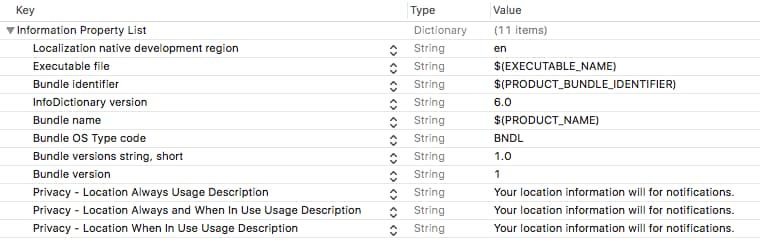
The MobilePush SDK requires Always permissions for full geofence and beacon functionality. An application doesn’t receive location messages if an app user selects When-in-use authorization.
Important
When your application is ready to enable location features, including geofence and beacon messaging, call the SDK’s startWatchingLocation method to start watching location. This code example shows how to start watching location using version 10 or higher of the SDK.
1MarketingCloudSdk.requestSdk { mc in
2    mc?.startWatchingLocation()
3}
For version 8 or 9 of the SDK, use this code.
1SFMCSdk.requestPushSdk { mp in
2    mp.startWatchingLocation()
3}
If you use version 7 of the SDK, use this code.
1MarketingCloudSDK.sharedInstance().sfmc_startWatchingLocation()The MarketingCloudSDK+Location.h header file details additional methods to get information about location and control the frameworks behavior.
The SDK suppresses geofence messages with no content. If you include AMPscript or a merge field in your message that returns an empty string, your app doesn’t display that message to the user.
Important
We enable beacon support when you implement the location requirements on this page.
To range for beacons in the background, add an entry to your app’s Info.plist. This permission ensures that your app can range for beacons when your app is in the background or suspended.
The SDK suppresses beacon messages with no content. If you include AMPscript or a merge field in your message that returns an empty string, your app doesn’t display that message to the user.
Important
To understand how beacons behave in different situations, see Salesforce Help: MobilePush Beacon Scenarios.
If you create your own CLLocationManager object, we can’t guarantee that features of our SDK work as intended.
If you have enabled notifications using MarketingCloudSDK and have called mp.startWatchingLocation(), you can access the device’s last known location using the SDK.
This code example shows how to get the device’s last known location using version 10 or higher of the SDK.
1MarketingCloudSdk.requestSdk { mc in
2  let location = mc?.lastKnownLocation()
3}
For version 8 of the SDK, use this code.
1SFMCSdk.requestPushSdk { mp in
2  let location = mp.lastKnownLocation()
3}
If you use version 7 of the SDK, use this code.
1let location = MarketingCloudSDK.sharedInstance().sfmc_lastKnownLocation()Normally, the app downloads new regions and messages as the device moves more than 5 kilometers from the last location and download of this data. However, if your app serves users who spend much time within a single 5-kilometer radius, consider adding the ability to do a background refresh of regions and messages. Apple controls when this background refresh takes place. However, Apple also allows the SDK to download new regions and messages for those times your user spends a considerable amount of time in a single 5-kilometer region.
In your Info.plist, implement this key to enable this function. To refresh geofences and beacons, the SDK requires the app to implement the App downloads content from the network mode. This mode gives the app permission to periodically download new regions and messages.
In your Info.plist, add keys under UIBackgroundModes:
1<array>
2	<string>fetch</string>
3	<string>location</string>
4	<string>remote-notification</string>
5</array>fetch: To perform periodic background app refreshes, the App downloads content from the network mode is required.location : To enable location in the SDK and to range for beacons in the background, the App registers for location updates mode is required.In your application delegate method -application:didFinishLaunchingWithOptions:, implement this code:
1func application(_ application: UIApplication, didFinishLaunchingWithOptions launchOptions: [UIApplicationLaunchOptionsKey : Any]? = nil) -> Bool {
2    ...
3    if UIApplication.shared.backgroundRefreshStatus == .available {
4        // setting this will enable iOS to call the app delegate method performFetchWithCompletionHandler periodically. The implementation of that method (see below)
5        // will call the MarketingCloudSDK at most once per day to update location and proximity messages in the background - if those services have been enabled.
6        // Only call this method if you have enabled location in your MarketingCloudConfiguration.json file
7        // Note that you will require "App downloads content from the network" in your plist for this background app refresh to work
8        UIApplication.shared.setMinimumBackgroundFetchInterval(UIApplication.backgroundFetchIntervalMinimum)
9    }
10}
Implement the handler for this functionality in your application delegate class. This code example shows how to implement the handler using version 10 or higher of the SDK.
1MarketingCloudSdk.requestSdk { mc in
2  let location = mc?.lastKnownLocation()
3}
For version 8 of the SDK, use this code.
1SFMCSdk.requestPushSdk { mp in
2   let location = mp.lastKnownLocation()
3}
If you use version 7 of the SDK, use this code.
1// iOS calls this method to tell the MarketingCloudSDK to update location and
2// proximity messages. This method is only called if
3// [UIApplication sharedApplication] setMinimumBackgroundFetchInterval: is set
4// to a value other than UIApplicationBackgroundFetchIntervalNever and
5// Background App Refresh is enabled.
6func application(
7  _ application: UIApplication,
8  performFetchWithCompletionHandler completionHandler: @escaping (UIBackgroundFetchResult) -> Void
9) {
10  MarketingCloudSDK.sharedInstance().sfmc_refresh(
11    fetchCompletionHandler: completionHandler
12  )
13}
See MarketingCloudSDK+Base.h for more information about this method.
You can deliver location messages to a subset of your MobilePush audience by using the MobilePush SDK. When a mobile device breaks a geofence or comes into proximity of a Bluetooth beacon, the SDK triggers a callback to your mobile app. This callback is used to evaluate whether to show the message.
Your app can apply criteria, including information within the MobilePush message itself, to determine whether to show the message. Here are some use cases.
This code example shows how to implement location message segmentation using version 10 or higher of the SDK.
1// Adopt the protocol in your app’s class, which implements the
2// sfmc_shouldShowLocationMessage:forRegion: method
3class AppDelegate: UIResponder, UIApplicationDelegate, LocationDelegate
4
5...
6// After configuring the SDK, set the location delegate to the class that
7// implements the sfmc_shouldShowLocationMessage:forRegion: method
8MarketingCloudSdk.requestSdk { mc in
9  mc?.setLocationDelegate(self)
10}
11
12// Implement the method to evaluate app logic to determine if a message should
13// be shown. This example uses MobilePush attributes and message custom keys to
14// implement simple matching logic. Your implementation will vary according to
15// your unique needs.
16func sfmc_shouldShowLocationMessage(
17  _ message: [AnyHashable : Any],
18  forRegion region: [AnyHashable : Any]
19) -> Bool {
20  var shouldShow = false
21  var attributesLoyaltyLevel = ""
22
23  // Get a MobilePush contact attribute previously set by your app from the SDK
24  // In this example, "loyaltyLevel" indicates a customer contact value that
25  // your app uses.
26  var attributes: [AnyHashable : Any]? = nil
27  MarketingCloudSdk.requestSdk { mc in
28      attributes = mc?.attributes()
29  }
30
31  if attributes?.index(forKey: "loyaltyLevel") != nil {
32    attributesLoyaltyLevel = attributes!["loyaltyLevel"] as! String
33  }
34
35  // get the custom key’s for this MobilePush Location message
36  if (message["keys"] != nil) {
37    let customKeys = message["keys"] as! [AnyHashable : Any]
38    // get the "loyaltyLevel" custom key’s value
39    let messageLoyaltyLevel = customKeys["loyaltyLevel"] as! String
40
41    // in this example, if the customer contact attribute is set to "gold"
42    // AND the message’s custom key is "gold", return true - this message
43    // is valid to show for this customer
44
45    // the SDK will display the location message, as the critera passed
46    if (attributesLoyaltyLevel == "gold" && messageLoyaltyLevel == "gold") {
47        shouldShow = true
48    }
49  }
50  return shouldShow
51}
For version 8 of the SDK, use this code.
1// Adopt the protocol in your app’s class, which implements the
2// sfmc_shouldShowLocationMessage:forRegion: method
3class AppDelegate: UIResponder, UIApplicationDelegate, LocationDelegate
4
5...
6// After configuring the SDK, set the location delegate to the class that
7// implements the sfmc_shouldShowLocationMessage:forRegion: method
8SFMCSdk.requestPushSdk { mp in
9    mp.setLocationDelegate(self)
10}
11...
12
13// Implement the method to evaluate app logic to determine if a message should
14// be shown. This example uses MobilePush attributes and message custom keys to
15// implement simple matching logic. Your implementation will vary according to
16// your unique needs.
17func sfmc_shouldShowLocationMessage(
18  _ message: [AnyHashable : Any],
19  forRegion region: [AnyHashable : Any]
20) -> Bool {
21  var shouldShow = false
22  var attributesLoyaltyLevel = ""
23
24  // get a MobilePush contact attribute previously set by your app from the SDK
25  // In this example, "loyaltyLevel" indicates a customer contact value that
26  // your app uses.
27  var attributes: [AnyHashable : Any]? = nil
28  SFMCSdk.requestPushSdk { mp in
29      attributes = mp.attributes()
30  }
31
32  if attributes?.index(forKey: "loyaltyLevel") != nil {
33      attributesLoyaltyLevel = attributes!["loyaltyLevel"] as! String
34  }
35
36  // get the custom key’s for this MobilePush Location message
37  if (message["keys"] != nil) {
38    let customKeys = message["keys"] as! [AnyHashable : Any]
39    // get the "loyaltyLevel" custom key’s value
40    let messageLoyaltyLevel = customKeys["loyaltyLevel"] as! String
41
42    // in this example, if the customer contact attribute is set to "gold"
43    // AND the message’s custom key is "gold", return true - this message
44    // is valid to show for this customer
45
46    // the SDK will display the location message, as the critera passed
47    if (attributesLoyaltyLevel == "gold" && messageLoyaltyLevel == "gold") {
48      shouldShow = true
49    }
50  }
51  return shouldShow
52}
If you use version 7 of the SDK, use this code.
1// adopt the protocol in your application’s class which will implement the sfmc_shouldShowLocationMessage:forRegion: method
2class AppDelegate: UIResponder, UIApplicationDelegate, MarketingCloudSDKLocationDelegate
3
4...
5// after configuring your SDK, set the location delegate to your class implementing the sfmc_shouldShowLocationMessage:forRegion: method
6MarketingCloudSDK.sharedInstance().sfmc_setLocationDelegate(self)
7...
8
9// implement the method to evaluate application logic to determine if a message should be shown
10// this example uses MobilePush attributes and message custom keys to implement simple matching logic
11// your implementation will vary according to your unique needs.
12func sfmc_shouldShowLocationMessage(_ message: [AnyHashable : Any], forRegion region: [AnyHashable : Any]) -> Bool {
13    var shouldShow = false
14    var attributesLoyaltyLevel = ""
15
16    // get a MobilePush contact attribute previously set by your app from the SDK
17    // in this example, "loyaltyLevel" indicates a customer contact value your solution uses
18    var attributes = MarketingCloudSDK.sharedInstance().sfmc_attributes()
19    if attributes?.index(forKey: "loyaltyLevel") != nil {
20        attributesLoyaltyLevel = attributes!["loyaltyLevel"] as! String
21    }
22
23    // get the custom key’s for this MobilePush Location message
24    if (message["keys"] != nil) {
25        let customKeys = message["keys"] as! [AnyHashable : Any]
26        // get the "loyaltyLevel" custom key’s value
27        let messageLoyaltyLevel = customKeys["loyaltyLevel"] as! String
28
29        // in this example, if the customer contact attribute is set to "gold"
30        // AND the message’s custom key is "gold", return true - this message
31        // is valid to show for this customer
32
33        // the SDK will display the location message, as the critera passed
34        if (attributesLoyaltyLevel == "gold" && messageLoyaltyLevel == "gold") {
35		    shouldShow = true
36        }
37    }
38    return shouldShow
39}