BuildOptionList()

Creates a set of <option> tags that you can integrate into an HTML form on webpage.

Availability 

Marketing Cloud Engagement ✅ Yes
Marketing Cloud Next ❌ No

Syntax 

1BuildOptionList(defaultSelection,
2                option1Value, option1Text,
3                [option2Value, option2Text] ... )

The BuildOptionList() function has three parameters:

  • defaultSelection (string or number): Required. The option that is selected by default.
  • option1Value (string): Required. An identifier for the first option. The function sets the value parameter in the <option> tag to this value.
  • option1Text (string): Required. The display text for the option tag.

Each option in the list requires a value and a display text. You can create as many options as you need by appending them to the end of the function (option2Value, option2Text…).

Usage 

To use this function, specify a default selection, and a value and display name for each option that you want to generate.

This example creates a short list of options, and embeds it in an HTML form that asks the user to choose one:

1%%[
2set @DefaultOption = 2
3set @OptionList = BuildOptionList(@DefaultOption,
4                                  "1", "Option A",
5                                  "2", "Option B",
6                                  "3", "Option C")
7]%%
8<p>Choose an option:</p>
9<select name="choice">
10%%=v(@OptionList)=%%
11</select>

The example outputs this HTML code.

1<p>Choose an option:</p>
2<select name="choice">
3  <option value="1">Option A</option>
4  <option value="2" selected="selected">Option B</option>
5  <option value="3">Option C</option>
6</select>

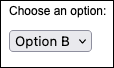
In a web browser, the generated code resembles this example.

A simple HTML form that contains a dropdown list. The text "Choose an option" is shown above the list. In the list itself, Option B is chosen by default.