


 j
jAccess Models API with Apex
Access Models API with REST
LWC & Flow Examples
Rate Limits
Model API Names
Generation Feedback
Language & Locales
Data Masking
Toxicity Scoring
AI Models
Prompt Builder
Prompt Template Batch Processing
You can use the Models API Apex classes to build Lightning web components (LWCs), flows, and other applications that have access to any of the capabilities of the Models API. This feature opens up many use cases that take advantage of generative AI and the Einstein Trust Layer. Use this page to get started with some sample implementations.
These examples are meant to demonstrate what you can do with the Models API. They’re not intended as production-quality code samples.
These examples use the Models API Apex classes. Review how to use these Apex classes before proceeding.
For the Lightning web component (LWC) examples, ensure that you’re familiar with building LWCs.
For the Flow Builder examples, ensure that you’re familiar with building Flow Builder actions.
The best way to get started building Lightning web components that access the Models API is to check out our Trailhead module: Get Started with the Models API.
This video shows you how to build a Lightning web component that accesses the Models API, using one of the examples on this page.
This example shows you how to build a simple component that takes a prompt, calls the Models API Generate Text capability, and passes back the generated response.
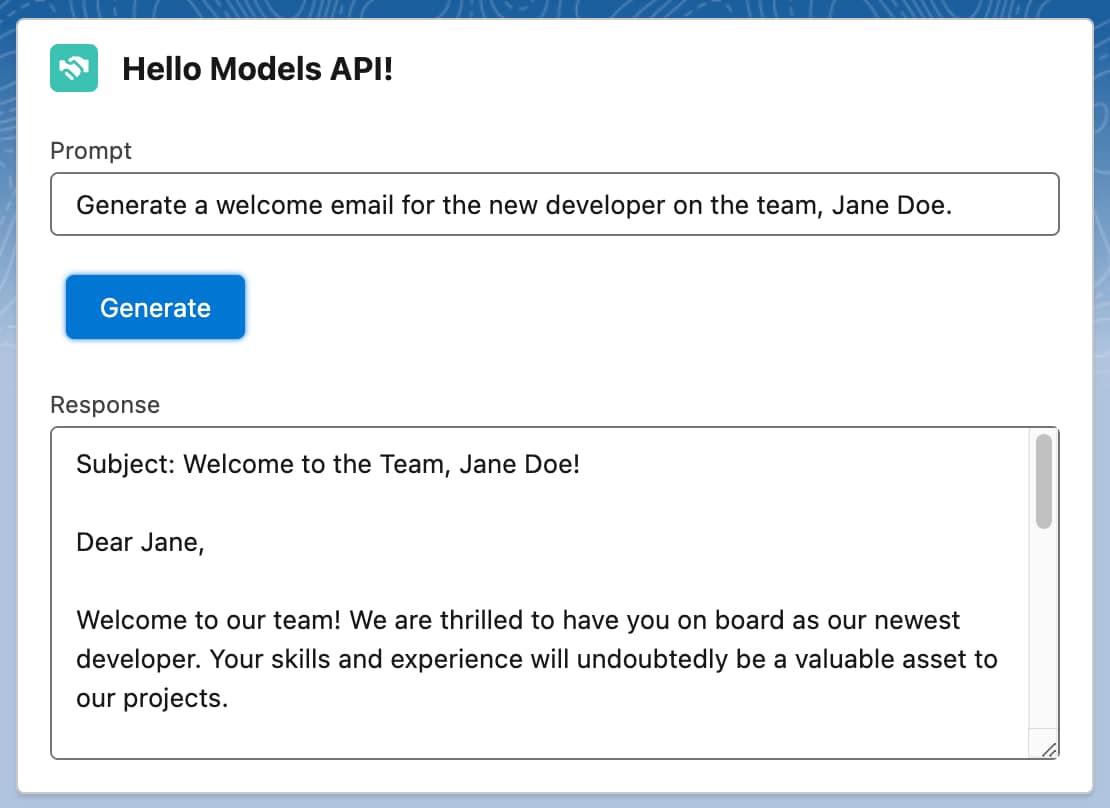
This Apex code takes a prompt as input and returns a response from the createGenerations method. You need to add this Apex code to your org so that you can call the code imperatively.
1public class ModelsAPIHelloWorld {
2
3    @AuraEnabled(cacheable=true)
4    public static String createGeneration(String prompt) {
5
6        // Create generations request
7        aiplatform.ModelsAPI.createGenerations_Request request = new aiplatform.ModelsAPI.createGenerations_Request();
8
9        // Specify model
10        request.modelName = 'sfdc_ai__DefaultOpenAIGPT4OmniMini';
11
12        // Create request body
13        aiplatform.ModelsAPI_GenerationRequest body = new aiplatform.ModelsAPI_GenerationRequest();
14        request.body = body;
15
16        // Add prompt to body
17        body.prompt = prompt;
18
19        String modelsApiResponse = '';
20
21        try {
22            // Make request
23            aiplatform.ModelsAPI modelsAPI = new aiplatform.ModelsAPI();
24            aiplatform.ModelsAPI.createGenerations_Response response = modelsAPI.createGenerations(request);
25
26            // Add response to return value
27            modelsApiResponse = response.Code200.generation.generatedText;
28
29        // Handle error
30        } catch(aiplatform.ModelsAPI.createGenerations_ResponseException e) {
31            System.debug('Response code: ' + e.responseCode);
32            System.debug('The following exception occurred: ' + e);
33
34            // Add error to the return value
35            modelsApiResponse = 'Unable to get a valid response. Error code: ' + e.responseCode;
36        }
37
38        // Return response
39        return modelsApiResponse;
40    }
41}
This HTML code presents a simple UI that contains an input field for the prompt, a button to generate the text, and an output field for the response.
1<template>
2    <lightning-card title="Hello Models API!" icon-name="custom:custom14">
3        <div class="slds-m-around_medium">
4            <lightning-input label="Prompt" value={prompt} onchange={handlePromptChange}>
5                ></lightning-input>
6            <br/>
7            <lightning-button variant="brand" label="Generate" title="Generate response" onclick={handleClick} class="slds-m-left_x-small"></lightning-button>
8            <br/><br/>
9            <lightning-textarea label="Response" value={response} readonly> </lightning-textarea>
10        </div>
11    </lightning-card>
12</template>
This JavaScript code handles the button click event and makes a request to the Apex method.
1import { LightningElement } from 'lwc';
2import createGeneration from '@salesforce/apex/ModelsAPIHelloWorld.createGeneration';
3
4export default class HelloWorld extends LightningElement {
5    prompt = 'Generate a welcome email for the new developer on the team, Jane Doe.';
6    response = '';
7
8    handlePromptChange(event) {
9        this.prompt = event.target.value;
10    }
11
12    handleClick(event) {
13        this.response = 'Working…';
14        createGeneration({ prompt: this.prompt })
15		.then(result => {
16			this.response = result;
17			this.error = undefined;
18		})
19		.catch(error => {
20            this.response = 'Error';
21			this.error = error;
22		})
23    }
24}This example shows you how to build an Apex invocable action compatible with Flow Builder that takes a prompt, calls the Models API Generate Text capability, and returns the generated response.
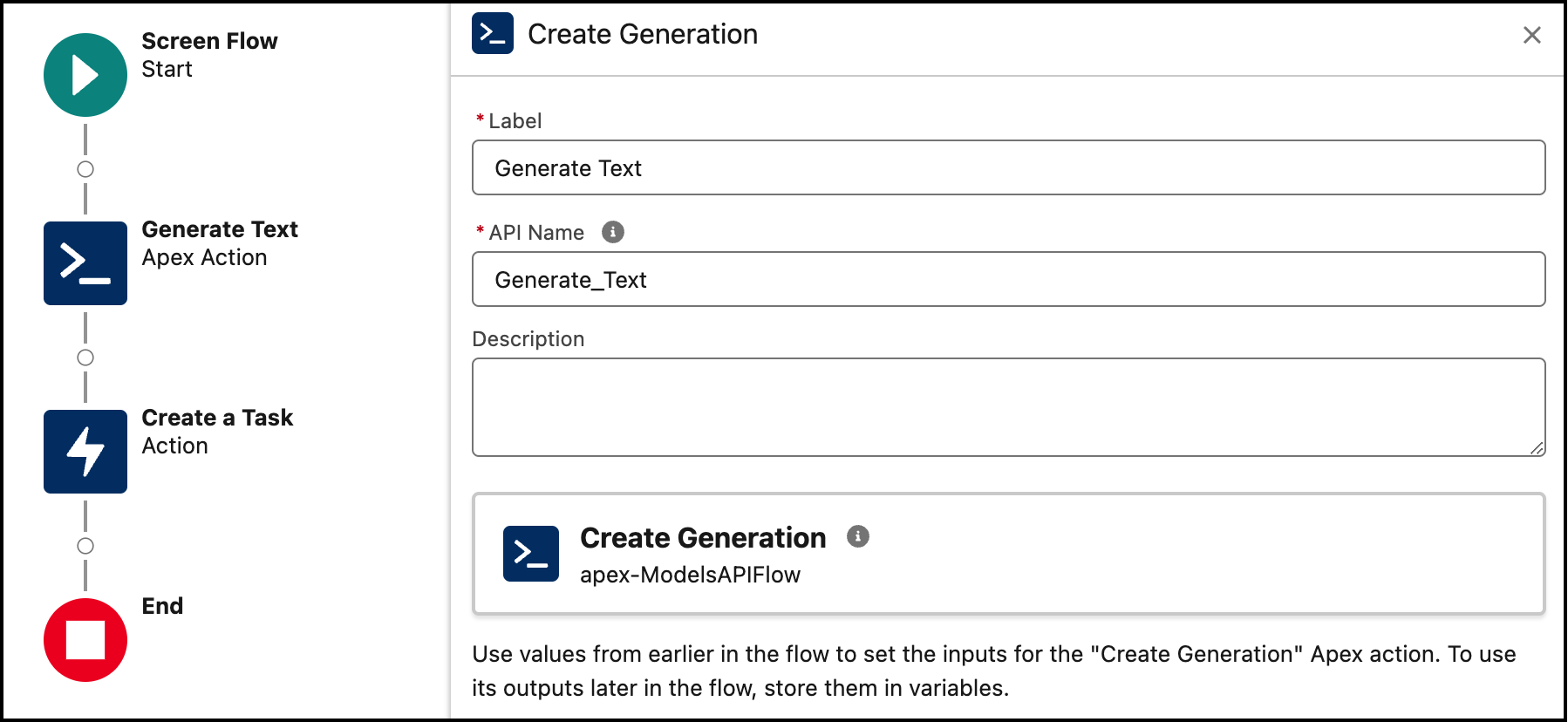
This Apex code takes a prompt as input and returns a response from the model. It uses the @InvocableMethod annotation so that it can be accessed from Flow Builder.
1public class ModelsAPIFlow {
2
3    @InvocableMethod(label='Generate Text' description='Use the Models API to generate text')
4    public static List<FlowOutput> createGeneration(List<FlowInput> inputVariables) {
5
6        // Create generations request
7        aiplatform.ModelsAPI.createGenerations_Request request = new aiplatform.ModelsAPI.createGenerations_Request();
8
9        // Specify model
10        request.modelName = 'sfdc_ai__DefaultOpenAIGPT4OmniMini';
11
12        // Create request body
13        aiplatform.ModelsAPI_GenerationRequest body = new aiplatform.ModelsAPI_GenerationRequest();
14        request.body = body;
15
16        // Add prompt to body using the input variable
17        body.prompt = inputVariables.get(0).prompt;
18
19        // Prepare output object
20        FlowOutput output = new FlowOutput();
21
22        try {
23          // Make request
24          aiplatform.ModelsAPI modelsAPI = new aiplatform.ModelsAPI();
25          aiplatform.ModelsAPI.createGenerations_Response response = modelsAPI.createGenerations(request);
26
27          // Add response to the output
28          output.response = response.Code200.generation.generatedText;
29
30        // Handle error
31        } catch(aiplatform.ModelsAPI.createGenerations_ResponseException e) {
32            System.debug('Response code: ' + e.responseCode);
33            System.debug('The following exception occurred: ' + e);
34
35            // Add error to the output
36            output.response = 'Unable to get a valid response. Error code: ' + e.responseCode;
37        }
38
39        // Create result
40        List<FlowOutput> result = new List<FlowOutput>();
41        result.add(output);
42
43        // Return result
44        return result;
45    }
46
47    public class FlowInput{
48        @InvocableVariable public String prompt;
49    }
50    public class FlowOutput{
51        @InvocableVariable public String response;
52    }
53}This example shows you how to use the Models API Generate Chat capability to build a component that takes a system prompt and a user prompt and produces a response. This example allows you to experiment with various prompt engineering patterns, such as chain-of-thought (CoT) prompting.
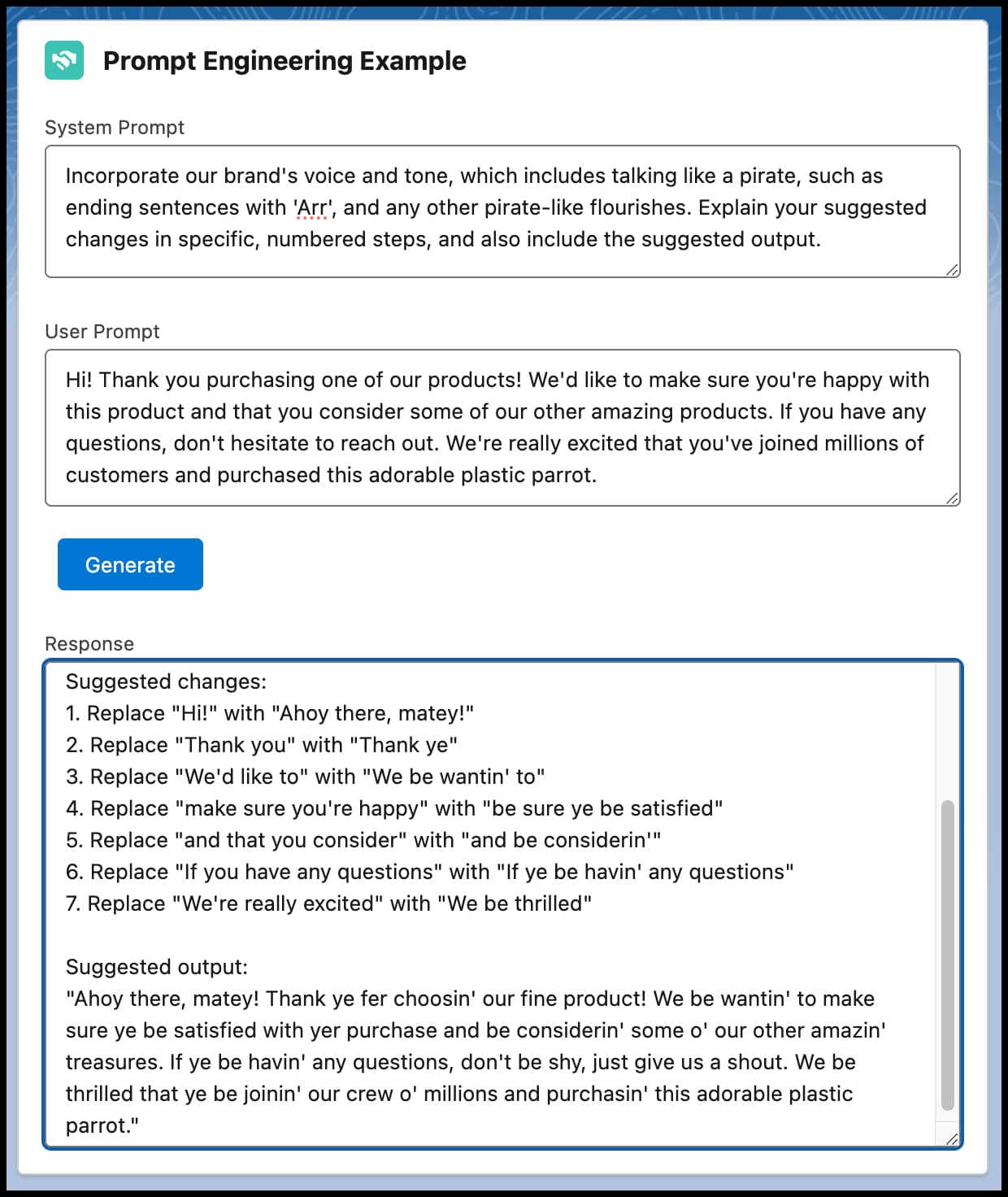
This Apex code takes the system and user prompts and calls the Generate Chat capability of the Models API.
1public class ModelsAPIChat {
2
3	@AuraEnabled(cacheable=true)
4    public static String createChat(String systemPrompt, String userPrompt) {
5
6        // Create chat generations request
7        aiplatform.ModelsAPI.createChatGenerations_Request request = new aiplatform.ModelsAPI.createChatGenerations_Request();
8
9        // Specify model
10        request.modelName = 'sfdc_ai__DefaultOpenAIGPT4OmniMini';
11
12        // Create request body
13        aiplatform.ModelsAPI_ChatGenerationsRequest body = new aiplatform.ModelsAPI_ChatGenerationsRequest();
14        request.body = body;
15
16        // Create a list to hold chat messages
17        List<aiplatform.ModelsAPI_ChatMessageRequest> messagesList = new List<aiplatform.ModelsAPI_ChatMessageRequest>();
18
19        // Add system message
20        aiplatform.ModelsAPI_ChatMessageRequest systemMessageRequest = new aiplatform.ModelsAPI_ChatMessageRequest();
21        systemMessageRequest.content = systemPrompt;
22        systemMessageRequest.role = 'system';
23        messagesList.add(systemMessageRequest);
24
25        // Add user message
26        aiplatform.ModelsAPI_ChatMessageRequest userMessageRequest = new aiplatform.ModelsAPI_ChatMessageRequest();
27        userMessageRequest.content = userPrompt;
28        userMessageRequest.role = 'user';
29        messagesList.add(userMessageRequest);
30
31        // Set the messages in the request body
32        body.messages = messagesList;
33
34        // Set the request body and model name
35        request.body = body;
36
37        String response = '';
38
39        try {
40            // Call the API and get the response
41            aiplatform.ModelsAPI modelsAPI = new aiplatform.ModelsAPI();
42            aiplatform.ModelsAPI.createChatGenerations_Response apiResponse = modelsAPI.createChatGenerations(
43                request
44            );
45
46            // Check that we have a non-null response
47            if (
48                apiResponse?.Code200?.generationDetails?.generations != null &&
49                !apiResponse.Code200.generationDetails.generations.isEmpty()
50            ) {
51                // Set the variable from the response
52                response = apiResponse.Code200.generationDetails.generations[0]
53                    .content;
54            } else {
55                // Handle the case where response is null
56                response = 'No content generated';
57            }
58
59        // Handle error
60        } catch(aiplatform.ModelsAPI.createChatGenerations_ResponseException e) {
61            System.debug('Response code: ' + e.responseCode);
62            System.debug('The following exception occurred: ' + e);
63
64            // Add error to the output
65            response = 'Unable to get a valid response. Error code: ' + e.responseCode;
66        }
67
68        return response;
69    }
70}
This HTML code contains the user interface for the prompts and the response.
1<template>
2    <lightning-card title="Prompt Engineering Example" icon-name="custom:custom14">
3        <div class="slds-m-around_medium">
4            <lightning-input label="System Prompt" value={system_prompt} onchange={handleSystemPromptChange}>
5                ></lightning-input>
6            <br/>
7            <lightning-input label="User Prompt" value={user_prompt} onchange={handleUserPromptChange}>
8                ></lightning-input>
9            <br/>
10            <lightning-button variant="brand" label="Generate" title="Generate response" onclick={handleClick} class="slds-m-left_x-small"></lightning-button>
11            <br/><br/>
12            <lightning-textarea label="Response" value={response} readonly> </lightning-textarea>
13        </div>
14    </lightning-card>
15</template>
This JavaScript passes prompt information to the Apex code.
1import { LightningElement } from 'lwc';
2import createChat from '@salesforce/apex/ModelsAPIChat.createChat';
3
4export default class HelloWorld extends LightningElement {
5    system_prompt = 'Think about it in small, simple steps.';
6    user_prompt = '';
7    response = '';
8
9    handleSystemPromptChange(event) {
10        // Update the system prompt when a new option is selected in the combobox
11        this.system_prompt = event.target.value;
12    }
13
14    handleUserPromptChange(event) {
15        // Update the user prompt when a new option is selected in the combobox
16        this.user_prompt = event.target.value;
17    }
18
19    handleClick(event) {
20        this.response = 'Processing your question… One moment.';
21        createChat({ systemPrompt: this.system_prompt, userPrompt: this.user_prompt })
22		.then(result => {
23			this.response = result;
24			this.error = undefined;
25		})
26		.catch(error => {
27			this.error = error;
28			this.accounts = undefined;
29		})
30    }
31}This example shows you how to build a simple chat component that uses the Models API Generate Chat capability to build a chat interface.
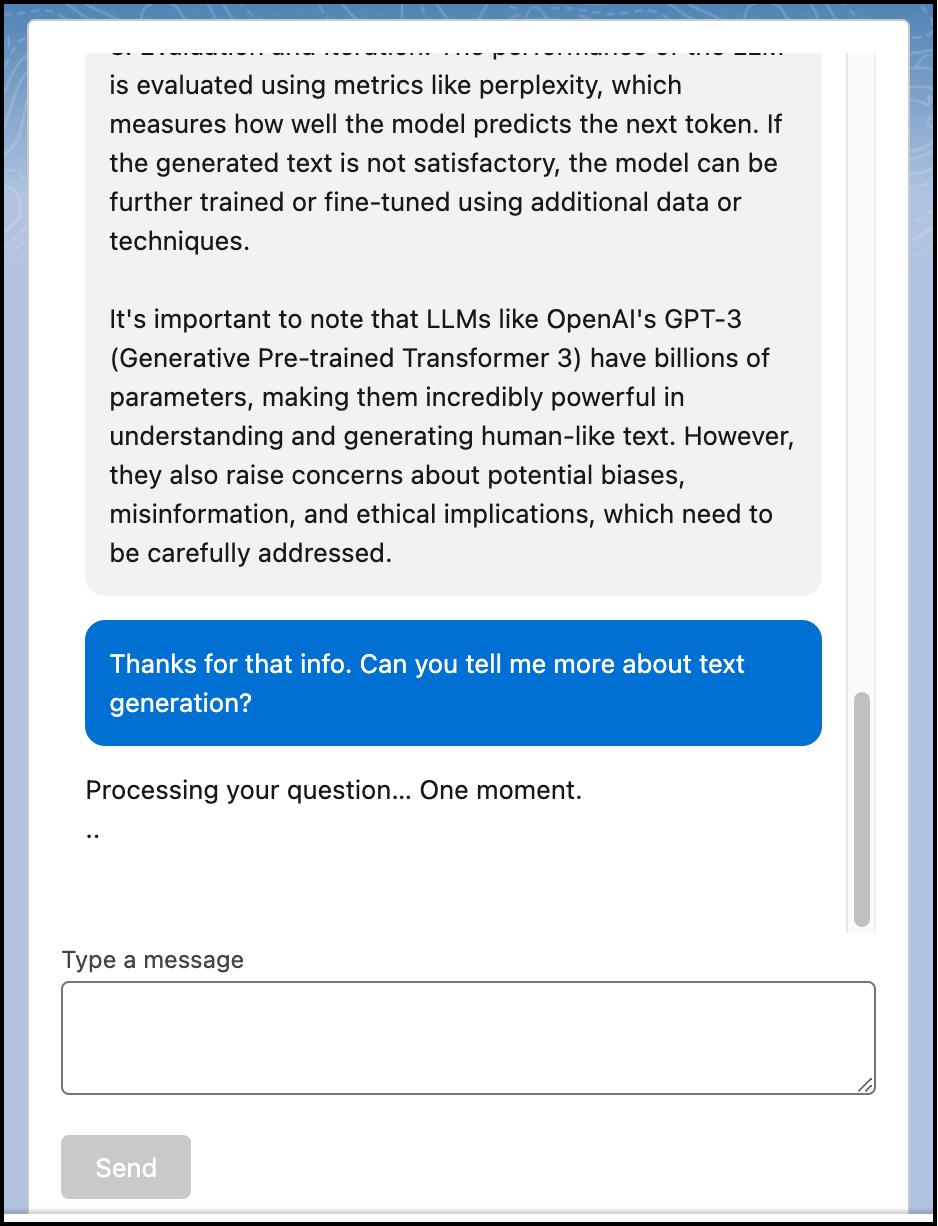
This Apex code parses the chat input messages and calls the Generate Chat capability of the Models API.
1public with sharing class ModelsAPIChatGenerations {
2    @AuraEnabled
3    public static String createChatGenerations(String input) {
4        List<ChatMessage> messages = (List<ChatMessage>) JSON.deserialize(
5            input,
6            List<ChatMessage>.class
7        );
8
9        // Instantiate the API class
10        aiplatform.ModelsAPI modelsAPI = new aiplatform.ModelsAPI();
11
12        // Prepare the request and body objects
13        aiplatform.ModelsAPI.createChatGenerations_Request request = new aiplatform.ModelsAPI.createChatGenerations_Request();
14        aiplatform.ModelsAPI_ChatGenerationsRequest body = new aiplatform.ModelsAPI_ChatGenerationsRequest();
15
16        // Specify model
17        request.modelName = 'sfdc_ai__DefaultOpenAIGPT4OmniMini';
18
19        // Create a list to hold chat messages
20        List<aiplatform.ModelsAPI_ChatMessageRequest> messagesList = new List<aiplatform.ModelsAPI_ChatMessageRequest>();
21
22        // Loop through the input messages and create message requests
23        for (ChatMessage msg : messages) {
24            aiplatform.ModelsAPI_ChatMessageRequest messageRequest = new aiplatform.ModelsAPI_ChatMessageRequest();
25            messageRequest.content = msg.message != null ? msg.message : ''; // Handle null message
26            messageRequest.role = msg.role != null ? msg.role : 'user'; // Handle null role
27            messagesList.add(messageRequest);
28        }
29
30        // Set the messages in the request body
31        body.messages = messagesList;
32
33        // Set the request body and model name
34        request.body = body;
35
36        String response = '';
37
38        try {
39            // Call the API and get the response
40            aiplatform.ModelsAPI.createChatGenerations_Response apiResponse = modelsAPI.createChatGenerations(
41                request
42            );
43
44            // Check that we have a non-null response
45            if (
46                apiResponse?.Code200?.generationDetails?.generations != null &&
47                !apiResponse.Code200.generationDetails.generations.isEmpty()
48            ) {
49                // Set the variable from the response
50                response = apiResponse.Code200.generationDetails.generations[0]
51                    .content;
52            } else {
53                // Handle the case where response is null
54                response = 'No content generated';
55            }
56
57        // Handle error
58        } catch(aiplatform.ModelsAPI.createChatGenerations_ResponseException e) {
59            System.debug('Response code: ' + e.responseCode);
60            System.debug('The following exception occurred: ' + e);
61
62            // Add error to the output
63            response = 'Unable to get a valid response. Error code: ' + e.responseCode;
64        }
65
66        return response;
67    }
68}
This Apex class holds information about a chat message.
1public class ChatMessage {
2
3    @AuraEnabled
4    public String role;
5
6    @AuraEnabled
7    public String message;
8
9    public ChatMessage() {
10    }
11
12    public ChatMessage(String role, String message) {
13        this.role = role;
14        this.message = message;
15    }
16}
This HTML code contains the user interface for the chat component.
1<template>
2    <div
3        class="slds-var-m-around_medium slds-grid slds-grid_vertical slds-box slds-theme_default"
4    >
5        <!-- Chat messages container -->
6        <div
7        class="slds-scrollable_y"
8        style="height: 440px"
9        lwc:ref="chatContainer"
10        >
11            <!-- Iterate over each message in the messages array -->
12            <template for:each={messages} for:item="message">
13                <div key={message.id} class="slds-var-m-around_small">
14                    <!-- If the message is from the user -->
15                    <template lwc:if={message.isUser}>
16                        <div class="custom-chat-message_outbound slds-var-p-around_small">
17                            <div class="slds-chat-message__body">
18                                <div class="slds-chat-message__text">{message.text}</div>
19                            </div>
20                        </div>
21                    </template>
22                    <!-- If the message is from the assistant -->
23                    <template lwc:else>
24                        <div class="custom-chat-message_inbound slds-var-p-around_small">
25                        <div class="slds-chat-message__body">
26                            <div class="slds-chat-message__text">{message.text}</div>
27                        </div>
28                        </div>
29                    </template>
30                </div>
31            </template>
32            <!-- Loading indicator -->
33            <template lwc:if={isLoading}>
34                <div class="loading-container slds-var-m-around_small">
35                    <div class="loading-text">
36                        Processing your question… One moment.
37                    </div>
38                <div class="loading-indicator"></div>
39                </div>
40            </template>
41        </div>
42        <!-- User input textarea -->
43        <div class="slds-grid slds-grid_vertical-align-center">
44            <lightning-textarea
45                class="custom-textarea slds-size_full"
46                label="Type a message"
47                value={userMessage}
48                onchange={handleInputChange}
49                style="margin-bottom: 20px"
50            ></lightning-textarea>
51        </div>
52        <!-- Send button -->
53        <div class="slds-grid slds-grid_vertical-align-center">
54            <div class="slds-col slds-size_1-of-4">
55                <lightning-button
56                label="Send"
57                variant="brand"
58                onclick={handleSendMessage}
59                disabled={isLoading}
60                ></lightning-button>
61            </div>
62        </div>
63    </div>
64</template>
This JavaScript passes user interface information to the Apex code.
1import { LightningElement, track } from "lwc";
2import createChatGenerations from "@salesforce/apex/ModelsAPIChatGenerations.createChatGenerations";
3
4export default class CustomChat extends LightningElement {
5  @track messages = []; // Array to store chat messages
6  userMessage = ""; // User input message
7  isLoading = false; // Track loading state
8
9  // Handle user input change
10  handleInputChange(event) {
11    this.userMessage = event.target.value;
12  }
13
14  // Scroll to the bottom of the chat container
15  renderedCallback() {
16    this.scrollToBottom();
17  }
18
19  // Handle send message button click
20  handleSendMessage() {
21    if (this.userMessage.trim()) {
22      const userMessageObj = {
23        id: this.messages.length + 1,
24        text: this.userMessage,
25        role: "user",
26        isUser: true,
27      };
28
29      // Add user message to the messages array
30      this.messages = [...this.messages, userMessageObj];
31      this.isLoading = true; // Show loading indicator
32
33      // Prepare message array for API call
34      let messageArray = this.messages.map((msg) => ({
35        role: msg.isUser ? "user" : "assistant",
36        message: msg.text,
37      }));
38
39      // Call Apex method to fetch chat response
40      createChatGenerations({ input: JSON.stringify(messageArray) })
41        .then((result) => {
42          this.simulateTypingEffect(result);
43        })
44        .catch((error) => {
45          console.error("Error fetching bot response", JSON.stringify(error));
46        })
47        .finally(() => {
48          this.isLoading = false; // Hide loading indicator
49        });
50
51      this.userMessage = ""; // Clear user input
52    }
53  }
54
55  // Simulate typing effect for the chat response
56  simulateTypingEffect(fullText) {
57    const words = fullText.split(" ");
58    let currentIndex = 0;
59    let displayText = "";
60
61    const intervalId = setInterval(() => {
62      if (currentIndex < words.length) {
63        displayText += words[currentIndex] + " ";
64        const botResponseObj = {
65          id: this.messages.length + 1,
66          text: displayText.trim(),
67          role: "assistant",
68          isUser: false,
69        };
70        // Replace the last message if it’s the bot’s typing message
71        if (currentIndex > 0) {
72          this.messages.splice(this.messages.length - 1, 1, botResponseObj);
73        } else {
74          this.messages = [...this.messages, botResponseObj];
75        }
76        this.scrollToBottom();
77        currentIndex++;
78      } else {
79        clearInterval(intervalId);
80      }
81    }, 30); // Adjust typing speed (ms per word)
82  }
83
84  // Scroll to the bottom of the chat container
85  scrollToBottom() {
86    const chatContainer = this.template.querySelector(".slds-scrollable_y");
87    if (chatContainer) {
88      chatContainer.scrollTop = chatContainer.scrollHeight;
89    }
90  }
91}
This CSS code styles the user interface to look like a chat experience.
1.custom-chat-message_inbound {
2    border-radius: 10px;
3    max-width: 100%;
4    background-color: #f3f2f2;
5    align-self: flex-start;
6}
7
8.custom-chat-message_outbound {
9  border-radius: 10px;
10  max-width: 100%;
11  background-color: #0070d2;
12  color: white;
13  align-self: flex-end;
14}
15
16.custom-textarea {
17  width: 100%;
18}
19
20.loading-indicator {
21  width: 50px;
22  height: 50px;
23  overflow: hidden;
24  vertical-align: middle;
25  position: relative;
26}
27
28.loading-indicator::after {
29  content: "";
30  display: inline-block;
31  width: 50px;
32  height: 50px;
33  overflow: hidden;
34  position: absolute;
35  top: 50%;
36  left: 50%;
37  transform: translate(-50%, -50%);
38  animation: loading 1s infinite steps(7);
39}
40
41@keyframes loading {
42  0% {
43    content: ".";
44  }
45  12.5% {
46    content: "..";
47  }
48  25% {
49    content: "...";
50  }
51  37.5% {
52    content: ".....";
53  }
54  50% {
55    content: "......";
56  }
57  62.5% {
58    content: "........";
59  }
60  75% {
61    content: "............";
62  }
63  87.5% {
64    content: "";
65  }
66}