Integrate Storefront Next with Salesforce Order Management
Applies to: Storefront Next
Note
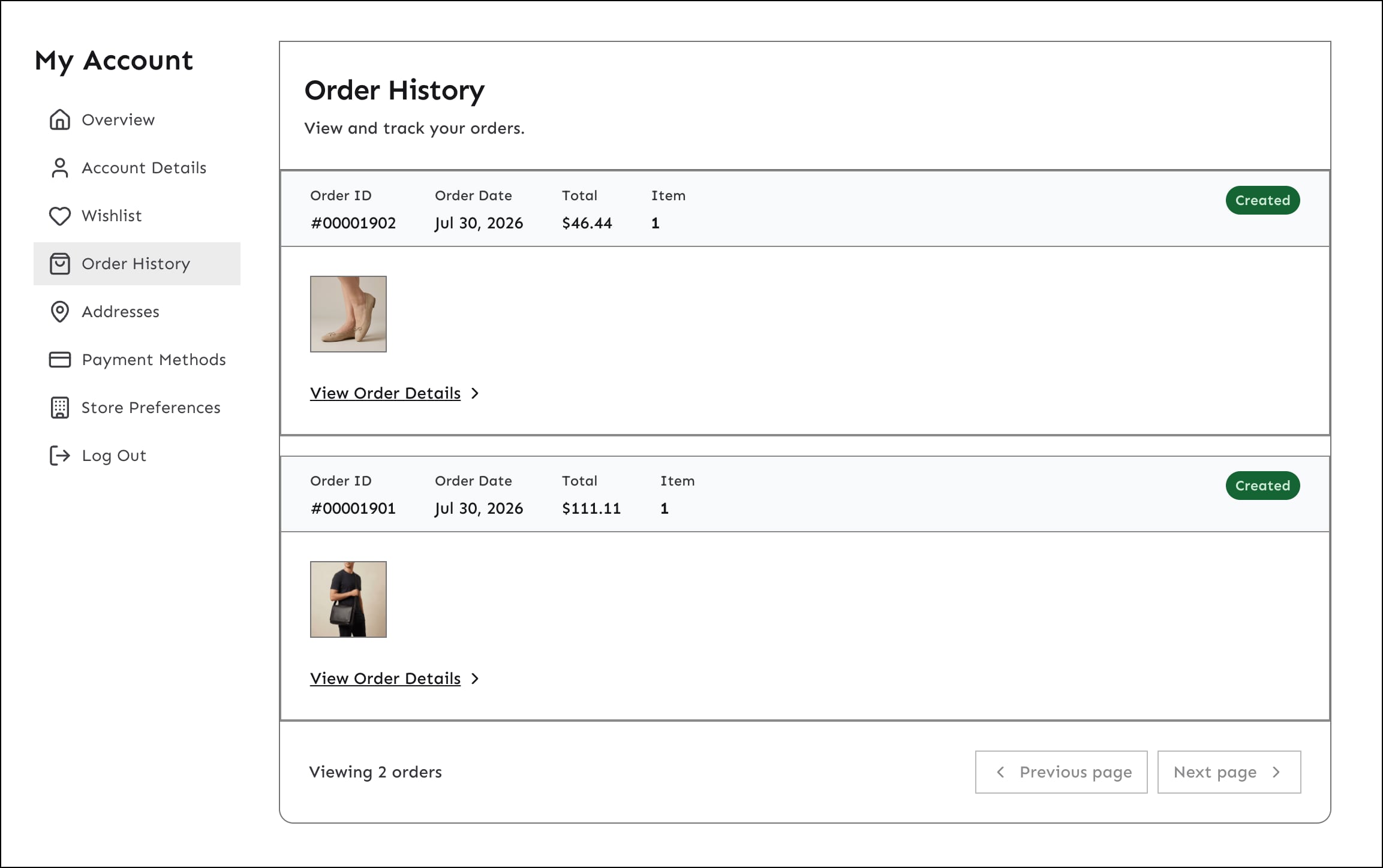
With the integration with Salesforce Order Management (SOM), Storefront Next displays orders from SOM in the order history page and order detail page. Shoppers can check the status of their orders and manage their orders from Storefront Next. They can track shipment, return items, and cancel an eligible order. The integration keeps storefront orders synchronized with the merchant’s backend order management system. Providing shoppers with self-service order management capabilities from within the storefront enhances the shopper experience and reduces support costs. The integration requires that you set up a connection between the B2C Commerce instance and the Salesforce Order Management (SOM) organization.
Prerequisite: Connect Your B2C Commerce Instance and the Order Management Organization
Before the storefront can show SOM orders, perform these steps.
Step 1: Connect a B2C Commerce Instance to the SOM organization
After the B2C Commerce instance is connected to SOM, place a test order from the storefront to verify that the order appears in SOM. No Storefront Next code changes are required—the integration is automatic once the B2C–SOM connection is established. If you customized order placement in your B2C Commerce cartridges, make sure that the placeOrder hook calls OrderMgr.placeOrder(order) and sets the export and confirmation statuses.
Storefront Next-SOM Integration Considerations
Payment methods aren’t shown in the storefront because they aren’t returned in B2C Commerce API (SCAPI) calls.
If an order contains multiple shipments, items are grouped by shipment and each group shows its shipping address. Tracking details, such as carrier, status, and tracking number or URL, are shown at the order level rather than per shipping address.
Getting Orders from SOM
By default, Storefront Next tries to get order data from SOM. It makes these SCAPI calls with the additional oms parameters.
Get order details: The storefront calls GET orders/{orderNo} with query parameter expand=oms,oms_shipments. For more information, see getOrder in the B2C Commerce API Guide.
Get order history: The storefront calls GET customers/{}/orders with query parameter expand=oms. See getCustomerOrders in the B2C Commerce API Guide.
Get SOM metadata: The storefront calls GET /orders/oms-meta-data via getOmsMetaData. The response provides cancelReasonCodes and returnReasonCodes for the cancel and return dialogs. If this endpoint returns a 404, SOM isn’t active and the Cancel Order and Return Items actions are hidden.
Placing Orders in SOM
If the connection is set up between the B2C Commerce instance and SOM, placing an order creates the order in SOM. Place the order using the placeOrder hook and by calling OrderMgr.placeOrder(order).
Managing Orders in SOM
The Salesforce Order Management (SOM) integration in Storefront Next lets registered shoppers manage orders stored in SOM. Storefront Next provides default implementations for the order actions in SOM so you don’t have to implement them. The actions available are for shoppers tracking order shipments, canceling an order, and returning order items.
SOM enriches orders with order data, in the omsData field that is included in the SCAPI call. The order actions call these SCAPI endpoints:
Managing orders requires that you connect your B2C Commerce instance to the Salesforce Order Management organization. See this prerequisite step.
Accessing the Order Detail Page
A shopper accesses the order management actions in the order detail page. These are the steps for a shopper to access the order detail page.
Log in and then click the My Account icon.
Click Order History.
Next to an order, click View Details.
Tracking Order Shipments
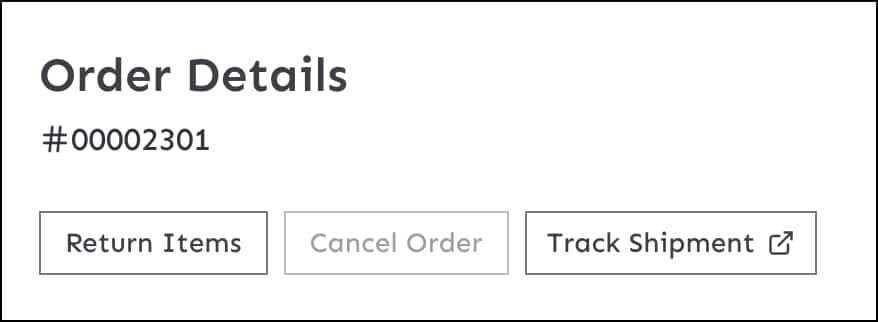
After an order has been fulfilled, a registered shopper can track the order shipments by clicking Track Shipment on the order detail page. Clicking Track Shipment redirects the shopper to an external site where they can track the shipments.
Canceling an Order
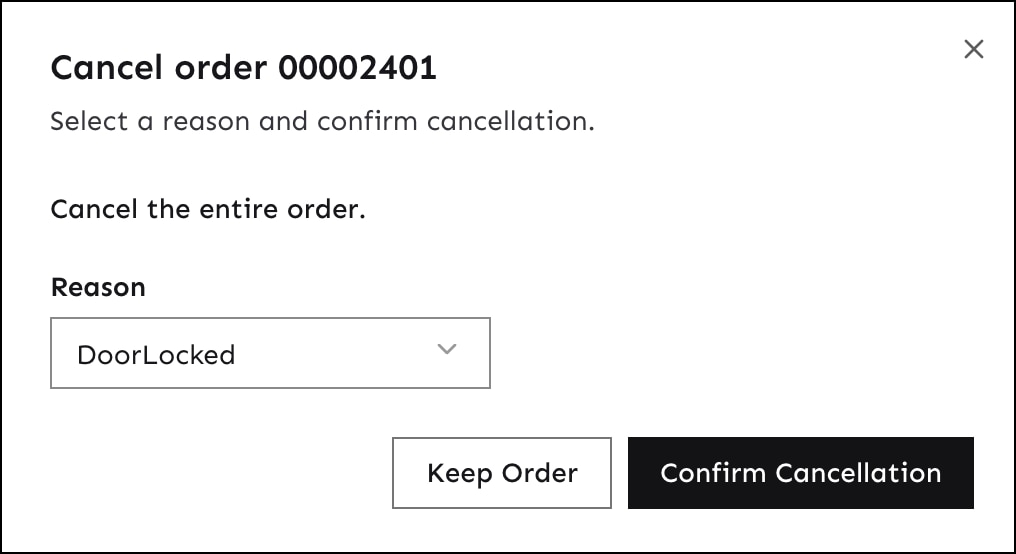
For orders that haven’t been fulfilled yet, registered shoppers can cancel the orders they created by clicking Cancel Order on the order detail page. After an order has been fulfilled and shipped, it is no longer cancelable. To be able to cancel an order, every item in the order must be cancelable.
Returning Eligible Items
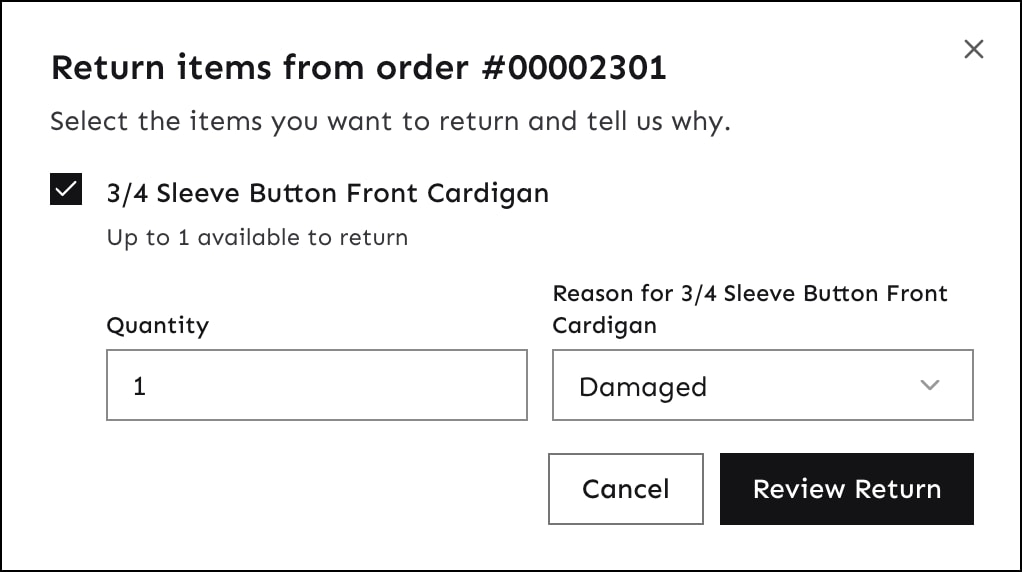
After an order has been fulfilled, a registered shopper can return eligible items by clicking Return Items on the order detail page. In the Return items modal, the shopper can select one or more items to return, their quantity, and the return reason.
After submitting a return request, the order’s status badge reflects the return’s progress. This progress includes partial return status, when a return is initiated for a subset of items in an order.
Return and cancellation reasons come from SOM. They aren’t hardcoded in Storefront Next.
Note
Order Refunds
SOM processes the refunds for order cancellations and returns, and not B2C Commerce or Storefront Next. There is nothing to implement in Storefront Next for refunds. The storefront’s responsibility ends at initiating the return or cancellation.
For returns, the automated refund occurs only after the item is physically returned, not when the shopper initiates the return:
Shopper requests a return. The create-return-order API creates a return order in SOM.
The item is physically returned, and the return order is closed manually in the SOM UI or via an API integration.
The close event triggers the EnsureRefunds API, which makes a callout to the payment service provider (PSP) to process the refund. A credit memo is generated.
For cancellations, the same automated refund process fires on the order’s status change.
Status Badge
The status badge shows the order status for each order. The status badge indicates order placement, fulfillment, cancellation, and return progress.
To customize the display status, override getOrderFulfillmentStatus in src/lib/order/status.ts. The the display status aggregates item-level SOM statuses into a single display status.
To customize how statuses display, override the relevant helpers in src/lib/order/status.ts:
getOrderFulfillmentStatus: Aggregates item-level fulfillment statuses, such as shipped, delivered, and so on.
getOrderCancelStatusConfig: Derives the canceled status from item-level SOM cancel states.
getOrderReturnStatus: Derives return progress, such as partial return and return complete.
resolveOrderStatus: Selects between the B2C Commerce order status and the SOM status.


 j
j