Default Security Rules on On-Demand Sandbox (ODS) Instances
Applies to: All storefronts on On-Demand Sandbox (ODS) instances — Storefront Next, Composable Storefront (PWA Kit), SFRA, and Site Genesis
When you create a Storefront Next storefront on an on-demand sandbox (ODS) instance, Business Manager adds three security rules to the default zone in Embedded CDN Settings: two custom firewall rules and one rate limiting rule. The default zone is shared across every storefront on the instance, so these rules apply to all storefronts hosted there, including Storefront Next, Composable Storefront, SFRA, and Site Genesis, not only the storefront that triggered their creation.
These rules are added only on ODS instances. They aren’t added to Primary Instance Group (PIG) environments, such as staging or production.
Note
Why These Rules Exist
ODS instances are for development and testing, not production traffic, and they have less capacity than a production instance. Left unchecked, known AI crawlers and bots that scan for common vulnerability paths can index development content and consume server resources that your team needs for active development. These default rules limit that automated traffic so your ODS storefronts stay responsive during development.
View the Default Rules
In Business Manager, go to Administration > Sites > Embedded CDN Settings.
From the Zone dropdown, select the default zone for the instance.
Click the Security Rules tab.
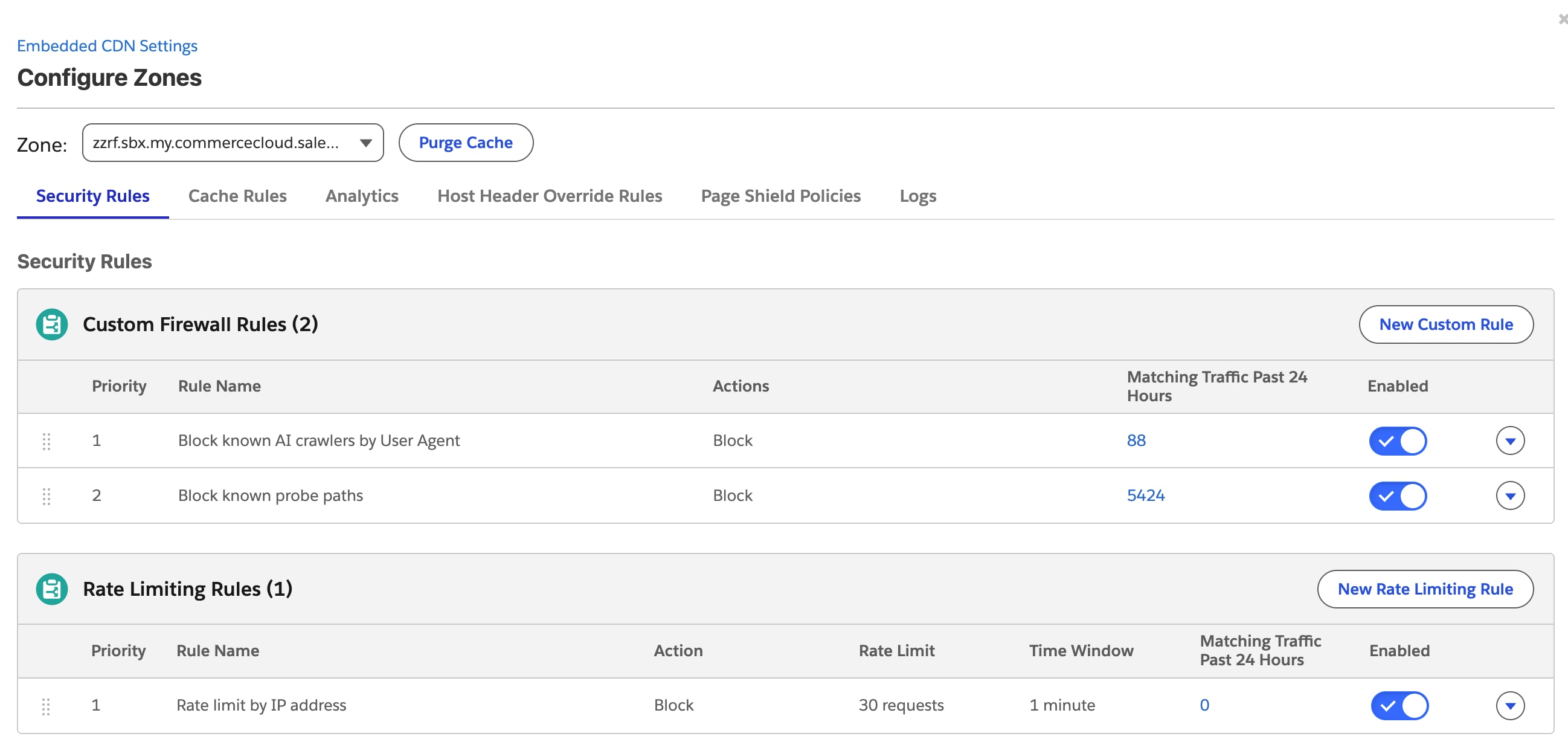
The Security Rules tab shows two rule groups.
Rule Group
Rule Name
Action
Description
Custom Firewall Rules
Block Known AI Crawlers by User Agent
Block
Blocks requests whose User-Agent header matches known AI crawler signatures.
Custom Firewall Rules
Block Known Probe Paths
Block
Blocks requests to paths that known bots and scanners commonly probe for exposed configuration, admin, or vulnerability endpoints.
Rate Limiting Rules
Rate Limit by IP Address
Block
Blocks an IP address that exceeds 60 requests per minute against the default zone.
Default Exclusions
The Rate Limit by IP Address rule’s expression excludes traffic that shouldn’t count toward the limit, so normal storefront and developer traffic isn’t throttled. By default, the rule excludes:
Composable Storefront and Storefront Next static assets
SFRA/Site Genesis static assets
OCAPI and SCAPI API paths
Business Manager and WebDAV paths
The two custom firewall rules (AI crawler and probe path blocking) don’t include this exclusion list. If either firewall rule blocks traffic that you expect to allow, edit that rule directly.
Adjust or Disable a Rule
We recommend adjusting a rule’s exclusions or rate limit rather than disabling it. The rules exist to keep known bots and crawlers from consuming ODS resources and indexing content during development; disabling a rule removes that protection for every storefront on the default zone, not just yours.
Add Exclusions to the Rate Limit Rule
On the Security Rules tab, under Rate Limiting Rules, click the caret next to Rate Limit by IP Address to expand the rule.
Add your path or pattern to the rule’s expression so that matching requests are excluded from the rate limit.
On the Security Rules tab, under Rate Limiting Rules, click the caret next to Rate Limit by IP Address to expand the rule.
Update the requests-per-period value from the default of 60 requests per minute to the limit you want.
Click Save.
Disable a Rule
Each rule has an Enabled toggle in its row on the Security Rules tab. Turning it off disables the rule for every storefront on the default zone. Before disabling a rule, try adjusting its exclusions or rate limit instead.


 j
j