


 j
jSupported Editions
Web Versus Desktop
Release Notes
Known Issues and FAQ
Feedback
Project Explorer
Extensions
Org Browser
Default Org
Command Palette
Create Projects
Org Browser makes it easy to retrieve metadata sources by displaying org metadata types and their corresponding components. Access the org browser by clicking the cloud icon in the VS Code Activity Bar. Use the Org Browser to:
package.xml manifest file.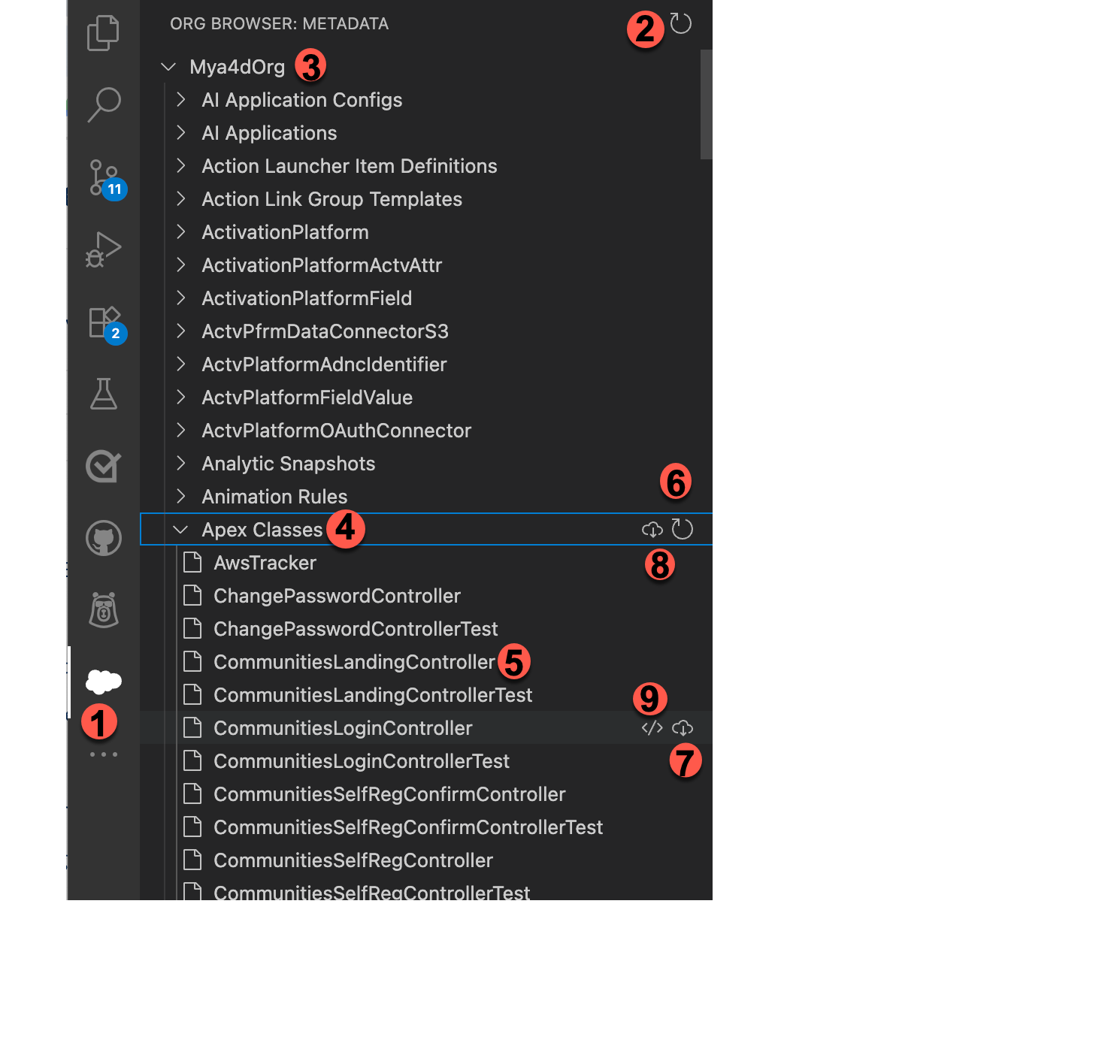
To open the Org Browser, click the cloud icon in the Activity Bar (1).
When you open the Org Browser, all the metadata for the default org is saved in your local project under the .sfdx directory to minimize the number of calls to the org.
The Org Browser lists all the metadata types (4) in your default org. To view the components (5), expand the metadata type. When you expand metadata types with folders such as Reports, Dashboards, Documents, and EmailTemplates, all the available folders are displayed. You can view the components in a folder by expanding it. Expand the Custom Object metadata type to view fields and their type information. Additional information is displayed for following field types:
Use the icons in the Org Browser, or the SFDX:Refresh Types and SFDX:Refresh Components commands to refresh metadata at org level, for a metadata type, for folders within a metadata type, or for components within a folder.
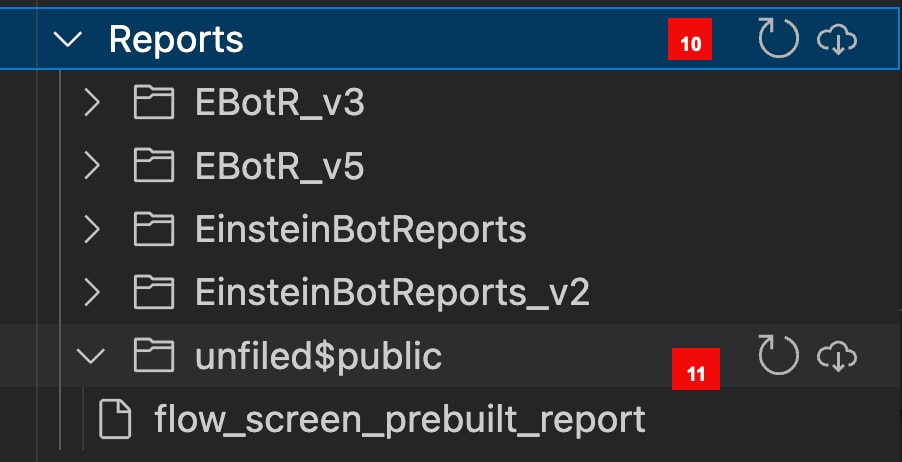
You can retrieve a single metadata component or all components of the same type. Click the retrieve icon next to:
You can retrieve all folders of folder metadata types such as Reports, Dashboards, Documents, and EmailTemplates, by clicking the retrieve icon next to the metadata type. When you retrieve a folder, only information about the folder is retrieved and added to a <folder>-meta.xml file. To retrieve components within folders, view the components in a folder by expanding it and then retrieve the individual component by clicking the retrieve icon.
Currently, the source is retrieved into your default package directory as defined in the sfdx-project.json file.
You can also retrieve multiple components from the default org by clicking the retrieve button next to the metadata type. If retrieving a component overwrites it, you’re prompted to select how to proceed.

When you retrieve components for a metadata type, the Org Browser automatically refreshes the component list for the selected type and then retrieves them. This action ensures that the extensions accurately check the local workspace for existing components.
Because of the asynchronous nature of the Metadata API calls, a simultaneous deploy and retrieve could potentially lead to a race condition. To prevent retrieving unexpected components, be mindful of using the Org Browser while a deploy operation is in progress.
Note
j