This article provides information about troubleshooting issues on iOS apps.
App Submission Errors
App submission errors can occur when you’re publishing your apps to App Store Connect. These errors include an error message from Xcode or during Apple’s app review.
We identified one or more issues with a recent delivery for your app, “[app name]”. Your delivery was successful, but you may wish to correct the following issues in your next delivery:
Missing Purpose String in Info.plist File - Your app’s code references one or more APIs that access sensitive user data. The app’s Info.plist file should contain a NSLocationAlwaysUsageDescription key with a user-facing purpose string explaining clearly and completely why your app needs the data. Starting Spring 2019, all apps submitted to the App Store that access user data will be required to include a purpose string. If you’re using external libraries or SDKs, they may reference APIs that require a purpose string. While your app might not use these APIs, a purpose string is still required. You can contact the developer of the library or SDK and request they release a version of their code that doesn’t contain the APIs. Learn more (https://developer.apple.com/documentation/uikit/core_app/protecting_the_user_s_privacy).
This error can occur even if you aren’t using Location Messaging. If you aren’t using the SDK’s location messaging functionality, your users aren’t prompted to provide location permissions. This error occurs because the SDK includes references to CoreLocation.framework. During the app review process, the automated binary scanning detects these references and requires you to provide purpose strings.
If you aren’t using Location Messaging, add a purpose string to your app’s Info.plist file as a placeholder, as shown in this example.
Apple Push Notification Service Server Configuration
To ensure the proper configuration of your Apple Push Notification Service (APNs) connection and delivery of push notifications for different types of app builds (development or production), keep these points in mind.
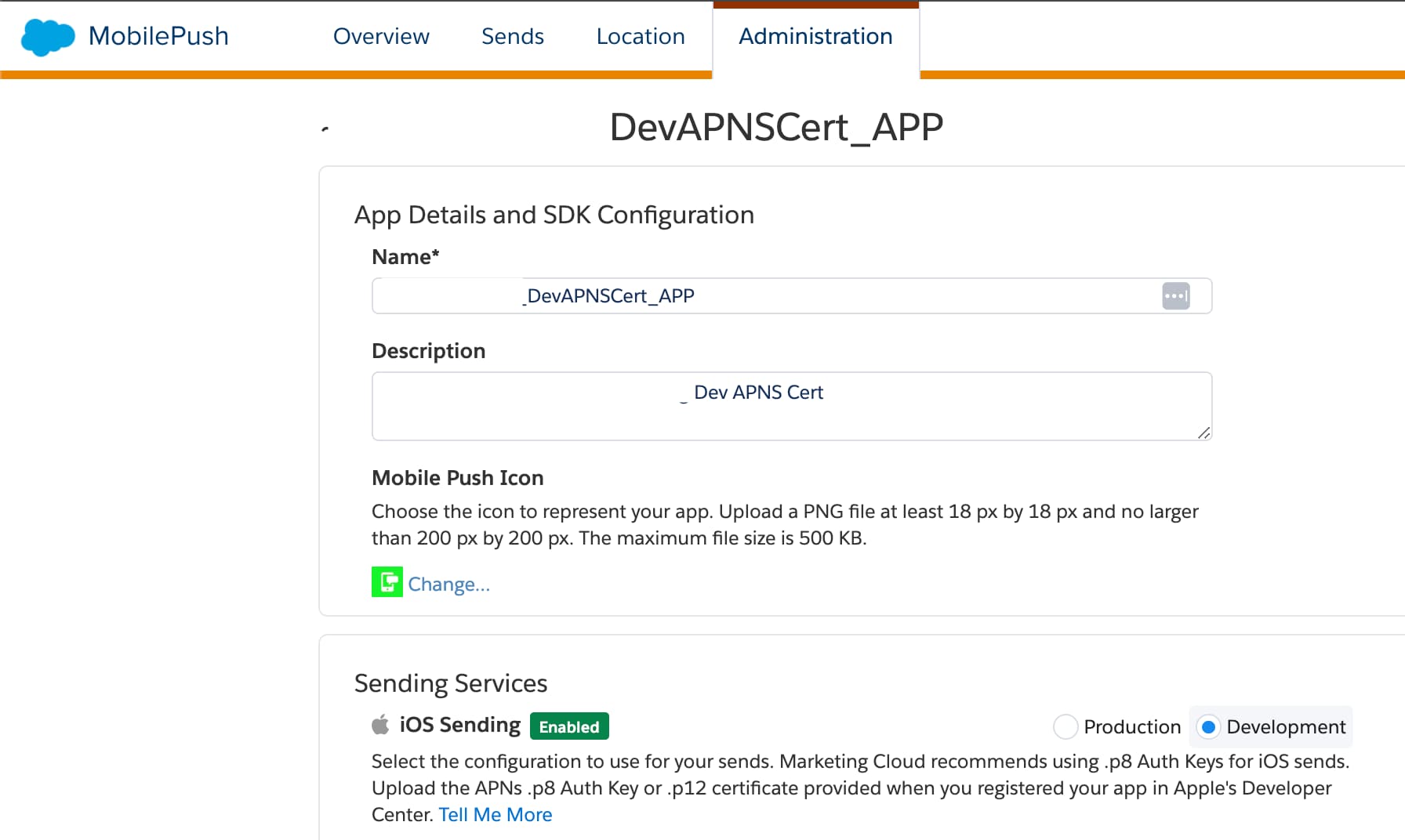
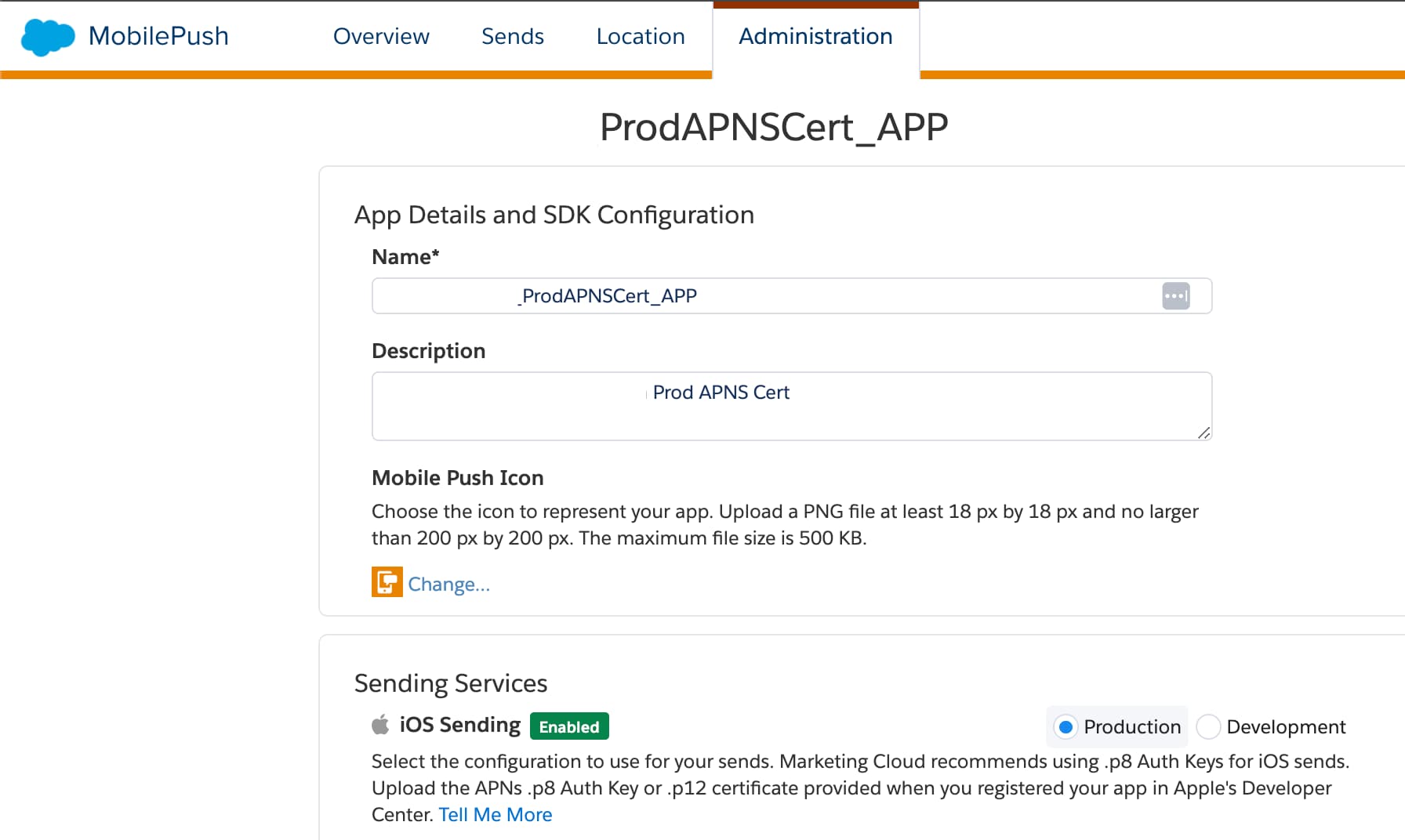
APNs Server Selection: If you select the Development option, Marketing Cloud Engagement attempts to contact the Sandbox APNs server, regardless of whether you use a .p8 key or a .p12 certificate. If you select the Production option, Marketing Cloud Engagement attempts to contact the Production APNs server.
Apps Built Using Development Certificates: To send notifications only to those devices with apps on Debug configuration, select Development on the MobilePush Administration page in Marketing Cloud Engagement.
Apps Built Using Production or Distribution Certificates: To send notifications only to those devices with apps on Release configuration, select Production on the MobilePush Administration page in Marketing Cloud Engagement.
Push Messages Not Displayed
If you encounter issues receiving messages in your app, consider these troubleshooting steps:
The MarketingCloudSDK.framework uses extensive internal logging to record actions performed by the SDK for informational and diagnostic purposes.
General, default-level logging is always enabled. Additionally, the SDK writes error and fault-level logs when certain conditions occur. Add this code to your app to enable logging.
8.x
1// Turn on logging by selecting the logLevel (debug, warn or error). Debugging is not recommended for production apps.2SFMCSdk.setLogger(logLevel: .debug)
If you use SDK versions older than version 8.x, enable logging after SDK configuration.
7.x
1// turn on logging for debugging. Not recommended for production apps.2// Set to true to enable logging while debugging3MarketingCloudSDK.sharedInstance().sfmc_setDebugLoggingEnabled(true)
You can also enable logging with CustomLogOutputter, as shown in this example.
8.x
1class CustomLogOutputter: LogOutputter {2 override func out(level: LogLevel, subsystem: String, category: LoggerCategory, message: String){3 // custom log outputting code4}5}67// Then set the log level and custom log outputter8SFMCSdk.setLogger(logLevel: .debug, logOutputter: CustomLogOutputter())
Alternatively, you can enable logging with a standard log output and a log filter, as shown in this example.
The SDK sends all logging output to Apple’s unified logging system. Review this information using Xcode’s Devices and Simulators window or the macOS Console application. If SDK debug logging is enabled, the SDK uses the OS_LOG_TYPE_DEBUG value. Disable logging before you submit a release build to the App Store.
For more information about unified logging, see Logging on Apple Developer.
Send a Test Push
To test whether your app can receive a push directly from the Apple Push Notification Service (APNs), follow these steps.
Get the push token from the SDK. For testing and troubleshooting purposes, retrieve your device token from a running app by calling sfmc_deviceToken() and send the result to yourself via email, alert, or another method.
10.x
1PushFeature.requestSdk{ pushFeature in2 print(pushFeature?.deviceToken() ?? "error: no token - was UIApplication.shared.registerForRemoteNotifications() called?")3}
8.x
1print(SFMCSdk.mp.deviceToken() ?? "error: no token - was UIApplication.shared.registerForRemoteNotifications() called?")
7.x
1print(MarketingCloudSDK.sharedInstance().sfmc_deviceToken() ?? "error: no token - was UIApplication.shared.registerForRemoteNotifications() called?")
Trigger the APNs API directly from the command line if using a .p8 authentication key.
This bash script points to the development APNs service by default. To trigger push from the APNs production server, change the value of the endpoint variable to https://api.push.apple.com.
Note
1#!/bin/bash23# To get curl with HTTP/2 and openssl with ECDSA: run 'brew install curl-openssl'4curl=/usr/local/opt/curl/bin/curl5openssl=/usr/local/opt/openssl/bin/openssl67--------------------------------------------------------------------------89deviceToken=#push token returned from MobilePush SDK10authKey=#path to your .p8 extension Auth Key File11authKeyId=#the Key ID of the .p8 Auth Key File12teamId=#team id found in apple developer account13bundleId=#application bundle identifier14endpoint=https://api.development.push.apple.com1516read -r -d '' payload<<-'EOF'17{18"aps": {19 "badge": 1,20 "alert": {21 "title": "TEST_PUSH_TITLE",22 "subtitle": "TEST_PUSH_SUBTITLE",23 "body": "TEST_PUSH_BODY"24 },25 "_sid": "SFMC"26}27}28EOF2930# --------------------------------------------------------------------------3132base64(){33$openssl base64 -e -A | tr -- '+/' '-_' | tr -d =34}3536sign(){37printf "$1"| $openssl dgst -binary -sha256 -sign "$authKey" | base6438}3940time=$(date +%s)41header=$(printf '{ "alg": "ES256", "kid": "%s" }' "$authKeyId" | base64)42claims=$(printf '{ "iss": "%s", "iat": %d }' "$teamId" "$time" | base64)43jwt="$header.$claims.$(sign $header.$claims)"4445$curl --verbose \46--header "content-type: application/json" \47--header "authorization: bearer $jwt" \48--header "apns-topic: $bundleId" \49--data "$payload" \50$endpoint/3/device/$deviceToken
If you use a legacy .p12 certificate, trigger the APNs API directly from the command line.
1#!/bin/sh23export DEVICE_TOKEN=#push token returned from MobilePush SDK4export BUNDLE_ID=#application bundle identifier5export CERT_PATH=#path to your push certificate and key, exported as a p12 file6export CERT_PASSWORD=#password of your p12 file78# sent your endpoint to prod or sandbox9# sandbox MUST use a development push certificate10# sandbox MUST use a push token from a debugging build of your app (run from11# Xcode to a connected device)12export ENDPOINT=https://api.push.apple.com/3/device13#export ENDPOINT=https://api.sandbox.push.apple.com/3/device1415curl -v \16-d '{"_m": "TEST_MESSAGE_ID", "aps": {"alert": {"body": "TEST_PUSH_BODY", "title": "TEST_PUSH_TITLE", "subtitle": "TEST_PUSH_SUBTITLE"},"_sid": "SFMC"}}' \17-H "apns-topic: ${BUNDLE_ID}" \18--http2 \19--cert ${CERT_PATH}:${CERT_PASSWORD}\20--cert-type P12 \21${ENDPOINT}/${DEVICE_TOKEN}
If your device receives the push notification, the app is configured correctly. The setup includes creating a .p8 authentication key or .p12 certificate, building the app with the correct bundle ID, and using the appropriate provisioning profiles.
Note
Test Through Marketing Cloud Engagement
Note the environment (development or production APNs) in which the push was successfully delivered while sending a test push.
On the Engagement Administration page, point to the same environment under Sending Services > iOS Sending and send a push notification. Check if your device received the push notification.
Ensuring the selection of the correct APNs environment is crucial for the SDK to trigger push notifications to the appropriate APNs server. If you select Development on the MobilePush Administration page, Marketing Cloud Engagement contacts the Sandbox APNs server. If you select Production, it contacts the Production APNs server.
Note
Log SDK State Information
To retrieve a list of all the information the SDK has and its current state, implement getSDKState(), as shown in this example.
8.x
1print("SDK State = \(SFMCSdk.state())")
7.x
1// display a JSON formatted, easily readable block of text describing the current status of the SDK.2print("SDK State = \(MarketingCloudSDK.sharedInstance().sfmc_getSDKState()?? "SDK State is nil")")
The SDK outputs a JSON string as shown in this example.
Testing your app while connected to a corporate network can prevent your test device from receiving messages, especially if your firewall blocks certain ports. Unblock these TCP ports to ensure that your test device can reach the APNs servers.
TCP Port
Description
5223
Used by devices to communicate to the APNs servers
2195
Used to send notifications to the APNs servers
2196
Used by the APNs feedback service
443
Used as a fallback service for Wi-Fi devices when those devices can’t communicate with the APNs service on port 5223
Review Additional Troubleshooting Guidance
Refer to these article when you test your app, or to troubleshoot message delivery issues.
The MobilePush SDK can coexist and work in the same app as the SDKs of other push providers. However, we recommend checking with your other SDK vendors to ensure they also support a multi-push provider implementation. Consider these factors if you implement multiple push SDKs.
Common Issues With Multiple Push Provider (MPP)
Some MPP implementations can prevent the transmission of device tokens and push messages.
Without device tokens, the SDK doesn’t register the device properly. As a result, Marketing Cloud is unable to send push notifications to the device. The SDK expects you to pass push notifications to the setNotificationRequest method. Using this method makes the SDK aware of the notifications and lets it handle them accordingly.
Apple has specific delegate methods that the consuming application must implement to register with APNs and receive push notifications. Implementing multiple push providers can affect the previously mentioned functionality since other vendors can provide wrapper methods for registration and receiving the notifications. Consuming applications often listen to the wrapper methods instead of actual Apple-provided delegate methods. An example of a common issue is when registration with Apple is done for one push provider without setting the deviceToken for other push providers.
Handling MPP with the MobilePush SDK
Method Swizzling is the process of changing the implementation of a selector at runtime. If Method Swizzling is enabled, other push providers automatically intercept all the application delegate methods, which differ from the normal flow in setting up the deviceToken and notification userinfo.
Method Swizzling can confuse MobilePush SDK users about how and where to set the SDK’s required API methods because another provider is changing the implementation without their knowledge.
To determine if other SDK providers use Swizzling, check to see if they use these methods.
MobilePush SDK users can handle MPP implementations regardless of whether Swizzling is enabled.
With Swizzling Enabled
If Swizzling is enabled, implement the other push provider’s delegate methods and then implement the MobilePush SDK methods.
First, configure the SDK along with the other Push provider, as shown in this code example.
10.x
1func application(_ application: UIApplication, didFinishLaunchingWithOptions launchOptions: [UIApplication.LaunchOptionsKey: Any]?) ->Bool{2 if let options = launchOptions, let notification = options[UIApplication.LaunchOptionsKey.remoteNotification] as? [AnyHashable: Any]{3 self.notificationUserInfo = notification4}56 FirebaseApp.configure()7 Messaging.messaging().delegate = self8 self.configureSdk()910 if #available(iOS 10.0, *){11 UNUserNotificationCenter.current().delegate = self1213 let authOptions: UNAuthorizationOptions = [.alert, .badge, .sound]14 UNUserNotificationCenter.current().requestAuthorization(15 options: authOptions,16 completionHandler: {_, _ in}17)18}else{19 let settings: UIUserNotificationSettings =20 UIUserNotificationSettings(types: [.alert, .badge, .sound], categories: nil)21 application.registerUserNotificationSettings(settings)22}23 application.registerForRemoteNotifications()2425 return true26}2728@discardableResult29func configureSdk() ->Bool{30 let appID = "<your appID here>"31 let accessToken = "<your accessToken here>"32 let appEndpointURL = "<your appEndpoint here>"33 let mid = "<your account MID here>"3435#if DEBUG36 SFMCSdk.setLogger(logLevel: .debug)37#endif3839 let appEndpoint = URL(string: appEndpointURL)!4041 var configBuilder = ConfigBuilder()4243 let engagementConfiguration = MarketingCloudSdkConfigBuilder(appId: appID)44 .setAccessToken(accessToken)45 .setMarketingCloudServerUrl(URL(string: appEndpointURL)!)46 .setMid(mid)47 .setInboxEnabled(true)48 .setLocationEnabled(true)49 .setAnalyticsEnabled(true)50 .build()5152 configBuilder = configBuilder53 .setEngagement(config: engagementConfiguration)5455 let pushFeatureConfiguration = PushFeatureConfigBuilder()56 .setApplicationControlsBadging(true)57 .build()5859 configBuilder = configBuilder60 .setPushFeature(config: pushFeatureConfiguration)6162 // Set the completion handler to take action when all modules initialization is completed.63 // Seting the completion handler is optional.6465 let completionHandler: ((_ status: [ModuleInitStatus]) ->Void) = {[weak self] status in66 DispatchQueue.main.async{67 self?.handleSDKInitializationCompletion(status: status)68}69}7071 SFMCSdk.initializeSdk(configBuilder.build(), completion: completionHandler)7273 return true74}7576// MARK: - SDK Initialization Completion Handler7778private func handleSDKInitializationCompletion(status: [ModuleInitStatus]){79 var allSuccessful = true8081 for moduleStatus in status {82 print("Module: \(moduleStatus.moduleName.rawValue), Status: \(moduleStatus.initStatus.rawValue)")8384 if moduleStatus.initStatus == .success {85 // Handle successful initialization for each module86 switch moduleStatus.moduleName {87 case .engagement:88 // Handle successful initialization for Marketing cloud module89 case .pushFeature:90 // Handle successful initialization for Push Feature module91 default:92 break93}94}else if moduleStatus.initStatus == .error{95 allSuccessful = false96 // module failed to initialize, check logs for more details97}else if moduleStatus.initStatus == .cancelled {98 allSuccessful = false99 // module initialization was cancelled (for example due to re-confirguration triggered before init was completed)100}else if moduleStatus.initStatus == .timeout {101 allSuccessful = false102 // module failed to initialize due to timeout, check logs for more details103}104}105 if allSuccessful {106 print("SDK initialization completed successfully")107}else{108 print("SDK initialization completed with errors - check logs above")109}110}
8.x
1func application(_ application: UIApplication, didFinishLaunchingWithOptions launchOptions: [UIApplication.LaunchOptionsKey: Any]?) ->Bool{2 if let options = launchOptions, let notification = options[UIApplication.LaunchOptionsKey.remoteNotification] as? [AnyHashable: Any]{3 self.notificationUserInfo = notification4}56 FirebaseApp.configure()7 Messaging.messaging().delegate = self8 self.configureSFMCSdk()910 if #available(iOS 10.0, *){11 UNUserNotificationCenter.current().delegate = self1213 let authOptions: UNAuthorizationOptions = [.alert, .badge, .sound]14 UNUserNotificationCenter.current().requestAuthorization(15 options: authOptions,16 completionHandler: {_, _ in}17)18}else{19 let settings: UIUserNotificationSettings =20 UIUserNotificationSettings(types: [.alert, .badge, .sound], categories: nil)21 application.registerUserNotificationSettings(settings)22}23 application.registerForRemoteNotifications()2425 return true26}2728@discardableResult29func configureSFMCSdk() ->Bool{30 let appID = "<your appID here>"31 let accessToken = "<your accessToken here>"32 let appEndpointURL = "<your appEndpoint here>"33 let mid = "<your account MID here>"3435#if DEBUG36 SFMCSdk.setLogger(logLevel: .debug)37#endif3839 let appEndpoint = URL(string: appEndpointURL)!4041 let mobilePushConfiguration = PushConfigBuilder(appId: appID)42 .setAccessToken(accessToken)43 .setMarketingCloudServerUrl(appEndpoint)44 .setMid(mid)45 .setInboxEnabled(true)// enable if needed by your application46 .setLocationEnabled(true)// enable if needed by your application47 .setAnalyticsEnabled(true)// enable if needed by your application48 .build()4950 let completionHandler: (OperationResult) ->() = { result in51 if result == .success {52 self.setupMobilePush()53}else if result == .error{54}else if result == .cancelled {55}else if result == .timeout {56}57}5859 SFMCSdk.initializeSdk(ConfigBuilder().setPush(config: mobilePushConfiguration, onCompletion: completionHandler).build())6061 return true
Next, configure the SDK to set the device token, as shown in this code example.
10.x
1// MARK: FireBaseMessaging Delegate2/**3 Set deviceToken to MarketingCloudSDK in the FCM delegate method when Swizzling is enabled.4 DeviceToken must be set MANDATORILY to MarketingCloudSDK using`SFMCSdk.mp.setDeviceToken` API for Push notifications to be received through Mobile Push.5 */6extension AppDelegate : MessagingDelegate {7 func messaging(_ messaging: Messaging, didReceiveRegistrationToken fcmToken: String?){8 print("FCM Token", fcmToken ?? "")910 PushFeature.requestSdk{ pushFeature in11 print("SDK is operational")12 if let apnsToken = messaging.apnsToken {13 print("Setting APNs token in MarketingCloudSDK")14 pushFeature?.setDeviceToken(apnsToken)15}else{16 print("fcm token is null")17}18 print("SDK is not yet operational")19}20}21}
8.x
1// MARK: FireBaseMessaging Delegate2/**3 Set deviceToken to MarketingCloudSDK in the FCM delegate method when Swizzling is enabled.4 DeviceToken must be set MANDATORILY to MarketingCloudSDK using`SFMCSdk.mp.setDeviceToken` API for Push notifications to be received through Mobile Push.5 */6extension AppDelegate : MessagingDelegate {7 func messaging(_ messaging: Messaging, didReceiveRegistrationToken fcmToken: String?){8 print("FCM Token", fcmToken ?? "")910 SFMCSdk.requestPushSdk{ mp in11 print("SDK is operational")12 if let apnsToken = messaging.apnsToken {13 print("Setting APNs token in MarketingCloudSDK")14 mp.setDeviceToken(apnsToken)15}else{16 print("fcm token is null")17}18 print("SDK is not yet operational")19}20}21}
When Swizzling is enabled in the other push provider, respective delegate methods are intercepted. For example, if Firebase is the other push provider, when a push notification is received from Firebase, the payload received in the UNUserNotificationCenterDelegate’s didReceive notification method is altered to receive a MessagingMessageInfo object. Because the payload doesn’t match the format that the SDK expects, the message isn’t reported.
Notification messages from other providers are displayed in the device’s notification center. However, any action on the notification message from the SDK (for example, URL handling and reporting) doesn’t work.
Note
With Swizzling Disabled
To disable Swizzling, refer to the other push provider’s documentation. When Swizzling is disabled in the other push provider, the default AppDelegate methods are called.
MPP implementation issues are often caused by issues related to device registration, badging, geolocation, custom payload keys, and feedback.
Registration: You must only make one call to a push SDK to register for push notifications. Otherwise, a single push notification can trigger multiple notification banners, alerts, or sounds. The MobilePush SDK gives the app developer the power to register.
Notification Settings: An app can invoke requestAuthorizationWithOptions and registerForRemoteNotifications multiple times. However, only the settings from the last call are used, as each successive call overwrites the previous settings.
Badging: There’s no way to guarantee the value of a badge.
Custom Payload Keys: If your implementation must distinguish between two notification providers, use custom keys or other payload-specific data to ensure that your app calls the correct SDK handler that supports multiple notification handlers. Passing a third party’s notification to setNotificationRequest or setNotificationUserInfo is essentially a no-op call. The SDK only emits logs indicating the origin of the notification wasn’t from Engagement.
Geolocation: If you implement multiple SDKs that use location-enabled services, use only one SDK’s location enablement. Using more than one leads to unknown and unsupportable consequences. For example, the methods used by the other providers to interact with iOS CoreLocation services and enable location services are likely to affect each provider. An app can monitor a limited number of geofences at any given time. This number depends on iOS version, device type, and other considerations. With multiple implementations competing for a limited resource, the user experience can suffer. Additionally, permissions needed to use location-enabled SDKs can overlap or conflict.
Feedback: Not all providers are able to detect if a device has been unregistered. To see how notifications are handled using Firebase as a push provider, see the iOS LearningApp.
iOS Data Protection
iOS Data Protection affects the SDK as described in this table.
iOS Data Protection Level
SDK Behavior
No protection
SDK works in the foreground and background
Complete until first user authentication
SDK works in the foreground and background after the first unlock
Complete unless open
SDK works in the foreground and background after the first unlock
Complete
SDK works only in the foreground after the device is unlocked
The MobilePush SDK requires access to files on the iOS Device file system. Some iOS Data Protection modes can prevent the SDK from accessing the needed files at certain times. During normal operation, the SDK must have access to files while running in the foreground and while running in the background. If the SDK can’t access these files due to an iOS Data Protection mode, an error is logged and file access fails.
By default, the SDK sets the file protection type to NSFileProtectionCompleteUntilFirstUserAuthentication. With this file protection type, files are stored in an encrypted format on disk and can’t be read from or written to until the user unlocks the device for the first time. As of version 8.0.9, the SDK continues to retain the default protection type (NSFileProtectionCompleteUntilFirstUserAuthentication). However, it also provides the capability to override the file protection type within the consuming application. You can choose different file protection types, such as NSFileProtectionComplete and NSFileProtectionCompleteUnlessOpen, based on your specific needs.
NSSQLiteErrorDomain errors can appear in logs if the FileProtectionType is NSFileProtectionComplete and the application goes to the background.
Note
Override FileProtectionType
The following example shows how you can override the file protection type.
For an additional example of overriding the file protection type, see the learning application.
Configuration Issues
If you configure iOS data protection such that the file system isn’t accessible during the SDK configuration call, the SDK retries the call for up to 5 seconds. This retry period allows time for a user to unlock the device and make the file system accessible. If the user doesn’t unlock the device within 5 seconds, an error object is returned describing the error, and the configuration call fails, returning false. In this case, the SDK isn’t configured, and no access to SDK methods must be attempted until the configure method returns true. The error object returns the error code configureDatabaseAccessError.
Foreground and Background Operation Issues
Certain features of the SDK require access to the file system as the app transitions to the foreground or background. Foreground operations include retrieving messages from Engagement for inbox messaging, location messaging, and sending analytic information back to Engagement. Background operations include sending analytic information back to Engagement. If any of these features are enabled via configuration, then an appropriate iOS Data Protection mode must be selected for them to work correctly.
Troubleshoot Data Merge
For iOS applications upgraded from SDK versions 7.x to versions up to 8.0.6, the previous v7.x tags and attributes are retained on the device but not sent to the server. If an application doesn’t reset or regenerate tags and attributes, the device sends empty tags and attributes to the system.
The following sections walk through the requirements for merging datasets successfully.
Using SPM, upgrade to the latest version of the MobilePush SDK for iOS and SFMCSDK for iOS.
Swift Compilation Error
You may encounter a build failure if the Swift compiler version used to build the SDK doesn’t match the version used by your current Xcode toolchain.
The build fails with this error:
1failed to build module 'PushFeatureSDK'; this SDK is not supported by the compiler (the SDK is built with 'Apple Swift version 6.1.2...', while this compiler is 'Apple Swift version 6.2.3...'). Please select a toolchain which matches the SDK.23'PushFeatureProtocol' is unavailable: cannot find Swift declaration for this protocol.
To resolve this issue, follow these steps to reset your environment:
Clear Derived Data.
Remove the SDK dependencies from your project and then add them back again.
Clean and Run.
Merge Data (Optional)
The merging tool offers two options to merge attributes and tags: automatic merging and manual merging. In some scenarios, you can choose to defer or avoid merging the datasets. The merging tool defaults to an “opted out” state if you don’t implement either of the merging methods. In the opted out state, tags and attributes aren’t merged from the version 7.x dataset to your current application’s dataset.
Automatic Merging
The automatic merging option attempts to merge old data into the current dataset, with the current data taking precedence over data within the version 7.x dataset.
The following tables illustrate how automatic merging behaves and how data is merged.
in this tables, key:value pairs are denoted using : as the separator.
Note
Attributes
Prior Dataset
Current Dataset
Merge Result
A:B
empty
A:B
empty
A:B
A:B
A:B, C:D
A:E
A:E, C:D
A:B
A: cleared
A: cleared
Tags
Prior Dataset
Current Dataset
Merge Result
SHIRTS
empty
SHIRTS
empty
PANTS
PANTS
SHIRTS
PANTS
SHIRTS, PANTS
SHIRTS
SHIRTS, PANTS
SHIRTS, PANTS
The following code snippets show you how to configure the SDK to attempt an automatic merge.
To ensure the completion callback passed into setAutoMergePolicy is set before SDK initialization, place the following code snippets before SDK initialization.
The manual merge option enables you to receive both the prior data and the current data in a callback, providing the opportunity to choose what data ultimately ends up in the final dataset.
You can decide what attributes and tags are set in the current dataset. However, to set attributes and tags accordingly, you must retain the data until the SDK is initialized.
Access to the tags and attributes for versions 7.x and 8.x is provided before SDK initialization.
Important
Swift
10.x
1class ExampleDelegate: UIResponder, UIApplicationDelegate {23 var setTagsAndAttributes: (() ->())? = nil45 // ...6}78// ...9SFMCSdk.setManualMergePolicy(withHandler: {(v8, v9)in1011 self.setTags = {12 let tags: [String] = // e.g. v9["tags"]13 MarketingCloudSdk.requestSdk{ mc in14 mc?.addTags(tags)15}16}17}1819private func handleSDKInitializationCompletion(status: [ModuleInitStatus]){20 // ...21 if moduleStatus.initStatus == .success {22 // Handle successful initialization for each module23 switch moduleStatus.moduleName {24 case .engagement:25 self.setTags?()26 // Handle successful initialization for Marketing cloud module27}28}29 // ...30}3132// ...3334SFMCSdk.initializeSdk(configBuilder.build(), completion: completionHandler)
8.x
1class ExampleDelegate: UIResponder, UIApplicationDelegate {23 var setTagsAndAttributes: (() ->())? = nil45 // ...6}78// ...9SFMCSdk.setManualMergePolicy(withHandler: {(v7, v8)in1011 self.setTagsAndAttributes = {12 let attributes: [String:String] = // e.g. v8["attributes"] as! [String : String]13 SFMCSdk.identity.setProfileAttributes([ModuleName.push : attributes])1415 let tags: [String] = // e.g. v8["tags"]16 SFMCSdk.requestPushSdk{ mp in17 mp.addTags(tags)18}19}20}2122// ...2324let completionHandler: (OperationResult) ->() = { result in25 // ...26 if result == .success {27 // ...28 if(SFMCSdk.mp.getStatus() == .operational){29 self.setTagsAndAttributes?()30}31 // ...32}33}3435// ...3637SFMCSdk.initializeSdk(ConfigBuilder().setPush(config: configuration, onCompletion: completionHandler).build())
This troubleshooting guidance applies only to MobilePush SDK for iOS versions 8.0.13 and earlier.
Important
Fatal Keychain Access exceptions occur if an application with an active MobilePush SDK integration tries to access Keychain on a locked device secured with Face ID or passcode-based authentication. iOS Data Protection modes prevent the SDK from accessing these files.
These sections describe common Keychain Access exceptions and provide guidance on resolving them.
Setting this property to false logs the exception to the console instead of causing the app to crash.
Unknown Status Code (-34018)
You can encounter an error message that indicates a keychain access issue along with an unknown status code (-34018).
1Terminating app due to uncaught exception 'com.salesforce.security.keychainException',2reason: 'dictionaryItemFromKeychain: Error attempting to look up keychain item:3Unknown status code (-34018)'
To resolve this issue, enable Keychain Sharing in the Signing & Capabilities pane in Xcode. When you enable Keychain Sharing, you don’t need to add identifiers specific to the SDK.
Related Items
For an example of an ideal SDK implementation on iOS, see the iOS LearningApp.
Not all the code used in the LearningApp is required. Depending on your app, you can decide which parts to use or replicate and which ones to ignore.
MarketingCloudSDK.bundle Inclusion Crash
These troubleshooting steps apply only to the MobilePush SDK for iOS version 8.0.13 and earlier. In version 8.1.0 and later, the SDK automatically includes the bundle.
Important
When you upgrade to the latest version of the SDK, update MarketingCloudSDK.bundle. If you don’t copy the right versions, your app can crash because the older versions of MarketingCloudSDK.bundle don’t have the required resources.
If you don’t include the latest MarketingCloudSDK.bundle in your app, you can encounter these exceptions.
NSInvalidArgumentException
Reason: +entityForName: nil is not a legal NSManagedObjectContext parameter searching for entity name 'SFMCEndpointConfigurationEntity'
NSInternalInconsistencyException
Reasons:
'NSFetchRequest could not locate an NSEntityDescription for entity name 'SFMCEventConfigurationEntity''
'Cannot create an NSPersistentStoreCoordinator with a nil model'
To resolve these exceptions, upgrade to the latest version of the SDK and then follow these steps.
Remove the existing MarketingCloudSDK.bundle from Xcode under Build phases > Copy Resources Bundle.
Based on your integration method, add the latest MarketingCloudSDK.bundle.
If you’re using SPM as a dependency manager, following the instructions provided in the iOS Migration Guide.
Silent push notifications are delivered without an alert message or sound, typically to trigger updates to the app UI or background operations. A silent push notification wakes your app from a “Suspended” or “Not Running” state to update content or run certain background tasks without notifying users.
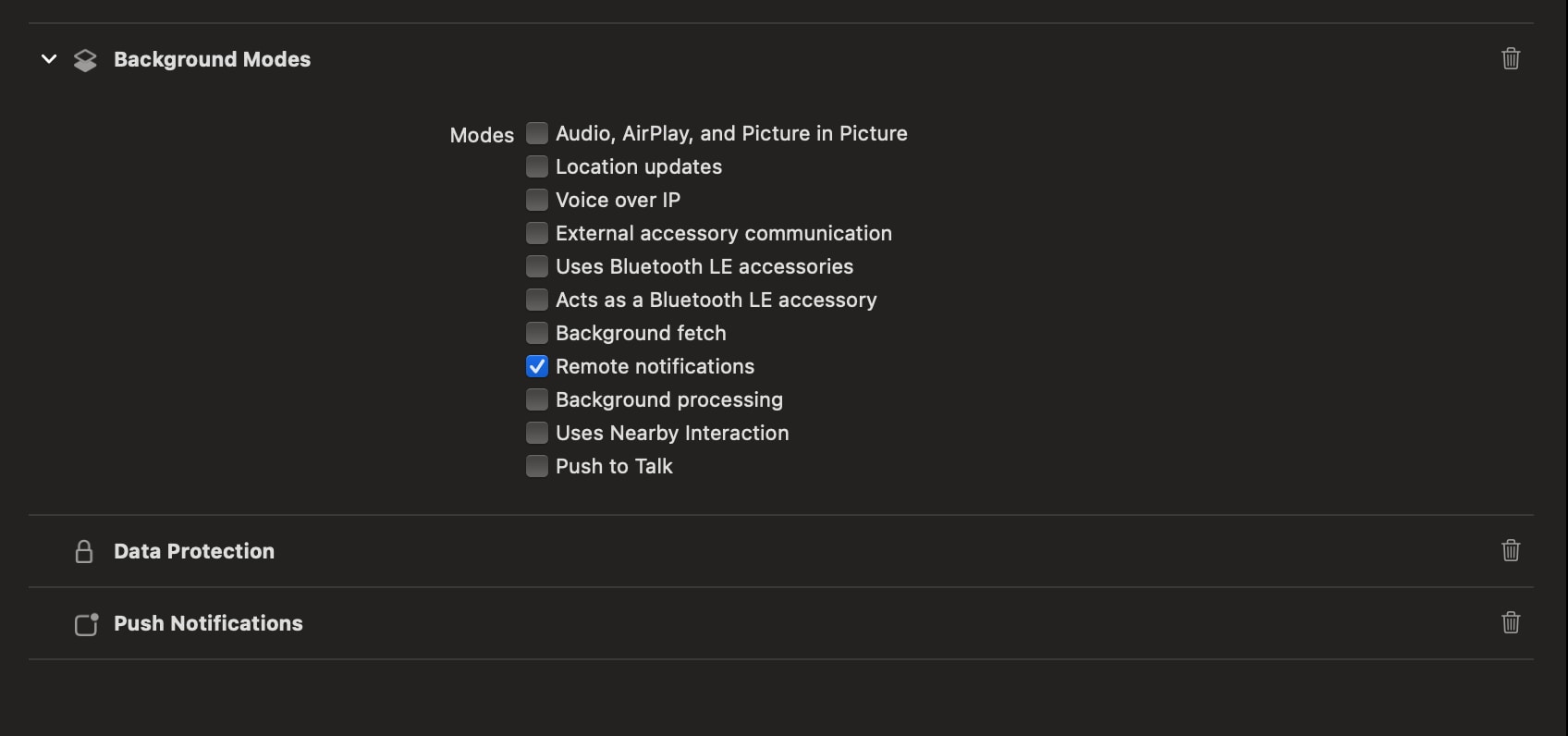
To use silent push notifications to trigger background tasks, configure your app to receive notifications even when it’s in the background. To do so, navigate to the Signing & Capabilities pane on Xcode, and add the Background Modes capability to the main app target. Also ensure that you select the Remote notifications checkbox.
To handle silent push notifications, implement the application:didReceiveRemoteNotification:fetchCompletionHandler: application delegate method. For more information, see Apple’s documentation on Pushing background updates to your app.
Troubleshoot Push Delivery Analytics
If you encounter issues with push delivery analytics, consider these common problems and their resolutions:
Missing Push Delivery Analytics
First confirm that push delivery analytics is enabled in the Engagement UI. If disabled, your Engagement admin must enable it for the SDK to send delivery events.
If push delivery events and analytics aren’t appearing in your Engagement reports, verify whether you’re sending supported message types. Push delivery analytics are only available for Push and Alert + Inbox messages. In-App, Geofence, Proximity, and silent pushes aren’t tracked.
Multiple Push Provider Implementation Problems
If you’re using multiple push providers, ensure that no fields or keys are removed from the push payload before passing it to SFMCNotificationService, which your NotificationService class in the service extension inherits from. The SDK requires the complete push payload to process push delivery events. If any keys or fields are missing, the SDK logs a warning and doesn’t process the push delivery event.


 j
j