This lesson introduces you to the basics of using AMPscript in your messages.
Creating variables
Using variables to refer to values in a data extension
Displaying the value of a variable in a message
Northern Trail Outfitters (NTO), the fictitious company that we refer to in this lesson, has a sendable data extension that contains several pieces of information about their subscribers.
Data Extension Column Name
Description
MemberID
A unique member ID number for the subscriber
FirstName
The subscriber’s first or given name
LastName
The subscriber’s surname or family name
PrefName
The subscriber’s preferred name
Address
The subscriber’s street address
City
The city that the subscriber lives in
State
The state, province, or other subnational unit where the subscriber lives
PostalCode
The subscriber’s postal code
MemPref
The subscriber’s preferred outdoor activity
Plat
A true or false value that indicates whether the subscriber is a platinum rewards member
Message Content
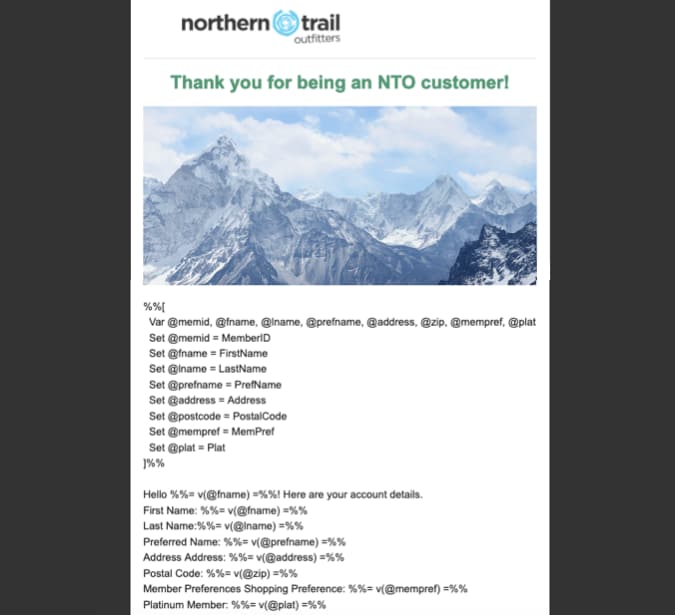
This code example contains the message content for this lesson.
1%%[2 Var @memid, @fname, @lname, @prefname, @address, @zip, @mempref, @plat3 Set @memid = MemberID4 Set @fname = FirstName5 Set @lname = LastName6 Set @prefname = PrefName7 Set @address = Address8 Set @postcode = PostalCode9 Set @mempref = MemPref10 Set @plat = Plat11]%%1213Hello %%= v(@fname) =%%! Here are your account details.14First Name: %%= v(@fname) =%%15Last Name:%%= v(@lname) =%%16Preferred Name: %%= v(@prefname) =%%17Address Address: %%= v(@address) =%%18Postal Code: %%= v(@zip) =%%19Member Preferences Shopping Preference: %%= v(@mempref) =%%20Platinum Member: %%= v(@plat) =%%
If you’re new to AMPscript, it’s helpful to move through the AMPscript sample code line by line so that you can better understand how AMPscript works.
AMPscript Block Opening Tag
The example begins with %%[, which indicates the beginning of a block of AMPscript code.
Variable Declaration
The second line of the example begins with Var, followed by several names that begin with @. Each of these names is used as a variable later in the code example. The @ sign is required at the beginning of each AMPscript variable. At this point, all of the variables have been declared, but the value for each one is null.
The next several lines begin with Set, followed by the name of one of the declared variables. These lines assign a value to each of the declared variables. The value of each variable is set to equal the corresponding column in the sendable data extension that this email targets. When the email is sent, the system retrieves the value in the specified column for each subscriber and assigns that value to the variable.
1Set @memid = MemberID2 Set @fname = FirstName3 Set @lname = LastName4 Set @prefname = PrefName5 Set @address = Address6 Set @postcode = PostalCode7 Set @mempref = MemPref8 Set @plat = Plat
AMPscript Block Closing Tag
After the variable assignments is the string ]%%. This string indicates the end of a block of AMPscript code.
Message Text
After the initial AMPscript block is closed, we see the first line of the message body. This line is the first that produces content that’s visible to the subscriber.
This line contains the text %%= v(@fname) =%%. The %%= indicates the beginning of a string of inline AMPscript code, and the =%% indicates the end. Between these tags is the function v(@fname). The v() function is a utility function that outputs the value of a variable. The function refers to the @fname variable.
1Hello %%= v(@fname) =%%! Here are your account details.
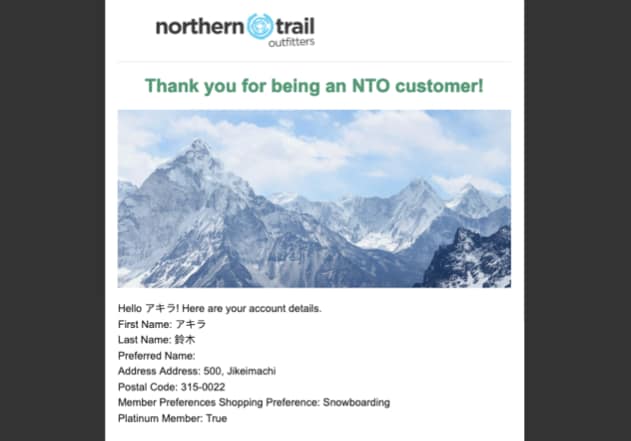
When a subscriber receives an email that contains this code, their name appears in the text instead of the AMPscript code.
Send a Test Email
If you’re new to Marketing Cloud Engagement, see Get Started with Email Studio to learn more about creating an email.
This lesson assumes that you’re familiar with creating an email and that you already set up Marketing Cloud Engagement to send emails.
In the Email Studio editor, paste the sample AMPscript into a content area.
When you finish editing the message content, click Next.
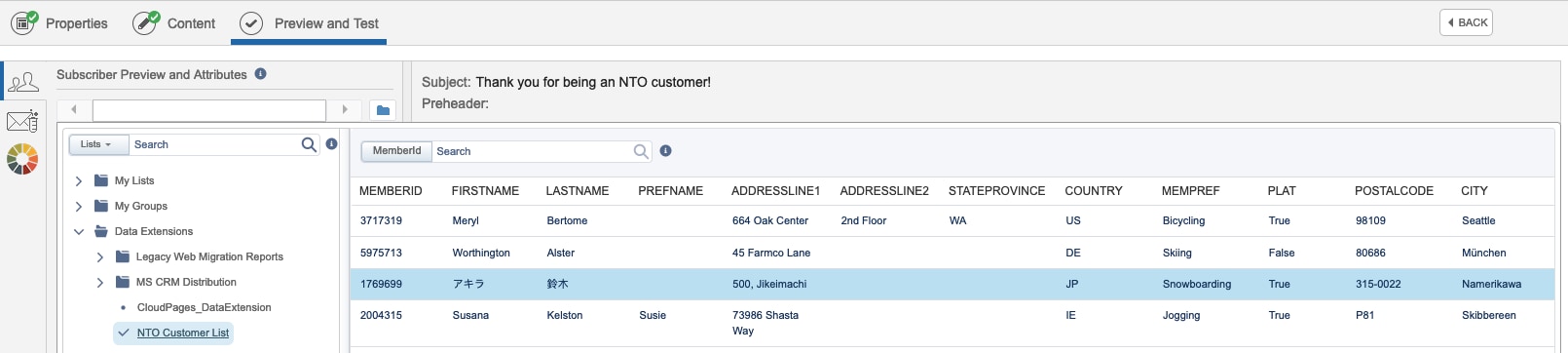
On the Preview and Test page, click the Subscriber Preview tab.
Click the folder icon.
Expand the Data Extensions folder, and then select a data extension that contains the data for your target subscribers.
Select a subscriber. When you send the email, that subscriber’s information is populated in the message body.
On the Test Send tab, choose whether to send the test message to Individuals or to a Test data extension. If you choose to send to individuals, enter their email addresses. If you choose to send to a data extension, choose a testable data extension.
Click Send Test.
Review the test message. In the test message, the inline AMPscript code in the message body is replaced with subscriber data from the row you selected in the data extension.


 j
j