


 j
jPrepare Your Google Drive Structured Connection
Create External Credentials for Google Drive
Set Up a Google Drive Structured Connection
Create a Google Drive Data Stream
MuleSoft Anypoint Connector for Salesforce Data 360
To ingest structured data from Google Drive to Data 360, set up an external credential for your Google Drive.
This feature is a Beta Service. A customer may opt to try a Beta Service in its sole discretion. Any use of the Beta Service is subject to the applicable Beta Services Terms provided at Agreements and Terms. If you have questions or feedback about this Beta Service, contact the Data 360 Connector team at datacloud-connectors-beta@salesforce.com.
Note
We recommend using the built-in Google Drive Data 360 OAuth provider. If you prefer to use your own, create the OAuth-based authentication for Google in Setup before completing these steps.
Note the following about setting up the OAuth client ID credentials in Google:
Set the application type as Web application.
Note the Client ID and Client Secret.
Note: The Google Drive Data Cloud OAuth provider doesn’t support personal Gmail accounts.
From Setup, in the Quick Find box, enter Named Credentials, and then select Named Credentials.
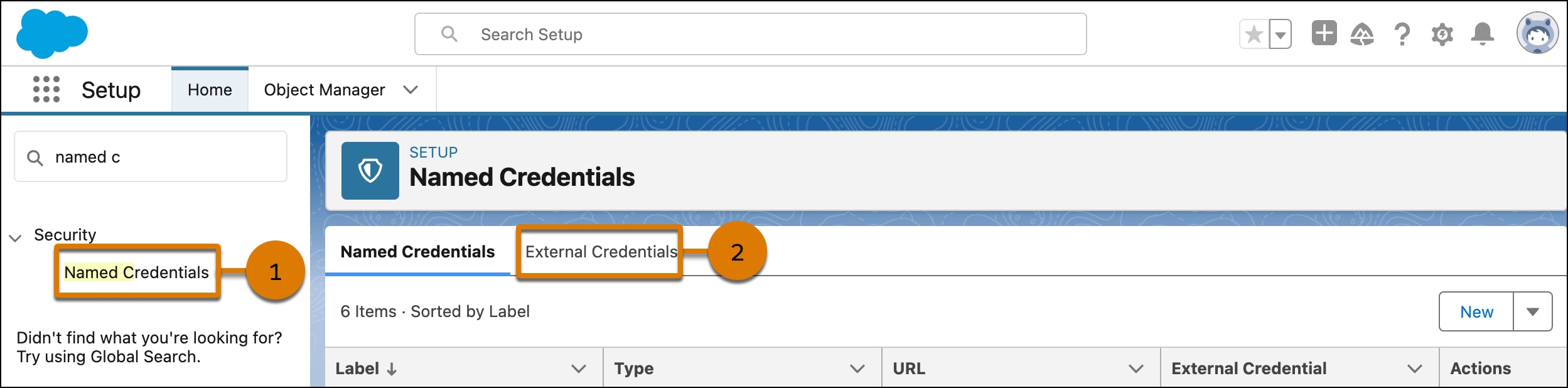
On the External Credentials tab, click New.
Enter a label and a name for your external credential. The name can’t contain spaces. You can use underscores.
For Authentication Protocol, select OAuth 2.0.
For Authentication Flow Type, select Browser Flow.
For Authentication Provider, select Google Drive Data Cloud or the provider you created.
Click Save.
Add principal to external credentials.
In the external credentials that you created, under Principals, click New.
Enter the parameter name. You can include spaces.
For Identity Type, select Named Principal.
For Scope, choose one of these options:
openid https://www.googleapis.com/auth/drive.readonly.Set the Sequence Number to 1.
Click Save.
Authenticate your external credentials.
Under Principals, from the Actions dropdown menu, select Authenticate.
To connect Data Cloud to the connector, click Allow.
Define the named credential.
In the Named Credentials Tab, click New and enter a label and a name. The name can’t contain spaces, but you can use underscores.
For the URL, enter https://google.com.
For external credentials, select the credential you created.
Click Save.
Enable external credential access.
From Setup, in the Quick Find box enter Profiles and then select it.
Click System Administrator
On the Enable External Credential Principal Access tab, click Edit.
Add the external credentials principal that you created to the Enabled External Credentials Principals column.
Click Save.
j