


 j
jAnnouncements
B2C Commerce Architecture
Get Started with Business Manager
Cartridges
Controllers
Content Cache
Utility Functions
Tagging Pages for Data Collection
Forms
Localization
B2C Commerce Release Notes
Ask the Community
B2C Commerce uses ISML templates to generate dynamic storefront pages. Templates combine HTML with a proprietary language extension called Internet Store Markup Language (ISML). An ISML template consists of standard HTML markup, ISML tags, and script expressions. ISML templates are similar to Java Server Pages in that both are used to present dynamically generated web content.
ISML templates don’t support JSP syntax or directives.
Note
Templates convert the result of business processes (for example, product details) into a response that can be returned to the client (for example, a list of product specifications and an image).
Templates are always triggered by a pipeline. They implement the presentation logic (web design). Cache execution results as an HTML file (page caching).
Templates contain:
Templates are stored as *.isml files that consist mainly of HTML and ISML code. They’re located in a locale-specific folder under the /cartridge/templates/ folder, with /cartridge/templates/default being the default locale. Each local-specific folder can contain for subdirectories organized around areas of functionality. If you support multiple locales, each locale must have a separate subdirectory under /templates/. All templates must be in a subdirectory of the templates directory, either the default directory or a locale directory, and can’t be stored in the templates directory itself.
Each cartridge has its own templates directory.
Note
Templates used to show information in the storefront are represented by an interaction node in a pipeline. Information about them also appears in the Properties view. If you want to modify how information is presented in a storefront, edit a template or create one.
Before you edit a template, you must define the layout or design of a web page. You must also identify information about the pipeline that uses your template and the data to appear by the template. After you collect this information, modify the template using UX Studio.
This is the information you need about the pipeline that calls a template:
The interaction between the storefront and the buyer is defined by input and output data delivered by a pipeline.
Input Data:
Output Data:
Templates either deliver input data or show a pipeline’s output data on the browser.
Building a secure custom website with Salesforce B2C Commerce requires paying attention to all areas that are vulnerable to attack and preventing it.
To prevent malicious attacks through content manipulation, make sure that all shown content is encoded.
If a script expression such as ${pdict.ProductSearchResult.searchPhrase} is used in an ISML template, where the content type is set via the following:
1<iscontent type="text/html" charset="UTF-8" compact="true">The script result is automatically HTML encoded.
But if the same expression is used in an ISML template that is included via <isinclude template=""> and no content type is set in the included ISML snippet, the content type text/plain is assumed and no HTML encoding takes place. This inconsistency can lead to XSS problems.
To correct this situation, you must explicitly set the content type or use <isprint value="{}"/> to make sure the resulting HTML is encoded.
To make sure that a script expression is HTML encoded, you must set the included page’s content type to text/html via the following statement:
1<iscontent type="text/html" charset="UTF-8" compact="true">If you include pages, make sure you set the content type, as described.
Note
Using <isprint>
In SiteGenesis, we’ve addressed this problem by using the <isprint> element instead of merely using the following:
1${pdict.ProductSearchResult.searchPhrase}The <isprint> element ensures that special characters are HTML encoded.
For example:
1<isprint value="${pdict.ProductSearchResult.searchPhrase}"/>Results in:
1';alert('hallo welt!');x='This notation avoids cross-side scripting attacks, because the alert() function is obfuscated for the browser.
Check all areas in your code where ${pdict.ProductSearchResult.searchPhrase} is used and add the <isprint> function, as described.
Note
In a customized searchresultheader.isml template, use the following:
1<span class="term"
2  >"
3  <isif condition="${!empty(pdict.ProductSearchResult.searchPhrase)}">
4    <isprint value="${pdict.ProductSearchResult.searchPhrase}" />
5  </isif>
6</span>
Instead of this:
1<span class="term">
2  "${!empty(pdict.ProductSearchResult.searchPhrase)?pdict.ProductSearchResult.searchPhrase:''}"
3</span>Templates let you separate page content into static and dynamic.
| Page Content | Description |
|---|---|
| Static | Web page elements such as HTML headings and text, images called with HTML tags, and any other part of the page that is unaffected by the ISML conversion process, are considered static content. |
| Dynamic | When ISML tags call variables to generate a specific list at run time (for example, a list of products), they look up object properties in the Pipeline Dictionary to present product details or other session-dependent data dynamically. This is called dynamic content. URLs are another example of dynamic content. The system parses this information at run time to compose content that changes from session to session. |
Certain ISML tags facilitate dynamic and conditional page generation.
| ISML Tag | Used to… |
|---|---|
<iscontent> | Set up the content type. |
<isdecorate> | Decorate the enclosed content with the contents of the specified decorator template. |
<isinclude> | Enable content inclusion from an additional source. Allows for the inclusion of content from an additional source to a template. Either from another template file (local include, or by executing a second pipeline that returns the information (remote include) |
<ismodule> | Build units of reusable template functionality that are inserted into the template using custom ISML tags. When <ismodule> specifies a template, the specified template is included and user-defined attributes and custom ISML tags are accessible. See ismodule element for examples of isml modules. |
Page caching is when pages (or parts of pages) are stored for immediate browser display, without having to call the server.
The nature of the Internet is that a page is served to the browser, then the connection to the server is dropped.
Design a site that caches portions of pages for data that doesn’t change frequently or is generic (not dependent on who is viewing the page). By caching portions of pages, merchants can manage the customer experience, while satisfying business requirements related to timely data changes such as pricing and promotions.
Pipeline caching is site-based. If you turn off pipeline caching, you turn it off for all pipelines for that site.
Note
B2C Commerce uses the B2C Commerce Web Server to perform page caching.
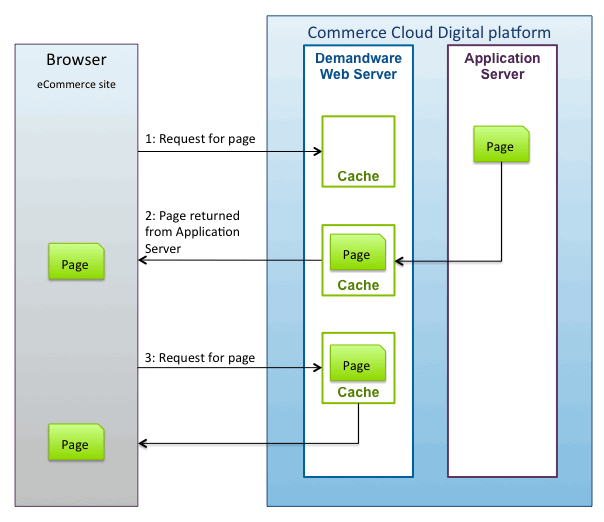
All the data served to a browser doesn’t have to be present each time a button is clicked or an entry made in a field. Some content (often, most of it) can be cached for immediate redisplay. Web page elements such as HTML headings and text, images called with HTML tags, and any other part of the page that is unlikely to change, can be cached. This content is considered static.
By contrast, when ISML tags call variables to generate a specific list at run time (for example, a list of products), they look up object properties in the Pipeline Dictionary to present product details or other session-dependent data on-the-fly. This content is dynamic in that it changes each time a request is made from the browser.
URLs are also dynamic because the system uses them at run time to compose content that changes from session to session.
Enable page caching in Business Manager; and use the <iscache>ISML tag within a template to control what parts of a page are cached and for how long.
When a controller or a pipeline is processed, the Pipeline Dictionary accepts and stores parameters in key-value pairs. A template can show only the dynamic information that is stored in the Pipeline Dictionary at the time the template is called.
The value of a key-value pair stored in the Pipeline Dictionary can be:
Simple values, stored as strings
Some key-value pairs are delivered in their simplest form, for example, ProductID = 4569. You could parse the value of the ProductID key and use an <isprint> statement in the template to show the product number directly in the storefront, as shown:
1<isprint value = "${pdict.ProductID}">Complex objects, containing more attributes and values
Many keys have as their value a complex object that acts as a container for many other key-value pairs. However, templates can’t show complex objects; they only show simple values, such as strings or numbers. To obtain the values of complex objects’ properties, a special notation is used describing the path through the object to the simple property that the template can show.
The following <isprint> statement shows how to show the value of the FirstName variable on the DataSheet form of the Buyer object:
1<isprint value = "${pdict.Buyer.dataSheet.firstName}">Controllers don’t manipulate the Pipeline Dictionary directly; instead, they construct an object that is passed to a template. This object consists of name-value pairs.
Use the UX Studio debugger to view the contents of the object before it’s passed into a template. Within the template context, the variable pdict is used to reference this object.
Information on available key-value pairs in the Pipeline Dictionary can be found in the Properties editor of the pipelet that produces the appropriate key as an output parameter and puts it in the Pipeline Dictionary.
If the value of a key-value pair is a complex object, you must know the name of its attributes that contain the values you want to appear in a template.
Open UX Studio.
Select the pipelet.
Look in the Properties editor.
Observe the Dictionary Input and Output keys, which are the key-value pairs.
For example, for AddGiftCertificateToBasket (bc_api) it would be:
| Dictionary | Key | Value |
|---|---|---|
| Input | Amount | CurrrentForms.giftcert.purchase.amount.value |
| Basket | Basket | |
| Message | CurrrentForms.giftcert.purchase.message.value | |
| ProductListItem | ProductListItem | |
| RecipientEmail | CurrrentForms.giftcert.purchase.email.value | |
| RecipientName | CurrrentForms.giftcert.purchase.recipient.value | |
| SenderName | CurrrentForms.giftcert.purchase.from.value | |
| Shipment | Shipment | |
| Output | AddGCErrorMessage | null |
| GiftCertificateLineItem | GiftCertificateLineItem |
The available key-value pairs of the selected attribute appear.
jQuery is frequently used in ISML templates. B2C Commerce supports versions up to and including jQuery 1.3.2.
Avoid using the # character in jQuery or JavaScript because it’s reserved in ISML templates and can cause problems.
Generally, if you follow the best practices of unobtrusive JavaScript and progressive enhancement, you don’t mix HTML and JavaScript behavior, so this is unnecessary.
Note
However, there might be cases where you must use the # character. In these cases, instead of the following code:
1<a id="id-to-select" href="...">...</a>
2
3<script type="text/javascript">
4jQuery("#id-to-select").click(function() {
5    // Code here
6});
7</script>
Use the following code:
1<script type="text/javascript">
2  jQuery("a[id='id-to-select']").click(function(){" "}
3  {
4    // Code here
5  }
6  );
7</script>
Alternatively, the following notation:
1<a href="#">Link</a>is correctly written in ISML as
1<a href="${'#'}">Link</a>Determining which template is causing an issue requires knowing the template name. The process of determining the name depends on whether the template is static or dynamic.
| Template type | Where to find information |
|---|---|
| Static | Check the interaction node properties. The Interaction Template Name property shows the name of the template called by the interaction node. This is the file name of the template you must modify. |
| Dynamic | The template to be called by an interaction node isn’t always hard-coded in the node. Instead, the name can be determined dynamically during run time from the Pipeline Dictionary. Usually, if products and categories are visible, the storefront is using a dynamic template, indicated by a D in the symbol of an interaction node. |
Use the Storefront Toolkit to identify which parts of a page belong to which templates.
j