


 j
jImplementation Lifecycle: Personas
Commerce SFDX Environment Setup
Implement Custom Self-Registration for a B2B Store
Commerce LWR Storefront Performance Best Practices
Image Optimization Best Practices
Custom Rules for Product Readiness
Salesforce recommends the Salesforce Developer Experience (SFDX) environment for building Lightning web components (LWC), and for custom tax, shipping, and payment integration packages and extensions. SFDX provides easy access to Salesforce extensions and GitHub repositories containing LWC templates and reference packages. SFDX also integrates with Salesforce CLI, the Visual Studio Code editor with the Salesforce Extension Pack, and plug-ins to quickly deploy packages and components to scratch orgs and stores.
| Required Editions |
|---|
| Available in: Enterprise, Unlimited, and Developer Editions |
| Available in: B2B Commerce |
The Salesforce DX (SFDX) CLI synchronizes your source code between the Salesforce orgs that you deploy to and your version control system.
Install the CLI. See Install the Salesforce SFDX CLI.
To confirm installation, open a command or terminal window and enter sfdx.
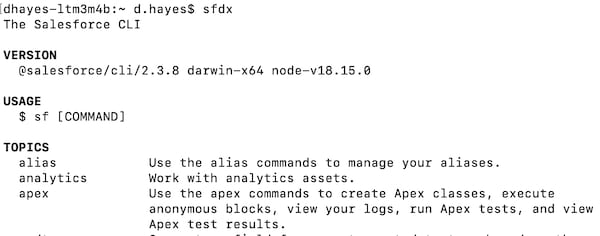
The free Visual Studio (VS) Code editor is an ideal development environment for creating, debugging, and deploying Salesforce Lightning web components and integration packages and extensions.
The free VS Code editor is open-source and optimized for cloud and web coding. The project folder combines, compiles, and displays the output of the HTML, JavaScript, and CSS files for your component.
The VS Code editor provides access to Salesforce extensions that support creating integration packages and custom components for B2B and B2C stores created with an LWR template. The extensions include features for working with scratch orgs, sandboxes, and DE orgs, Lightning web components (LWC), and more.
For more information, see the Salesforce Extensions for VS Code Overview.
Open the VS Code app.
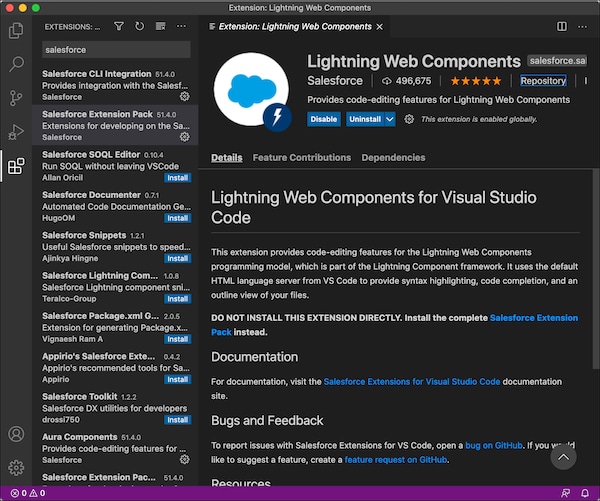
Navigate to View | Extensions.
In the search field, enter Salesforce.
To install the package, click Salesforce Extension Pack (v. 51.4.0 or later).
To confirm installation in the VS Code Editor, open the Command Palette by pressing Ctrl+Shift+P (Windows) or Cmd+Shift+P (macOS) and enter sfdx.
Confirmation looks like this:
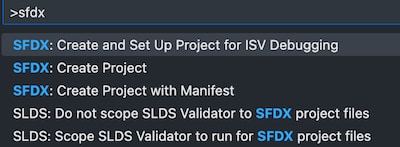
The Salesforce Extension Pack includes:
To display a list of the installed extensions, click the Extensions icon in the left navigation pane or press Ctrl+Shift+X (Windows) or Cmd+Shift+X (macOS) and scroll to view them all.
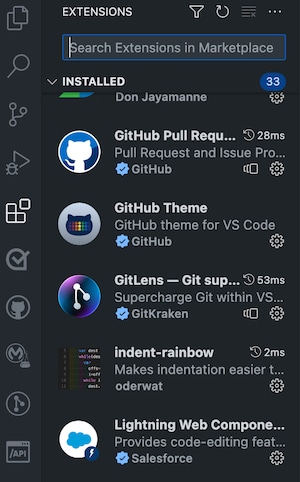
For an overview, see Salesforce Extensions for LWC
j