


 j
jAnnouncements
Launch Your Storefront Next
Configure Routing Rules in Business Manager
CLI Reference
B2C Commerce Release Notes
Ask the Community
For vanity or custom domains, configure routing rules in the embedded content delivery network (eCDN) to route traffic to a Managed Runtime (MRT) environment. For default domains, you don’t need to configure routing rules.
When you create Storefront Next in Business Manager, the storefront is automatically configured with eCDN, a default domain, and a default routing rule. The routing rule for default domains directs traffic from the storefront’s default domain, *.my.cc.salesforce.com, to the MRT origin domain, *.exp-delivery.com. The MRT origin is no longer directly accessible and is accessed via eCDN. This change ensures that all MRT traffic flows through eCDN, applying WAF rules, rate limits, and observability consistently across vanity and default domains.
View your default routing rule in your storefront in Business Manager by clicking the environment, and then clicking Manage in Embedded CDN Settings.
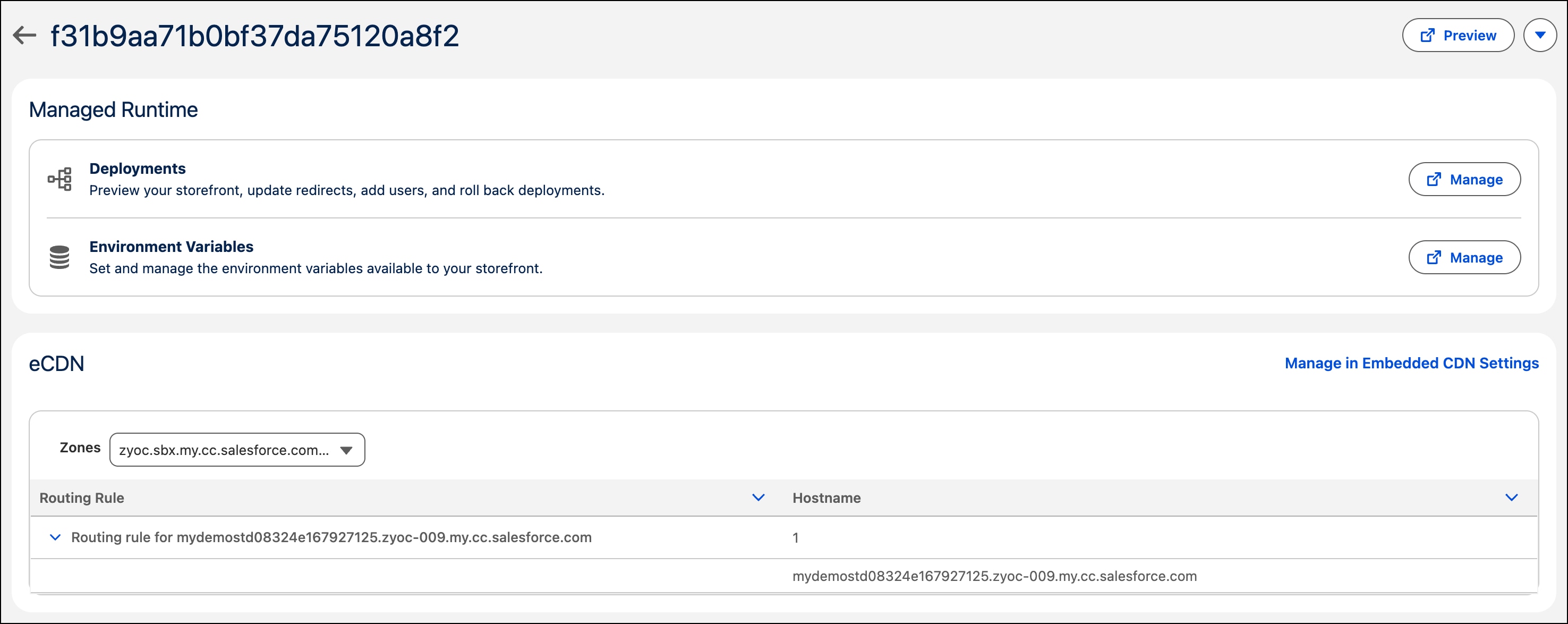
For more information about default domains and zones, see Default Domain Support for B2C Commerce in Salesforce Help.
Your storefront has a default MRT routing rule that bypasses MRT for image and static content. When using Dynamic Image Service (DIS) and serving image and static content from B2C Commerce, certain request paths must reach the B2C Commerce origin directly instead of routing through Managed Runtime (MRT). This bypass makes sure that image transformations, static assets, and dynamic controllers function correctly and don’t reach MRT because MRT doesn’t host storefront images.
These B2C Commerce request paths must bypass MRT and reach the B2C Commerce origin:
/on/demandware.static/*: Raw static assets (CSS, JavaScript, fonts, and so on)/on/demandware.image/*: Product image transformations via DIS/on/demandware.store/*: Dynamic B2C Commerce controllersIn your existing origin rule configuration, make sure that it accounts for all these paths and uses this format:
1http.request.uri.path matches "^/on/demandware\.(static|image|store)/.*"To access your storefront’s routing rule in Business Manager:
Access the embedded CDN settings pages in one of these ways.
a. Go to Administration > Storefronts, click you storefront and then the environment, and then click Manage in Embedded CDN Settings from your storefront’s environment page.
b. Go to Administration > Sites > Embedded CDN Settings.
The page shows the default zone. Click the caret dropdown to the right of the zone, and then select Configure Routing Rules.
Filter the rules list to find your hostname. Expand the routing rule for your hostname. The rule shows the hostname and the MRT origin.
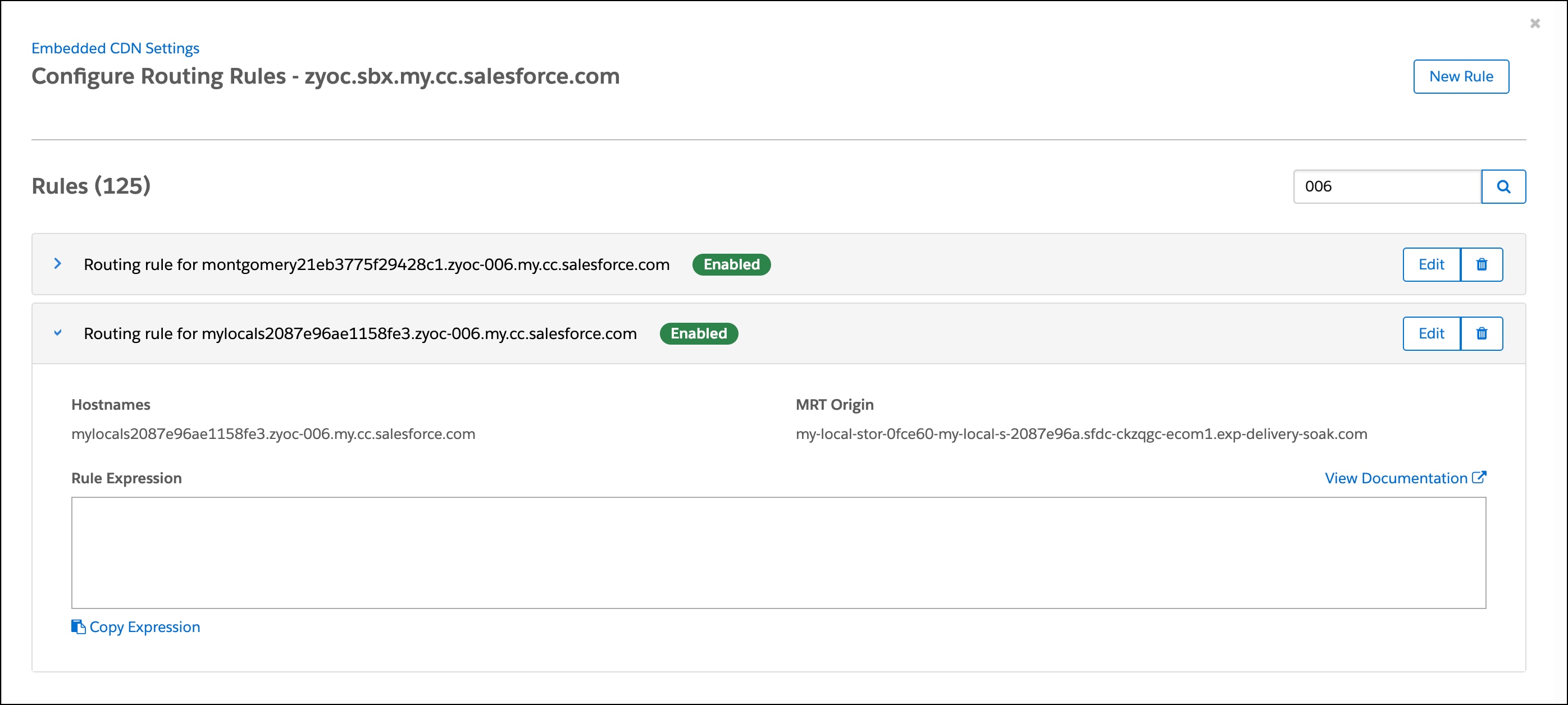
To route traffic to a Managed Runtime (MRT) environment for vanity or custom domains, configure eCDN routing rules. Business Manager speeds up CDN setup with an intuitive UI and simplifies deployment processes. Use Business Manager to view, create, edit, or delete routing rules for zones in a Storefront Next site or hybrid storefront.
As an alternative to the Business Manager steps covered in this section, use the createCustomRule API CDN API to route traffic programmatically.
Note
Before you configure routing rules:
 and then select Merchant Tools > Your Site > SEO > Aliases.
Keep these points in mind when creating a rule expression:
In this example, the rule applies if the URL path starts with either /products or /be/fr/home-page followed by any number of characters.
http.request.uri.path matches "^/products" or http.request.uri.path matches "^/be/fr/home-page.*"
Routing rules are configured per zone.
Note
To route traffic to a Managed Runtime environment for a custom domain, create a routing rule.
To route all traffic to MRT:
To route only specific paths to MRT.
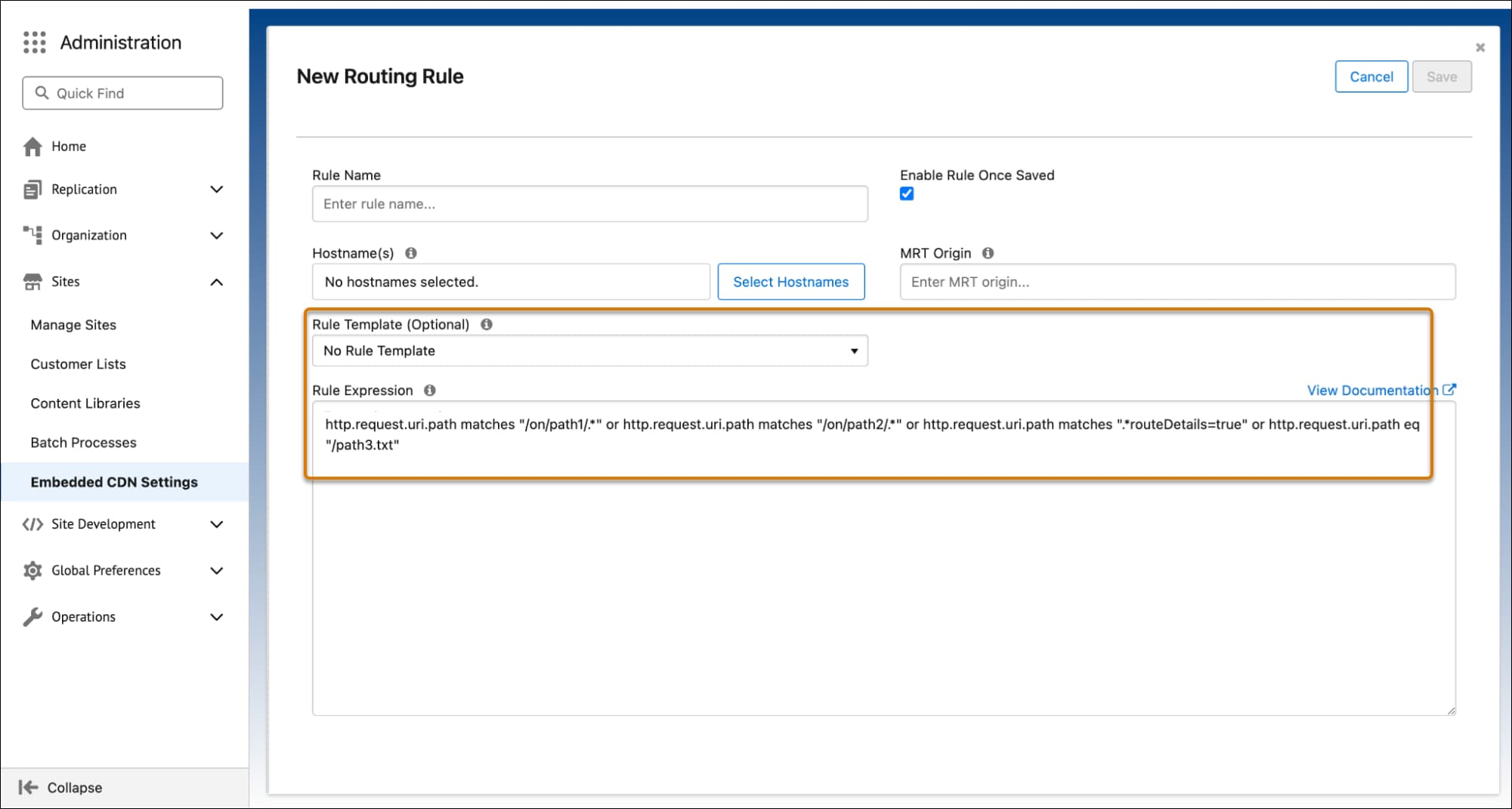
The new rule displays on the Configure Routing Rules page.
j