Link Your Storefront to a GitHub Repository in Business Manager
Connect a storefront that was set up with the Salesforce CLI option to an existing GitHub repository in Business Manager. Linking a repository to GitHub enables version control, team collaboration, and CI/CD pipelines for your storefront code. Also, it provides the prerequisites required to install Commerce Apps in your storefront.
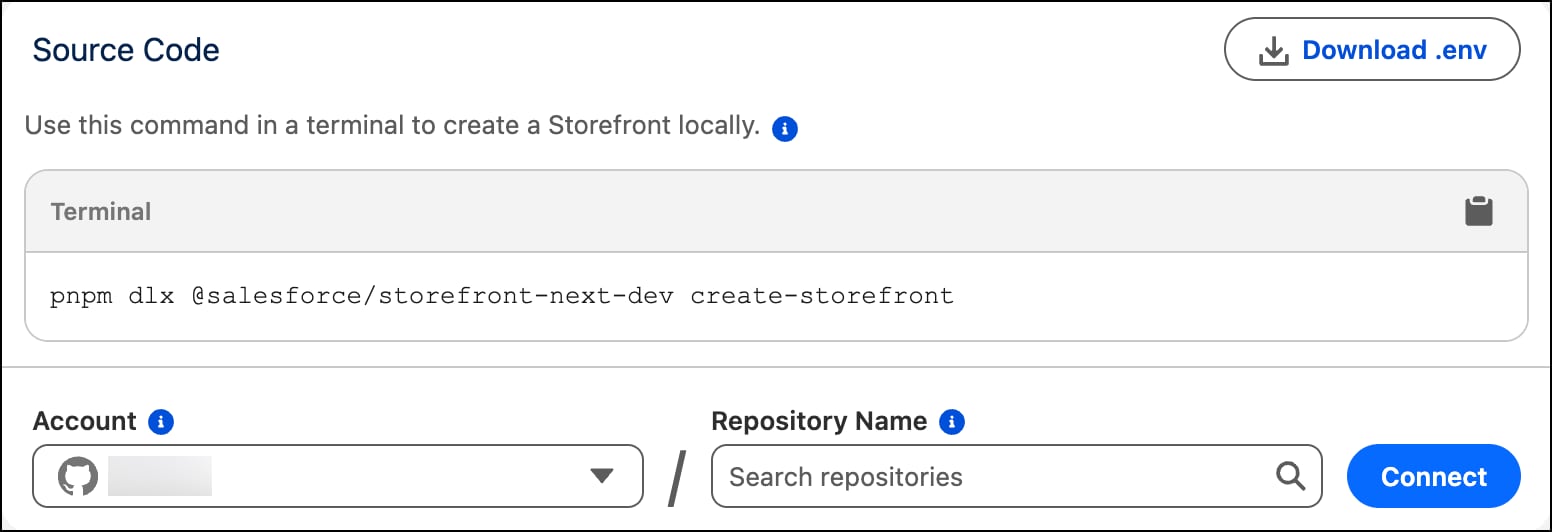
In the storefront detail page, under the Source Code section, click Connect to GitHub.
Select your GitHub account.
Select a GitHub organization to share the repository with your team, or select a personal account for your own use. Make sure that you have owner access to the GitHub organization that you select.
Log in to GitHub.
Grant the GitHub integration app access to all your repositories or specific repositories that you select from the list.
If you haven’t installed the integration app earlier, click Install. If you installed the integration app earlier, click Save.
You return to the storefront detail page.
Enter a name for an existing GitHub repository to connect the storefront to.
The storefront detail page now shows the connected GitHub repository under Source Code.


 j
j