


 j
jAnnouncements
Customization Best Practices and Upgrades
Agent Skills and the B2C DX MCP Server
Managed Runtime (MRT) Data Store
Customize Your Storefront
Manage Sites for Storefront Next in Business Manager
Deploy the Storefront Next Cartridge for Page Designer
Deploy Storefront Next to Managed Runtime (MRT)
Enhance Shopper Experience with Store Locator and In-Store Pickup
Integrate Storefront Next with Salesforce Order Management
Guest Order Lookup for Unregistered Shoppers
Shopper Agent for Storefront Next
Configure Checkout for Storefront Next
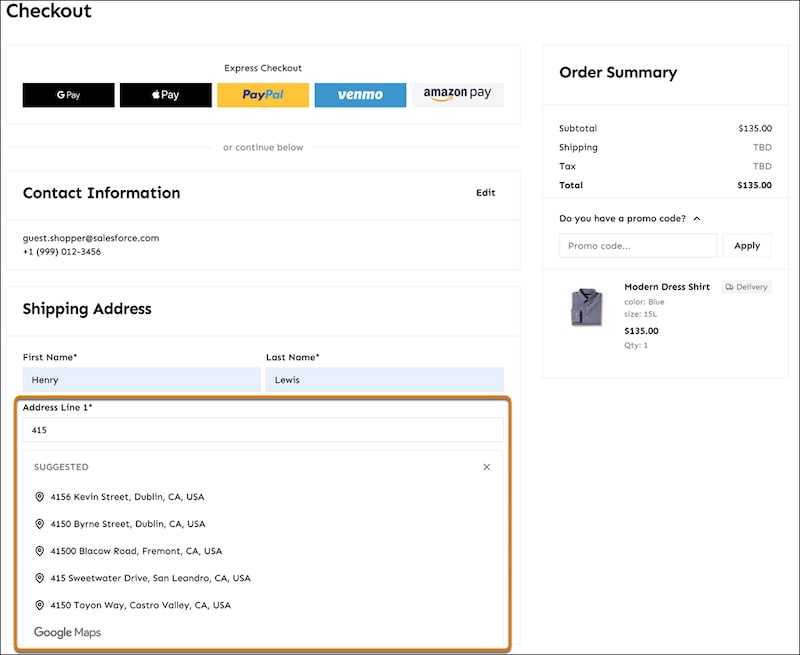
Configure Address Autocomplete for Storefront Next
Configure Salesforce Payments for Storefront Next
Email Verification for Storefront Next
Social Login for Storefront Next
Password Reset for Storefront Next
Limit Access to a Storefront Under Development
Default Security Rules on On-Demand Sandbox (ODS) Instances
Extend Storefront Next with Features
Environment Base Paths
Maintain Shopper Sessions Across Subdomains in Storefront Next
Login and Registration Support
Login and Registration Support for Hybrid Storefront Next Storefronts
CLI Reference
B2C Commerce Release Notes
Ask the Community