


 j
jLanguage Characteristics
Agent Script Blocks
Specify Different Models
Flow of Control
Manage Agents
Download Documentation
Examples
A script consists of blocks where each block contains a set of properties. These properties can describe data or procedures. Agent Script contains several different block types.
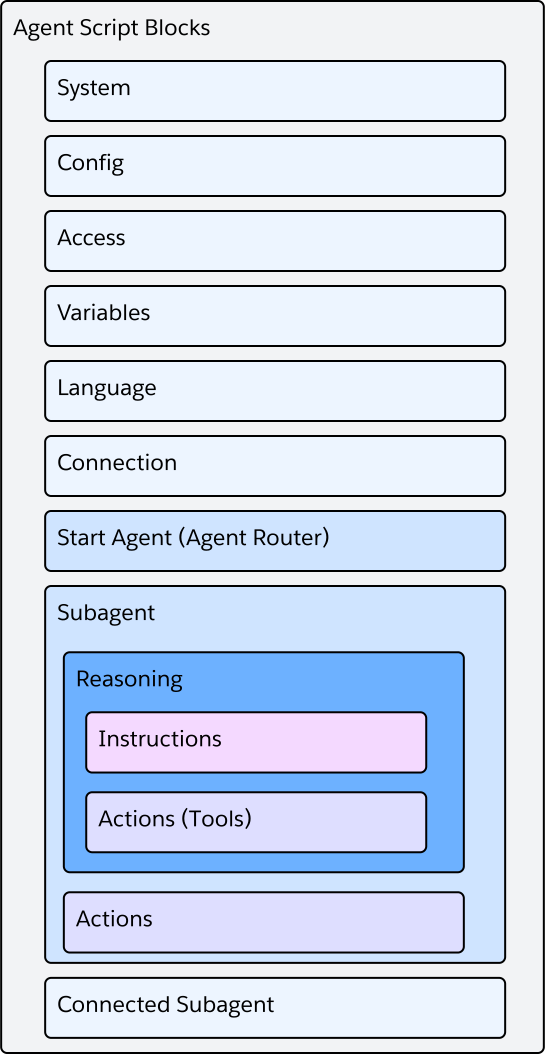
This section gives you a high-level understanding of each block type.
The system block contains general instructions for the agent. This information includes a list of message prompts that the agent uses during specific scenarios. welcome and error are required messages:
For example, to dynamically inject the user’s preferred name into the welcome message, use {!@variables.userPreferredName}.
In this example, if the userPreferredName is Sam, customers see the welcome message “Hi Sam! I’m your personal shopping assistant”.
1system:
2    instructions:|
3        You are an AI agent. Have a friendly conversation with the user.
4
5    messages:
6        welcome:|
7            Welcome  {!@variables.userPreferredName}! I'm your personal shopping assistant.
8
9            I can help you:
10            - Find products and check availability
11            - Track your orders
12            - Process returns and refunds
13            - Answer questions about our policies
14
15            How can I assist you today?
16 error: "Whoops!"The config block contains configuration parameters that define the agent.
| Parameter | Description |
|---|---|
developer_name | The Salesforce API name of the agent (max 80 chars). Must start with a letter, contain only alphanumeric and underscores, and can’t end with underscore or have consecutive underscores. Must be unique in your org - you can’t have two agents with the same developer_name. |
default_agent_user | Deprecated in this block. Specify default_agent_user in the Access Block. |
agent_label | Optional. The agent’s label, displayed in the UI. Auto-generated from developer_name if not provided. |
description | Description of the agent’s goals and purpose. |
company | Optional. Information about your company. |
role | Optional. The agent’s role. For example, “Help the customer select the perfect gift.” |
agent_version | The agent’s version. Set automatically when you create a new version of your agent. |
agent_type | Optional. The type of agent. Currently, allowed values are AgentforceServiceAgent (default) or AgentforceEmployeeAgent. Set automatically when you create an agent from a template. |
enable_enhanced_event_logs | Optional. Indicates whether to enable conversation logging for debugging and monitoring. Allowed values are True or False. Default: False. |
user_locale | Optional. User locale setting. |
runtime | Optional. Sub-block that controls the agent’s runtime behavior, such as streaming, citations, and groundedness checks. See Runtime Sub-Block. |
file_upload | Optional. Sub-block that controls how the agent handles files uploaded by the customer during a conversation. See File Upload Sub-Block. |
1config:
2    developer_name: "Demo_Agent_1"
3    agent_label: "Demo Agent"
4 description: "This is my demo agent"The runtime block is a sub-block of Config that controls the agent’s runtime behavior.
| Parameter | Description |
|---|---|
streaming | Controls whether the agent’s response is streamed to the client incrementally as it’s produced. When False, the response is delivered as a single chunk.When to use: Leave on (or omit) for interactive chat and voice channels where customers expect the reply to appear progressively. Set to False for clients or integrations that only consume a single completed message. |
thought_chunks | Controls whether the agent’s step-by-step thinking is streamed alongside its responses. When True, clients that render “thinking” output can display it during the turn.When to use: Enable when your client renders reasoning to the customer or to developers (for example, an “agent is thinking” panel or a debug view). Disable for customer-facing surfaces where exposing internal reasoning is undesirable. |
citation | Controls the citation-enrichment post-processing step, which annotates knowledge-based answers with references to their source. Set to False to skip citation enrichment.When to use: Leave on for knowledge-grounded agents where customers benefit from seeing or clicking through to the source. Disable for channels that can’t render citations, or when the extra post-processing latency isn’t worth it. |
groundedness | By default, Agentforce checks the LLM’s responses against source content. This extra step takes some time but reduces the chance of hallucinations. Set to False to turn this check off.When to use: Leave on for knowledge-heavy agents where reducing hallucinations matters. Disable when you need faster responses and have accepted the tradeoff, or when you’ve confirmed the check isn’t adding value for your use case. |
reset_to_initial_node | When True, each new customer turn restarts at the start_agent block, instead of resuming where the previous turn left off.When to use: Enable for stateless, one-shot Q&A or planner-style agents that should re-plan from scratch every turn. Leave off (the default) for multi-turn flows that need to resume mid-conversation. |
1config:
2    developer_name: "Demo_Agent_1"
3    runtime:
4        streaming: True
5        thought_chunks: False
6        citation: True
7        groundedness: True
8 reset_to_initial_node: FalseThe file_upload block, nested inside config, controls how the agent handles files that the customer uploaded during a conversation.
| Parameter | Description |
|---|---|
mode | Required. How the agent handles uploaded files. Allowed values are auto, managed, disabled, or error. |
message | Optional. A message shown to the customer if uploads aren’t successful. |
auto — Default file handling. Uploaded files are made available to the agent using standard behavior.managed — Use this mode when you want fine-grained control over which uploaded files reach which subagent. This is the mode that pairs with slice syntax on @system_variables.uploaded_files, so you can pass a specific batch (for example, @system_variables.uploaded_files[0:5]) into an individual subagent.disabled — Uploads are rejected without displaying a message to the customer.error — Uploads are rejected and treated as an error. If provided, the message in message is shown to the customer. If message isn’t provided, Agentforce generates a message.1config:
2 developer_name: "Support_Agent"
3 agent_label: "Customer Support Agent"
4 file_upload:
5 mode: "managed"
6 message: "Something went wrong. Try again."The access block defines the agent’s default user.
| Parameter | Description |
|---|---|
default_agent_user | The agent user’s username, which is in the form of an email address. username is a field on the User object. You can also see a user’s username in Setup. Required for Agentforce Service agents. An agent runs in the context of a user, and the user’s permissions grant or deny access to Salesforce resources and data. |
1access:
2 default_agent_user: "service@example.com"The variables block contains the list of global variables that the agent and script can use. See Variables.
1variables:
2    string_var: mutable string = "hello world"
3    hotel_info: mutable string = "Dreamforce Hotel"
You reference variables throughout the script by using the syntax @variables.<variable_name>.
The language block defines which languages the agent supports.
1language:
2    default_locale: "en_US"
3    additional_locales: ""
4    all_additional_locales: False
For a list of supported languages, see Agentforce Language Support.
The modality block configures agent behavior for a specific modality. The current allowed modality is voice. Use modality voice: to control how the agent sounds — its voice, speaking speed, pronunciation of specialized terms, and how it handles turn-taking on a live call.
1modality voice:
2    voice_id: "UgBBYS2sOqTuMpoF3BR0"
3    outbound_speed: 1.0
4 outbound_style_exaggeration: 0.5The voice variant supports these variables. All variables are optional except voice_id when configuring a live voice channel.
| Variable | Type | Range | Description |
|---|---|---|---|
voice_id | string | — | Unique identifier for the outbound voice (for example, "UgBBYS2sOqTuMpoF3BR0"). |
outbound_speed | number | 0.5 – 2.0 | Speech rate. 1.0 is normal; lower is slower, higher is faster. |
outbound_style_exaggeration | number | 0.0 – 1.0 | How strongly the voice expresses its style. Higher values are more expressive; lower values are flatter and more consistent. |
inbound_filler_words_detection | boolean | — | When True, filler words (like “um”, “uh”) in the customer’s speech are detected and ignored. |
inbound_keywords | block | — | Keyword boost list. Contains a keywords sequence of strings that improves recognition for domain-specific terms. |
pronunciation_dict | sequence | — | Custom pronunciations for specialized words or names. Each entry has grapheme (written form), phoneme (phonetic spelling), and type (either "IPA" or "CMU"). |
outbound_filler_sentences | sequence | — | Short “thinking” phrases the agent says while an action is running, so the customer doesn’t hear dead air. Each entry has a waiting list of strings. |
additional_configs | block | — | Container for speak_up_config, endpointing_config, and beepboop_config. See Additional Configs. |
The additional_configs block groups three sub-configurations that fine-tune turn-taking behavior on a live call.
| Sub-config | Variable | Type | Range | Description |
|---|---|---|---|---|
speak_up_config | speak_up_first_wait_time_ms | number | 10000 – 300000 | How long to wait, in milliseconds, before speaking up for the first time after the customer goes silent. |
speak_up_config | speak_up_follow_up_wait_time_ms | number | 10000 – 300000 | How long to wait, in milliseconds, before speaking up again if the customer is still silent. |
speak_up_config | speak_up_message | string | — | The message the agent says when it speaks up. |
endpointing_config | max_wait_time_ms | number | 500 – 60000 | Maximum time, in milliseconds, to wait for the customer to continue speaking before treating the turn as complete. |
beepboop_config | max_wait_time_ms | number | 500 – 60000 | Maximum time, in milliseconds, to wait when analyzing an inbound automated tone (like a fax machine or answering system). |
1modality voice:
2    inbound_filler_words_detection: True
3    inbound_keywords:
4        keywords:
5            - "urgent"
6            - "emergency"
7    voice_id: "UgBBYS2sOqTuMpoF3BR0"
8    outbound_speed: 1.0
9    outbound_style_exaggeration: 0.5
10    pronunciation_dict:
11        - grapheme: "Eliquis"
12          phoneme: "ɛlɪkwɪs"
13          type: "IPA"
14    outbound_filler_sentences:
15        - waiting: ["Let me look into that...", "Give me a moment..."]
16    additional_configs:
17        speak_up_config:
18            speak_up_first_wait_time_ms: 10000
19            speak_up_follow_up_wait_time_ms: 10000
20            speak_up_message: "Are you still there?"
21        endpointing_config:
22            max_wait_time_ms: 1000
23        beepboop_config:
24            max_wait_time_ms: 1000
The voice modality requires a deterministic locale. If your agent uses a language block with adaptive: True, adaptive language mode is ignored on voice channels and a warning is emitted. Configure a specific default_locale in the language block when pairing it with modality voice.
Note
To branch agent logic based on the customer’s current channel at runtime (as opposed to configuring voice-specific behavior here), use the @system_variables.current_modality system variable.
Use the connection block to describe how this agent interacts with outside connections. For instance, this code snippet shows how the agent interacts with Enhanced Chat.
1connection messaging:
2    escalation_message: "One moment while I connect you to the next available service representative."
3    outbound_route_type: "OmniChannelFlow"
4    outbound_route_name: "agent_support_flow"
5    adaptive_response_allowed: True
You can use the connection block alongside the @utils.escalate command.
Use the subagent block to specify the instructions, logic, and actions for a subagent. A subagent block contains a description, a list of actions, and the reasoning instructions. To define a connection to another Agentforce agent in your Salesforce org, see Connected Subagent Blocks (Beta).
1subagent Order_Management:
2    description: "Handles order lookup, order updates, and summaries including status, date, location, items, and driver."
3
4    reasoning:
5        instructions: ->
6            if @variables.order_summary == "":
7                run @actions.lookup_current_order
8                with member_email=@variables.member_email
9                set @variables.order_summary=@outputs.order_summary
10
11            | Refer to the user by name {!@variables.member_name}.
12              Show their current order summary: {!@variables.order_summary} when conversation starts or if requested.
13              If they want past order info, ask for Order ID and use {!@actions.lookup_order}.
14
15        actions:
16            lookup_order: @actions.lookup_order
17                with query = ...
18                set @variables.order_summary=@outputs.order_summary
19                set @variables.order_id=@outputs.order_id
20
21            lookup_current_order: @actions.lookup_current_order
22                with member_email=@variables.member_email
23                set @variables.order_summary=@outputs.order_summary
24                set @variables.order_id=@outputs.order_id
25
26    actions:
27        lookup_order:
28            description: "Retrieve order details."
29            inputs:
30                query: string
31            outputs:
32                order_summary: string
33                order_id: string
34            target: "flow://SvcCopilotTmpl__GetOrdersByContact"
35
36
37        lookup_current_order:
38            description: "Retrieve current order details."
39            inputs:
40                member_email: string
41            outputs:
42                order_summary: string
43                order_id: string
44            target: "flow://SvcCopilotTmpl__GetOrderByOrderNumber"
These properties make up a subagent block:
snake_case to name the subagent.reasoning.actions section. See Actions.Multi-Agent Orchestration (connected subagents) is a pilot or beta service that is subject to the Beta Services Terms at Agreements - Salesforce.com or a written Unified Pilot Agreement if executed by Customer, and applicable terms in the Product Terms Directory. Use of this pilot or beta service is at the Customer’s sole discretion.
Note
Use the connected_subagent block to define a connection to another Agentforce agent in your Salesforce org. A connected subagent is different from a subagent that’s part of your current agent. You can use a connected subagent in a reasoning action to delegate tasks to another Agentforce agent.
For more information about using multiple agents in a Salesforce org, see Multi-Agent Orchestration (Beta).
1connected_subagent CRM_Agent:
2    label: "CRM_Agent"
3    target: "agentforce://X00Dfi200000dpFZ_CRM_Agent"
4    loading_text: |
5        Fetching CRM information....
6    description: "Use this tool for any request about CRM information"
7    # define input variables that you'll use to pass information to the connected agent
8    inputs:
9        EndUserLanguage: string = @variables.EndUserLanguage
10 currentRecordId: string = @variables.currentRecordId1start_agent agent_router:
2 label: "Agent Router"
3 description: "Welcome the user and determine the appropriate subagent based on user input"
4 reasoning:
5 instructions: ->
6 | Select the best tool to call based on conversation history and user's intent.
7 actions:
8 # transition to a subagent
9 go_to_off_topic: @utils.transition to @subagent.off_topic
10
11 # Route to the CRM_Agent connected subagent
12 crm_agent: @connected_subagent.CRM_AgentThese properties make up a connected_subagent block:
connected_subagent name: The name used to reference this connected subagent elsewhere in your Agent Script.
target: The URI identifying the external agent. This value is filled in when you connect an agent as a subagent in Agentforce Builder.
label (optional): A human-readable label for the connected subagent.
description (optional): Describes the connected subagent’s capabilities or when it should be called. This description helps the reasoning engine decide when to delegate to the subagent.
loading_text (optional): A message shown to the customer while the connected subagent runs.
inputs (optional): Values passed to the connected subagent. Each input binding has two sides:
customer_id) is a linked, or context, variable defined in the connected subagent (that is, in the other Agentforce agent). Names a value that the connected subagent expects to receive.@variables.Customer_Id) binds the connected subagent’s input to a variable in the calling agent. Can be any variable type.For example, suppose your input is customer_id: string = @variables.Customer_Id. The connected subagent’s customer_id variable receives the value of the calling agent’s Customer_Id variable.
The start agent block (called the “Agent Router” in Canvas view) is a subagent that uses the start_agent prefix instead of the subagent prefix. With every customer utterance, the agent begins execution at this block. The start_agent subagent is used to initiate the conversation, and typically determines when to switch to the agent’s other subagents. This block handles subagent classification, filtering, and routing.
1start_agent agent_router:
2    description: "Welcome the user and determine the appropriate subagent based on user input"
3    reasoning:
4        instructions: |
5            You are an agent router for this assistant. Welcome the guest
6            and analyze their input to determine the most appropriate subagent
7            to handle their request.
8        actions:
9            go_to_identity: @utils.transition to @subagent.Identity_Verification
10                description: "Verifies user identity"
11                available when @variables.verified == False
12            go_to_order: @utils.transition to @subagent.Order_Management
13                description: "Handles order lookup, refunds, and order updates."
14                available when @variables.verified == True
15            go_to_faq: @utils.transition to @subagent.General_FAQ
16                description: "Handles various frequently asked questions."
17                available when @variables.verified == True
18            go_to_escalation: @utils.transition to @subagent.Escalation
19                description: "Handles escalation to a human rep."
20                available when @variables.verified == True and @variables.is_business_hours == True
For more guidance on how to use the start agent block for subagent routing and filtering, see Subagent Classification and Routing in Salesforce Help.
j