Set Up Single Sign-On
Set up single sign-on (SSO) to test it for your solution.
-
From Setup, enter
Identity Providerin the Quick Find box, then select Identity Provider and enable it. -
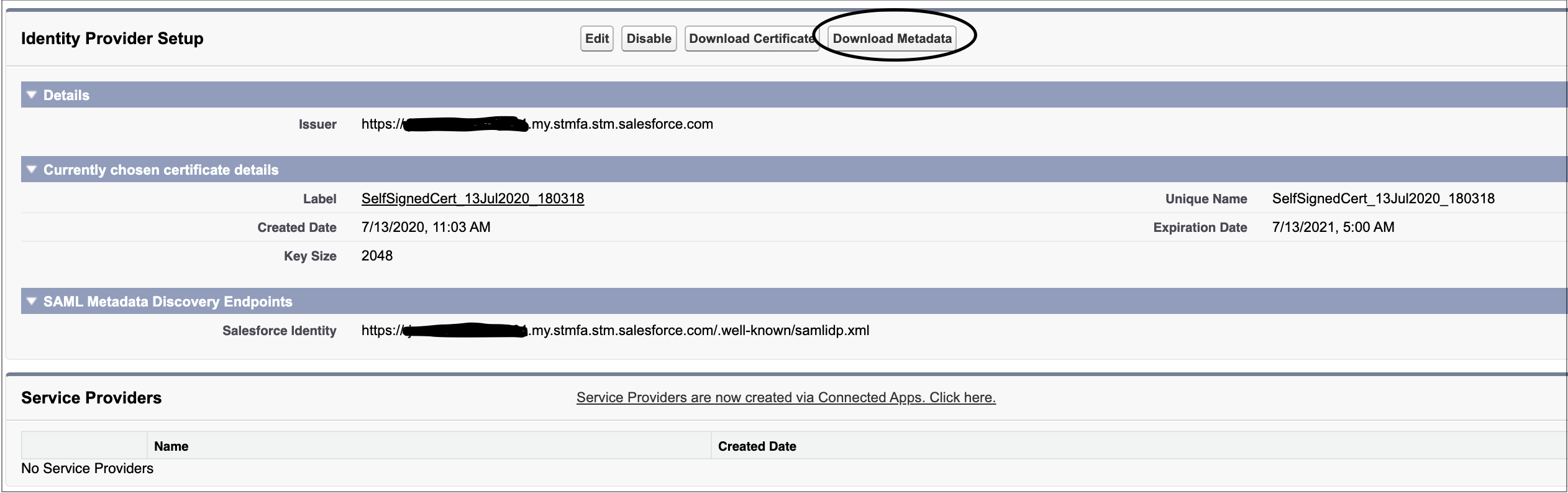
To download the certificate and metadata file for using Salesforce as an IdP, under Identity Provider Setup, click Download Metadata.
-
Create an external client app (ECA) to use for authentication.
We recommend using an external client app for authorization instead of a connected app. Starting in Spring ’26, customers can’t create a connected app unless they request the ability to create connected apps from Salesforce Support. To migrate a preexisting connected app, see Create an External Client App from a Connected App.
- Create an external client app and set Distribution State set to Local.
- To enable and configure SAML, configure the external client app’s SAML 2.0 settings and policies.
-
To allow access to the app, update the ECA App policies.
- From Setup, enter
External Client App Managerin the Quick Find box. Select your external client app. - Click Edit.
- On the Policies tab, under App Policies, select profiles for users who need access to SSO login or select permission sets that you’re using for Salesforce Voice.
- From Setup, enter
-
Save your changes.
-
To test the IdP SSO login, in the Policies tab under SAML Policies, expand SAML Login Info, and click the IdP-Initiated Login URL.
If a telephony system login page isn’t needed, you can use a headless single sign-on (SSO) to your service. Salesforce sends a message to the connector iFrame with the entire contact center configuration as defined in {contactCenterName}.callCenter. Use these details to allow SSO, and notify Salesforce by returning a fulfilled Promise with a value of type InitResult when the Promise is successful or rejected.
To set up single sign-on (SSO), configure your Salesforce org as the SAML identity provider. For help, see:
- Set Up SSO External Client App and Salesforce with Identity Provider
- Salesforce as an Identity Provider
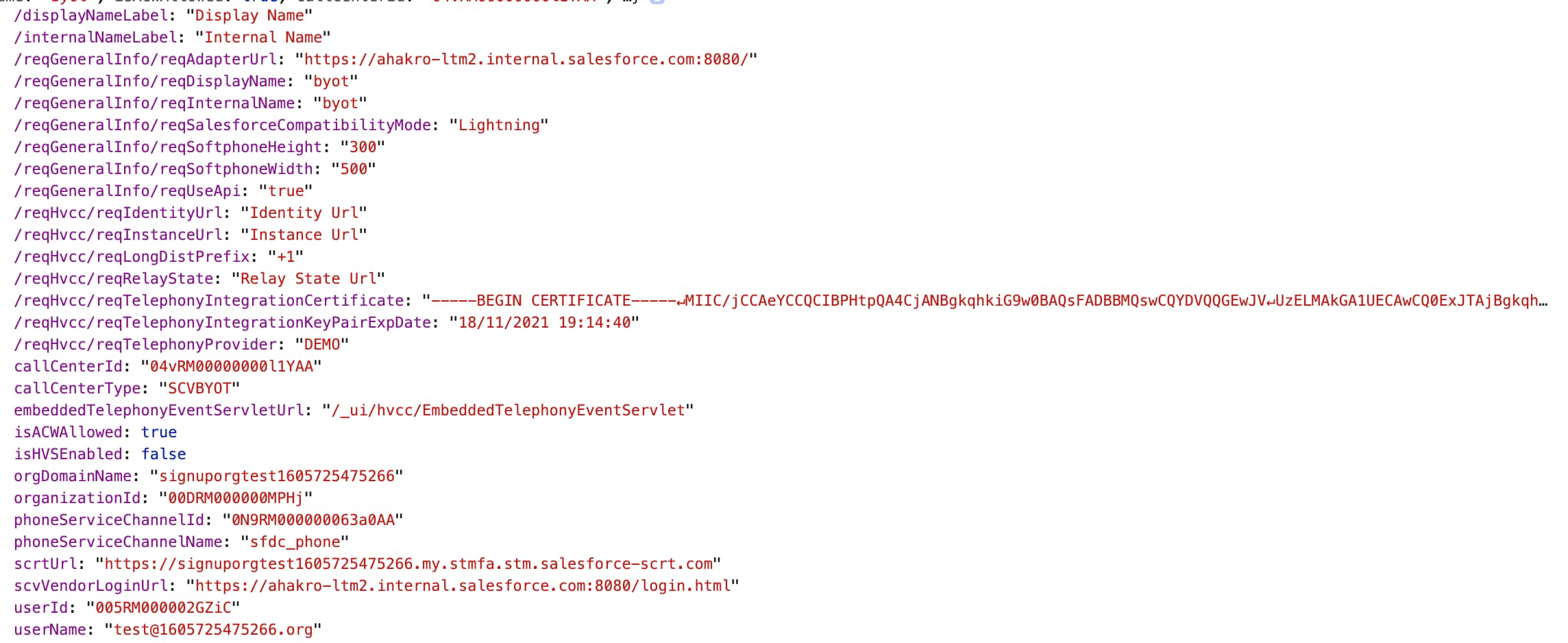
Here’s a sample contact center configuration sent from Salesforce during connector init:
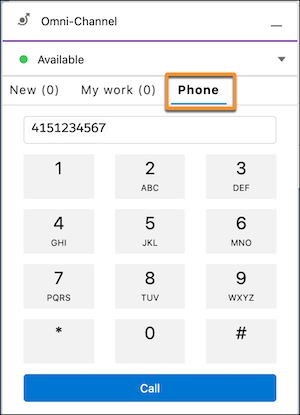
If SSO is successful, the SSO dialer is enabled to allow the rep to make outbound calls.
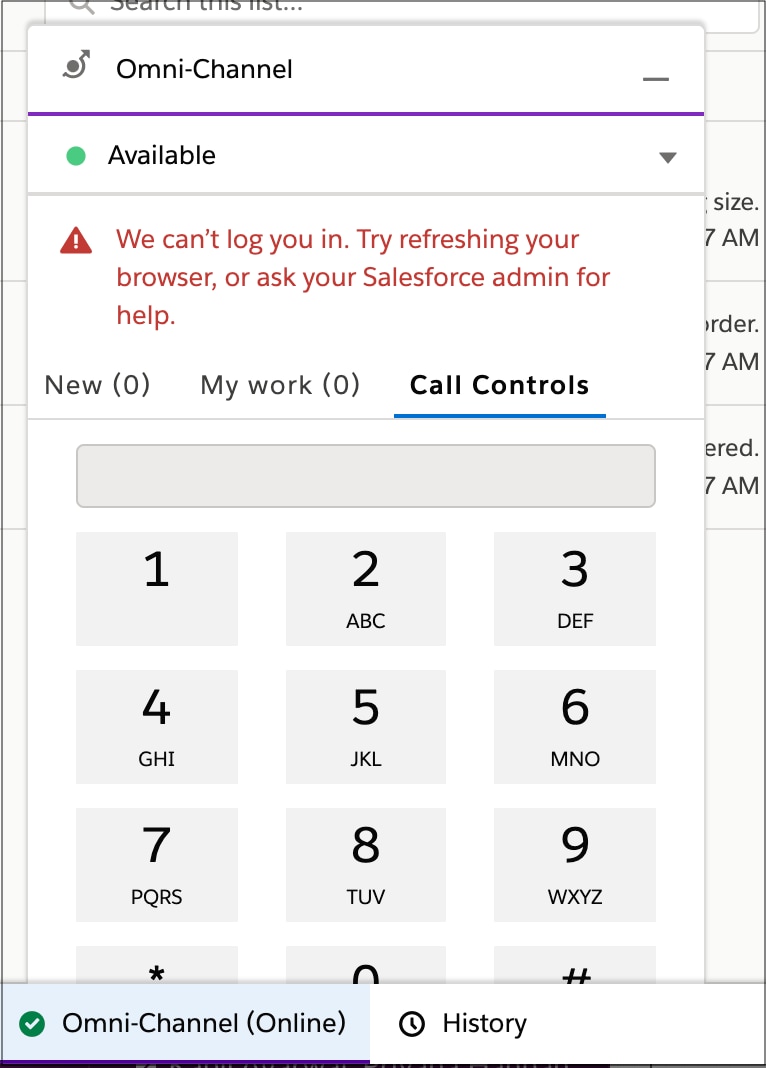
If SSO fails, the base connector dispatches a CAN_NOT_LOG_IN error. The rep receives an error message in the Omni-Channel utility or the Salesforce window, and their keypad remains disabled.

See Also