Create a Custom Navigation Menu Component
The Build Your Own (LWR) template includes a Navigation Menu component that you can customize for the desktop and mobile versions of your site. If you prefer to create your own component, we recommend that you create a custom Lightning web component with an Apex controller to get the navigation items.
To create a custom navigation menu component in Experience Builder, go to Settings | Navigation, and click Add Navigation Menu. In the Menu Editor, you can add navigation items targeting specific sites pages.
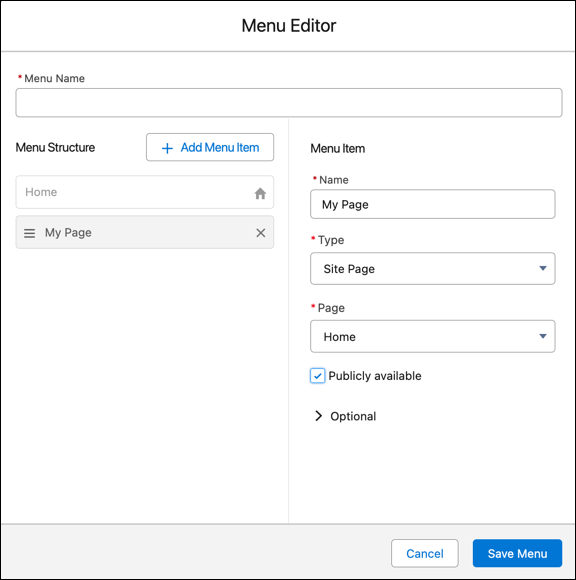
Adding navigation items creates the NavigationLinkSet object and its corresponding NavigationMenuItems.
LWR templates (Build Your Own and Microsite) don’t include generic record pages. So if you create an object or global action type menu item that links to a Salesforce object, make sure that you also create the corresponding object pages. If you don’t create the associated object pages, end users don’t see anything if they click the menu item.
To fetch the navigation menu for your component, you can implement an Apex controller that uses the Connect API to get the NavigationMenuItems for the NavigationLinkSet you created in the Menu Editor.
See an example of this Apex controller in lightningNavigation/force-app/main/default/classes in the code sample files.
In the example, we pass in:
navigationLinkSetMasterLabel, or the menu name, to look up the NavigationLinkSet.DeveloperName for the nav menu of the current sitepublishStatusto get the correct NavigationMenuItems for a published site or for a site in draft modeaddHomeMenuItemto determine whether the Home menu item must be included in the dataincludeImageUrlto determine whether the data must include image URLs
To implement your Navigation Menu component, use the code samples provided.
See an example of a Navigation Menu component in lightningNavigation/force-app/main/default/lwc/navigationMenu in the code sample files.
Here are some pointers on how the sample component is set up.
- JavaScript: To get data into the Lightning web component, we must import the Apex controller using the wire annotation.
- JavaScript: To get the
publishedStatefor the Apex controller, we can import theCurrentPageReferencefrom lightning/navigation and check whether the menu is published. - XML: We can expose the Navigation Menu Name through the property in the
targetConfigof thejs-meta.xmlfile. - JavaScript: To navigate between pages, make sure to reference lightning/navigation and the various page types that are supported.
See Also