Link Your Storefront to a GitHub Repository in Business Manager
Connect a storefront that was set up with the Salesforce CLI option to an existing GitHub repository in Business Manager. Linking a repository to GitHub enables version control, team collaboration, and CI/CD pipelines for your storefront code. Also, it provides the prerequisites required to install Commerce Apps in your storefront.
This feature links existing repositories only and doesn’t create a new one. To create a storefront with a GitHub repository, see Create Storefront Next in Business Manager with a GitHub Repository.
- A GitHub account with the owner role in the GitHub organization. See the GitHub documentation for organization roles in Permissions of predefined roles, and Permission levels for a personal account repository for personal accounts.
- A GitHub repository created in a GitHub organization for team collaboration or your personal GitHub account.
To connect your storefront to a GitHub repository:
-
Complete the storefront setup for the Salesforce CLI option. See Create Storefront Next in Business Manager with Local Code.
-
In the storefront detail page, under the Source Code section, click Connect to GitHub.
-
Select your GitHub account.
-
Select a GitHub organization to share the repository with your team, or select a personal account for your own use. Make sure that you have owner access to the GitHub organization that you select.
-
Log in to GitHub.
-
Grant the GitHub integration app access to all your repositories or specific repositories that you select from the list.
-
If you haven’t installed the integration app earlier, click Install. If you installed the integration app earlier, click Save. You return to the storefront detail page.
-
Enter a name for an existing GitHub repository to connect the storefront to.
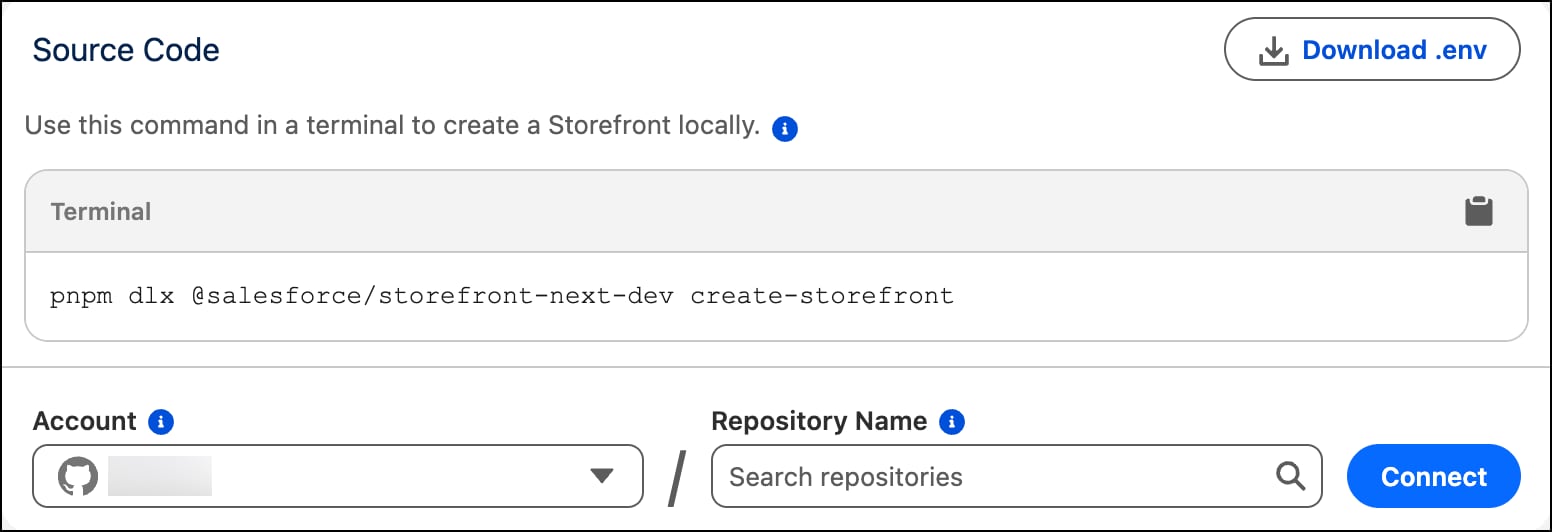
The storefront detail page now shows the connected GitHub repository under Source Code.