Using the Developer Console
The Developer Console provides tools for developing your Aura components and applications.
You can use the Developer Console in the same supported browsers as Lightning Experience and Salesforce Classic.
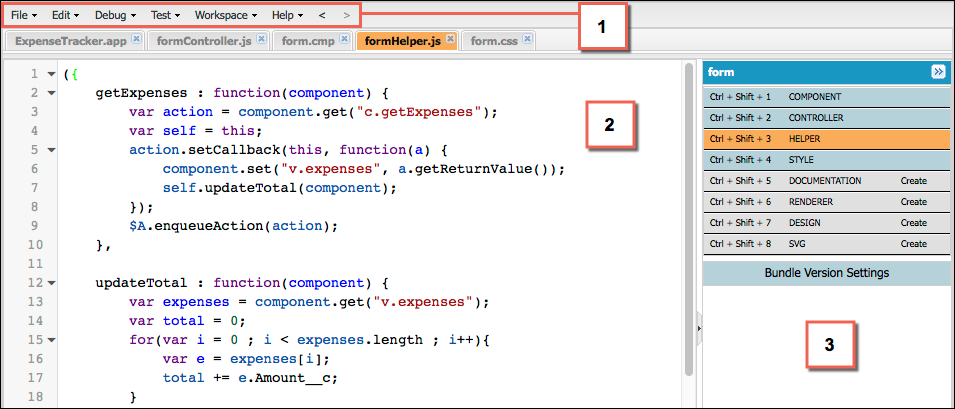
The Developer Console enables you to perform these functions.
-
Use the menu bar (1) to create or open these Lightning resources.
- Application
- Component
- Interface
- Event
- Tokens
-
Use the workspace (2) to work on your Lightning resources.
-
Use the sidebar (3) to create or open client-side resources that are part of a specific component bundle.
- Controller
- Helper
- Style
- Documentation
- Renderer
- Design
- SVG
While the Developer Console provides an easy way to work with Aura components, it doesn’t include many developer tools and features. To enable source-drive development with editor features like code completion and linting, consider these alternatives:
- Code Builder—A web-based IDE that has all the power and flexibility of VS Code, Salesforce Extensions for VS Code, and Salesforce CLI in your web browser. You can install Code Builder as a managed package in a supported Salesforce org edition.
- Salesforce DX Tools—Use the Salesforce CLI and VS Code with the Salesforce Extension Pack to deploy code to an org.
See Also


 j
j