Converting a Page to a PDF File
You can render any page as a PDF by adding the renderAs attribute to the <apex:page> component, and specifying “pdf” as the rendering service. For example:
Visualforce pages rendered as PDFs will either display in the browser or download as a PDF file, depending on your browser settings.
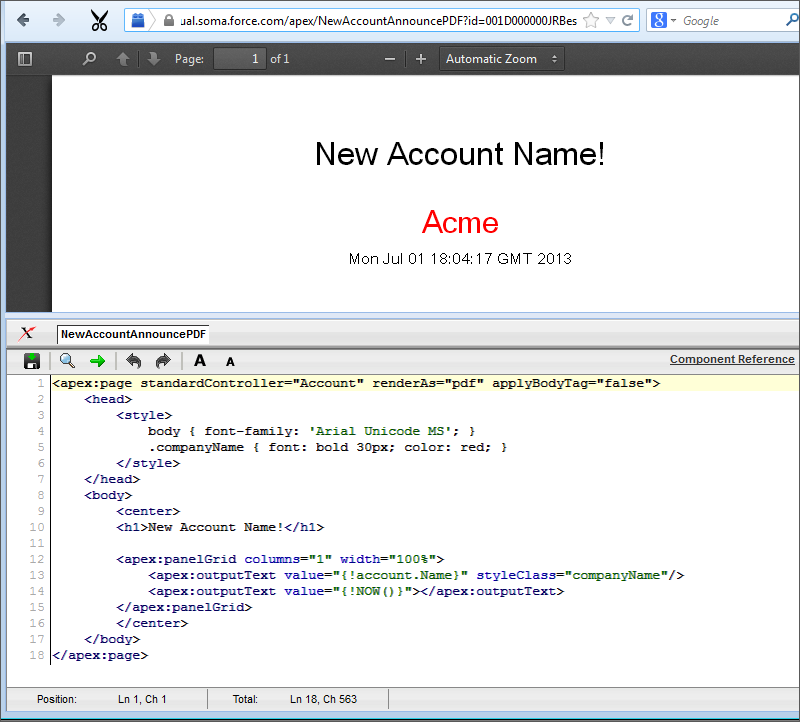
In the previous tutorial, you used a Visualforce page to change the name of a company. Suppose you wanted to generate an announcement of the new name as a PDF. The following example produces such a page, along with the current date and time.
Things to note about the page:
<style>is CSS markup, not Visualforce markup. It defines the font family used for the entire page, as well as a particular style for the company name.- Some of the output text is contained in an
<apex:panelGrid>component. A panel grid renders as an HTML table. Each component found in the body of the<apex:panelGrid>component is placed into a corresponding cell in the first row until the number of columns is reached. As there is only a single cell, each output text is displayed in a separate row.
Always verify the format of your rendered page before deploying it.
See Also